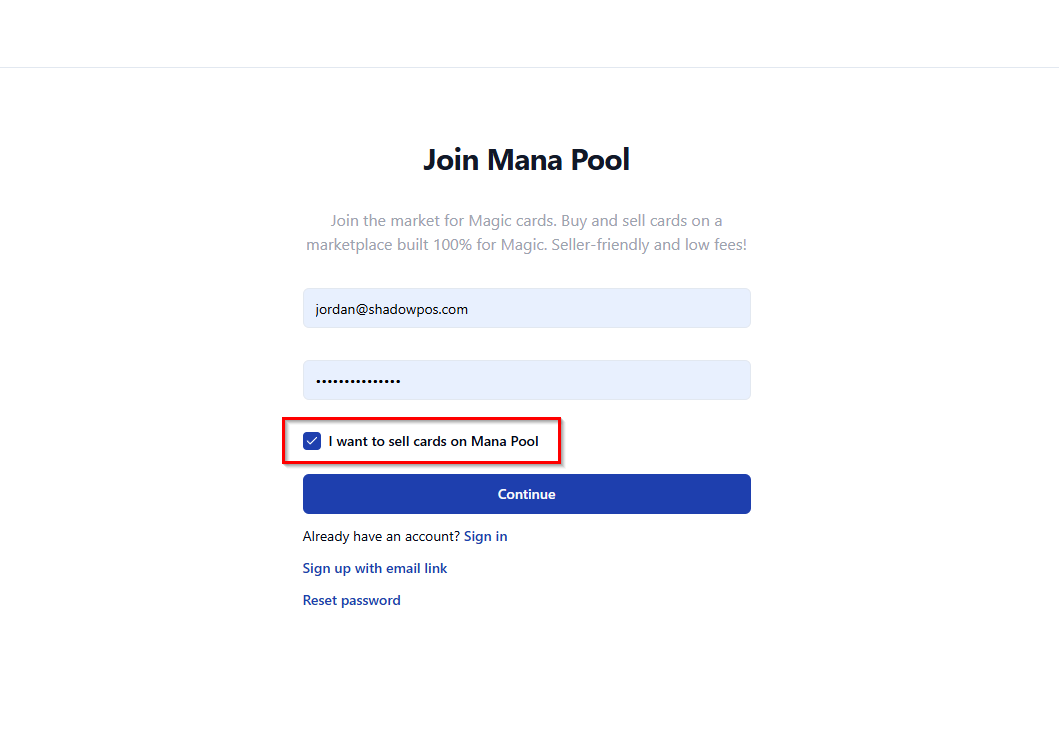
When creating your Mana Pool account, you will want to select the box that says “I want to sell cards on Mana Pool”
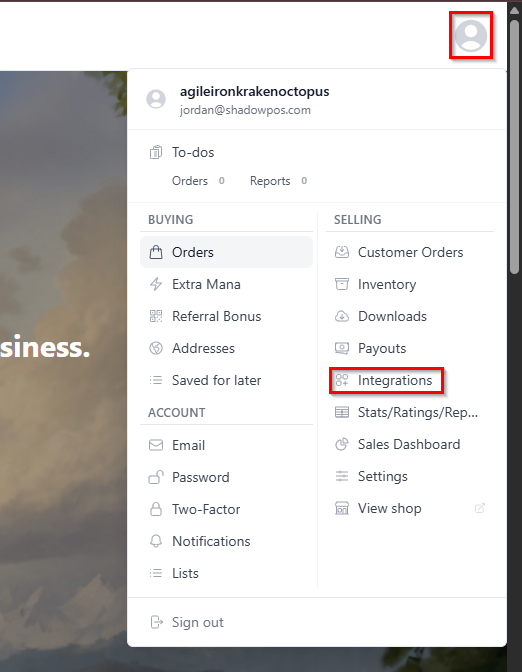
Once you have finished the basic setup for your Mana Pool account, you can click on your profile icon in the top right corner and then click “Integrations”
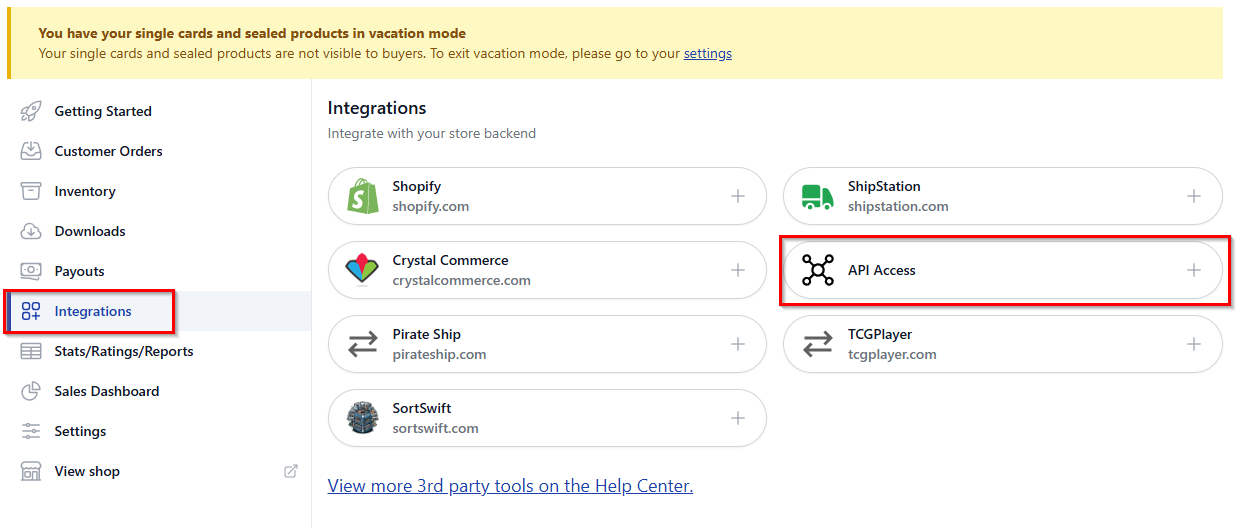
In the Integrations menu click “API Access”.
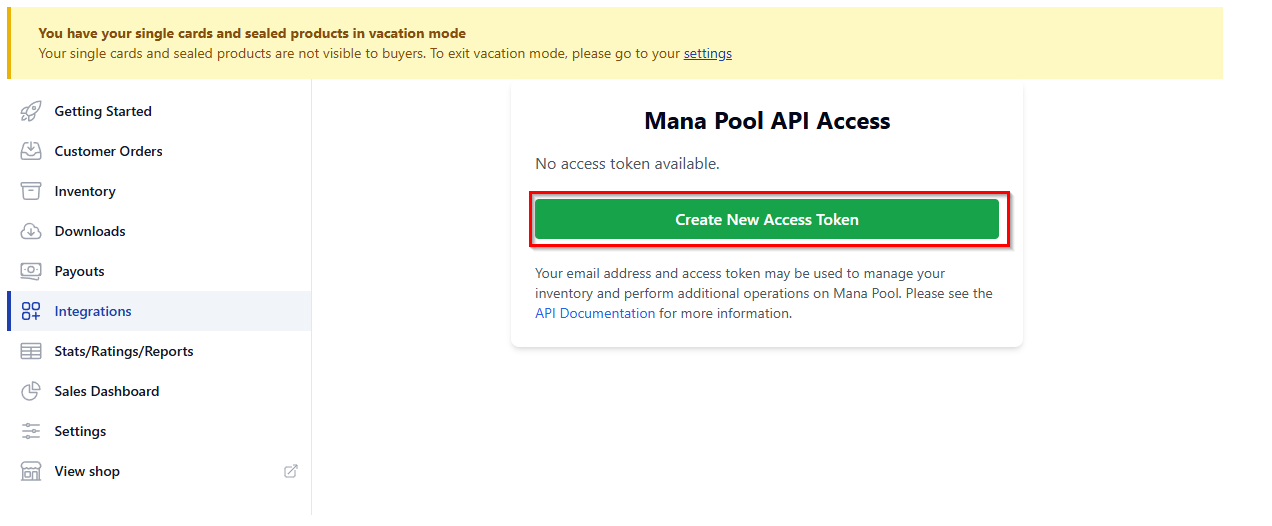
Click “Create New Access Token” in the Mana Pool API Access Page.
If you previously linked your Mana Pool account to a different Point of Sale, or site you no longer use, you can click “Revoke Access Token” to remove functionality of that token, and allow you to create a new one for use in ShadowPOS.
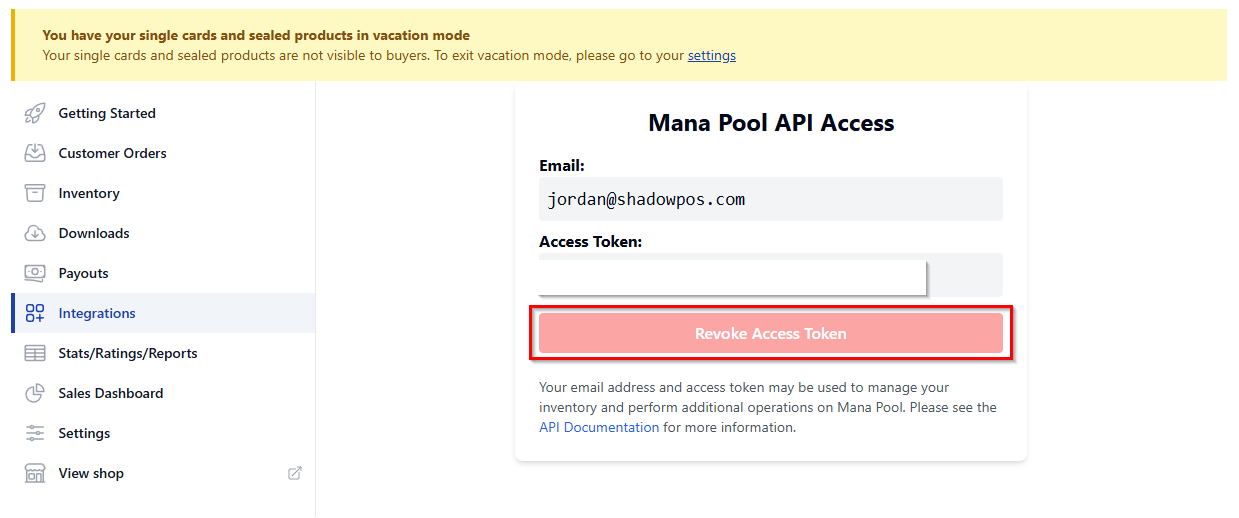
Once you have created an Access Token, you can copy the string of characters that will generate, and navigate to your Mana Pool integration tab in ShadowPOS.
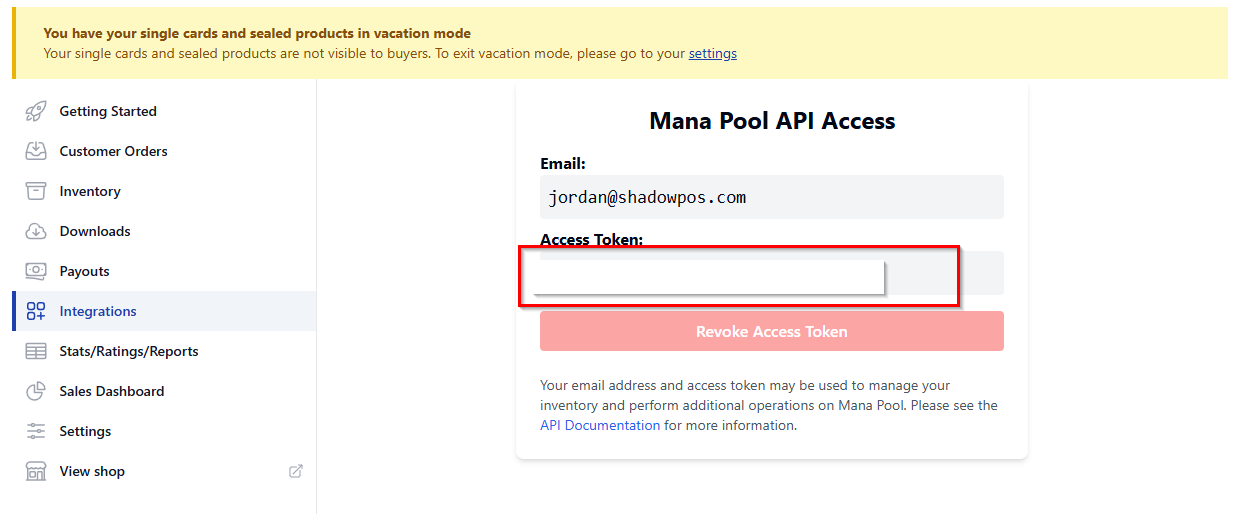
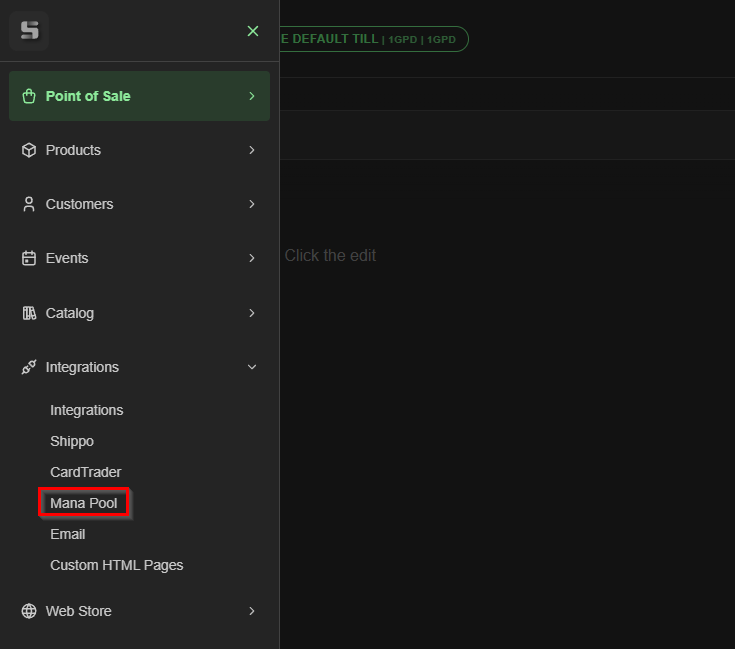
Once you are in the Mana Pool Integration page, you can paste the API Access Token and enter the email you used for the Mana Pool account in the provided spaces, then click “Save Settings”.
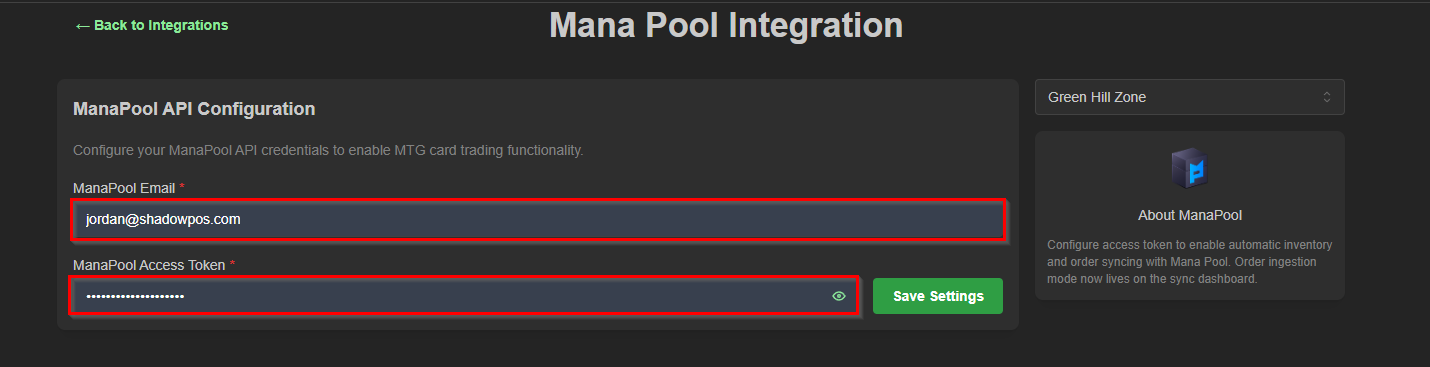
This will link your ShadowPOS and Mana Pool accounts, allowing the two sites to send information back and forth. You can click “Create Sync Rules” to specify which inventory you want to appear in Mana Pool, and how much the product is listed for.
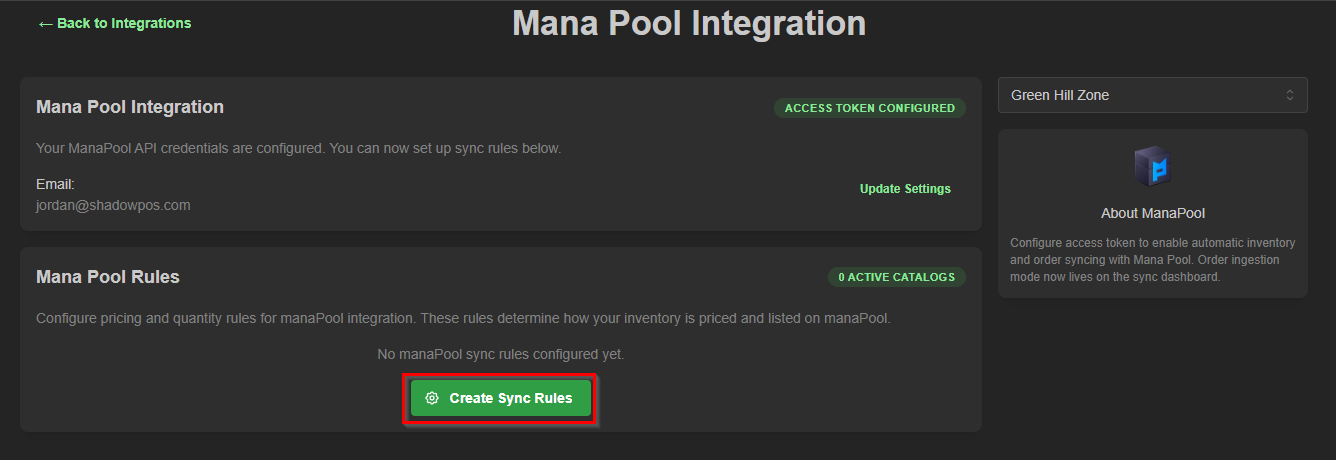
In the “Select Games to Sync” section, select the products you would like to list.
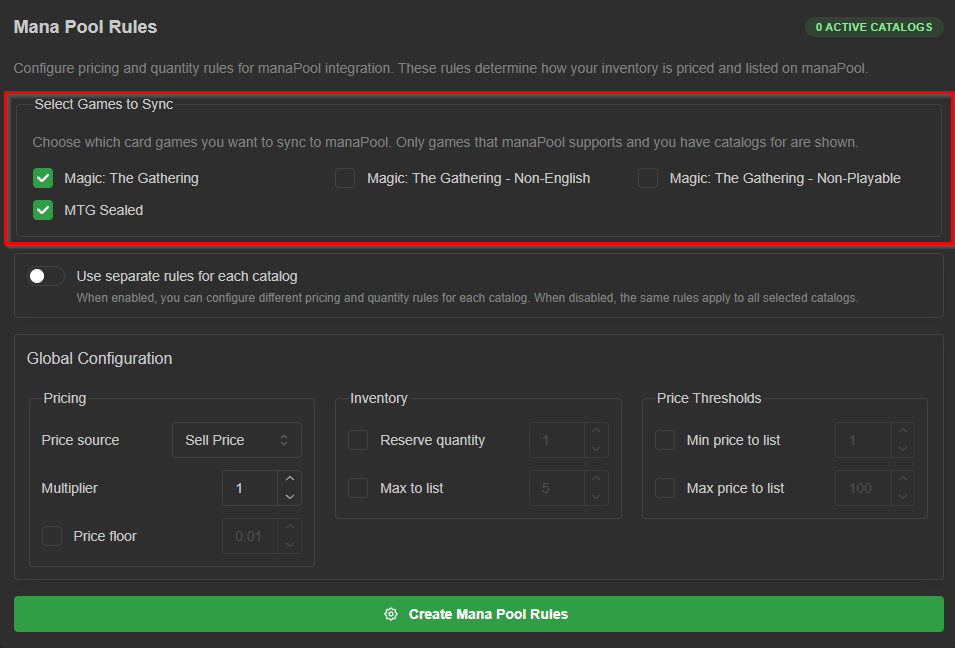
If you would like to have different rules for each catalog you select, click “Use separate rules for each catalog”. If you decide to use the same rules for each catalog, you will be given a single “Global Configuration” section, and if you decide to use separate rules for each catalog, you will be given a “Per-Catalog Configuration” section with subsections for each catalog.
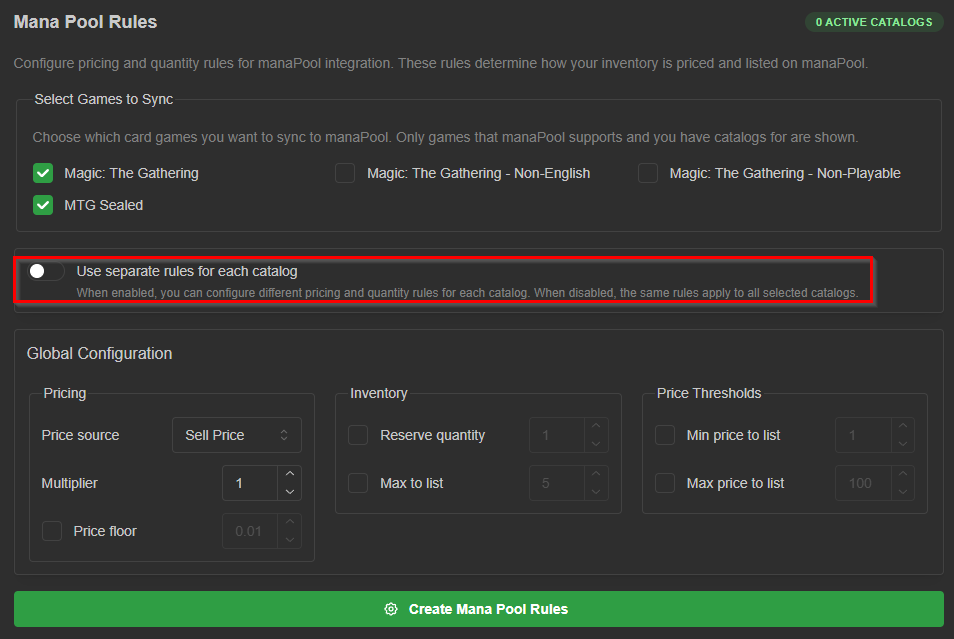
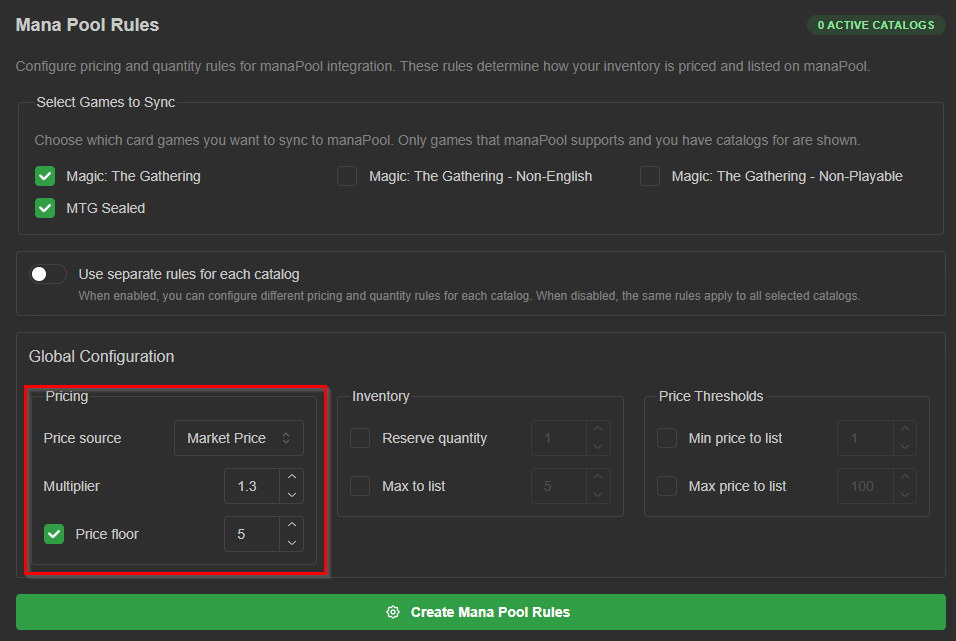
The “Pricing” rules will determine the price your cards are listed for on Mana Pool. “Price Source” determines the initial listing price, and can be set to your sell price, market price, low price, and mid price. The “Multiplier” determines if there is a markup on the cards you list on Mana Pool. A multiplier of 1 would be the initial listing price, but if you were to change it to 1.2, then the card would list for 1.2 times the price from your price source. “Price Floor” would determine the minimum price a card could be listed for.
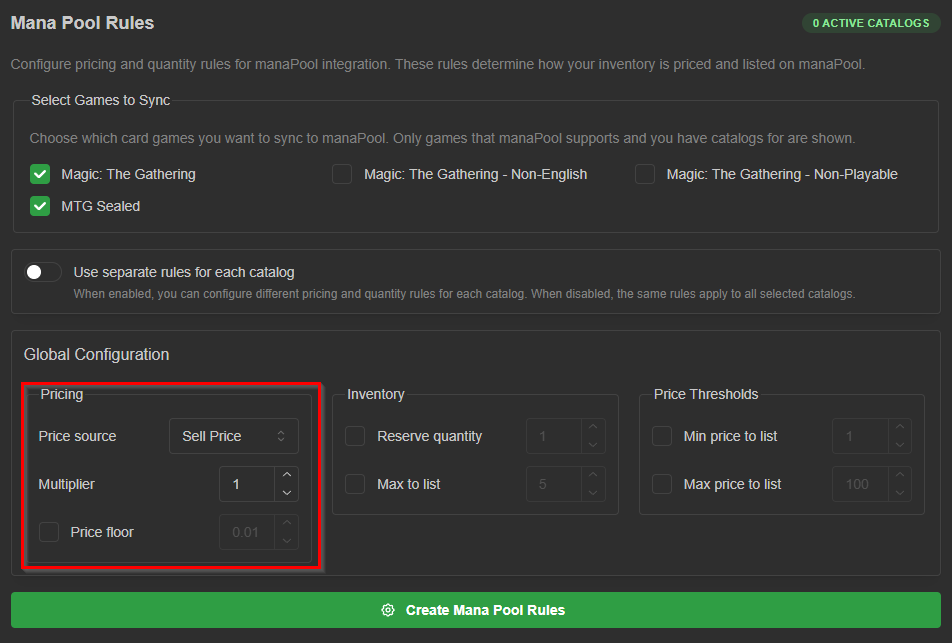
For our example rules, we want our price source to be based off of market price, with a multiplier of 1.3, and a price floor of $5. To do so you would select “Market Price” from the dropdown menu next to “Price source”, set the multiplier to 1.3 and enable a price floor of $5.
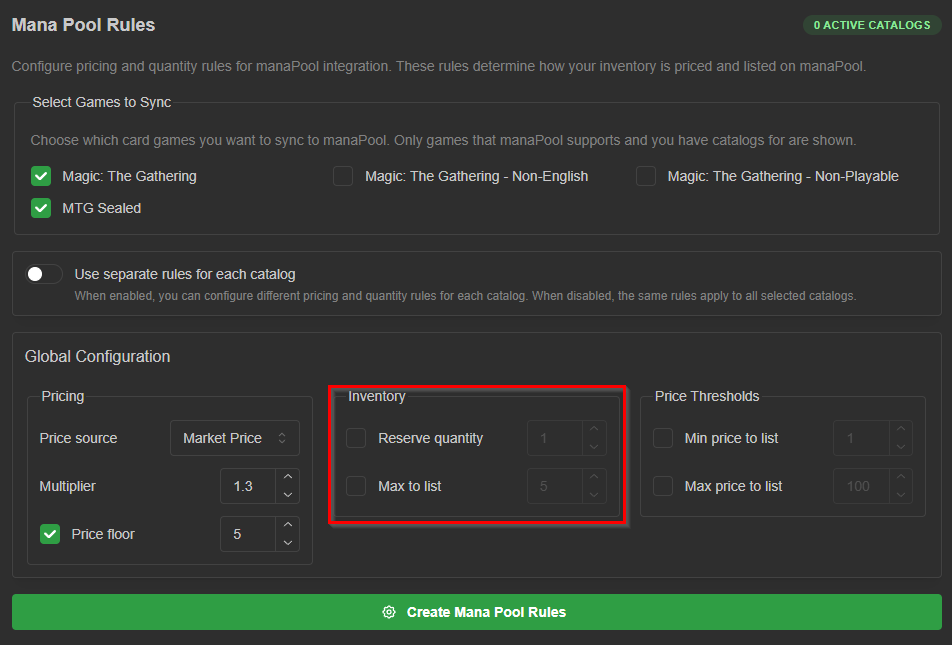
The “Inventory” box will determine how much of the product you actually list from each game. The “Reserve Quantity” box will list all cards when unchecked. Checking the box will allow the system to list only cards where you have more than the reserve quantity in stock. The “Max to list” box will also allow all cards to be listed, but will cap the amount listed at the number of your choosing.
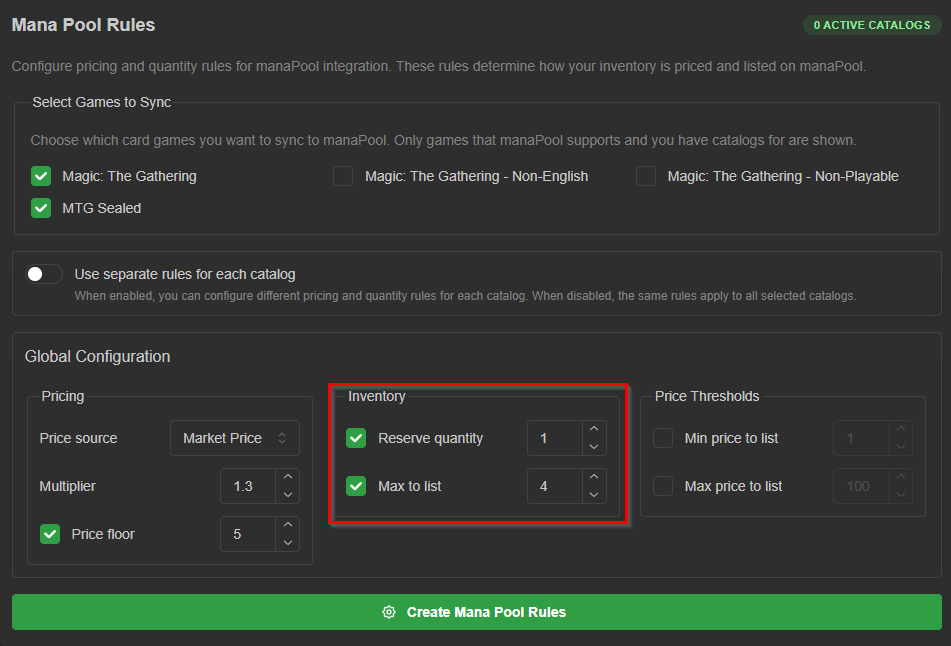
For our example rules, we will also include a reserve quantity of 1, so we always have 1 copy of the card in store that is not listed on Mana Pool. We will also set a max to list of 4 so there are never more than 4 copies of a card listed.
The last box is the “Price Thresholds” box. This will determine which cards are listed based on their price. Min price to list would mean anything under that price would not get listed, and max price to list means anything over that price also wouldn’t be listed.
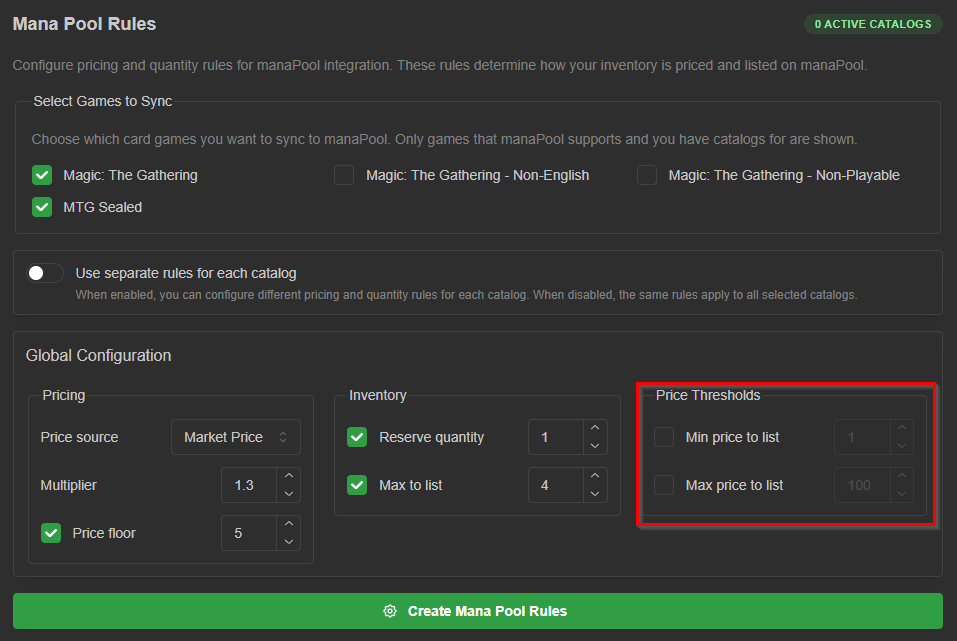
For our example rules, We do not want anything under $5 or over $150 listed on Mana Pool, so we would enter “5” in the “Min price to list” box and “150” in the “Max price to list box”.
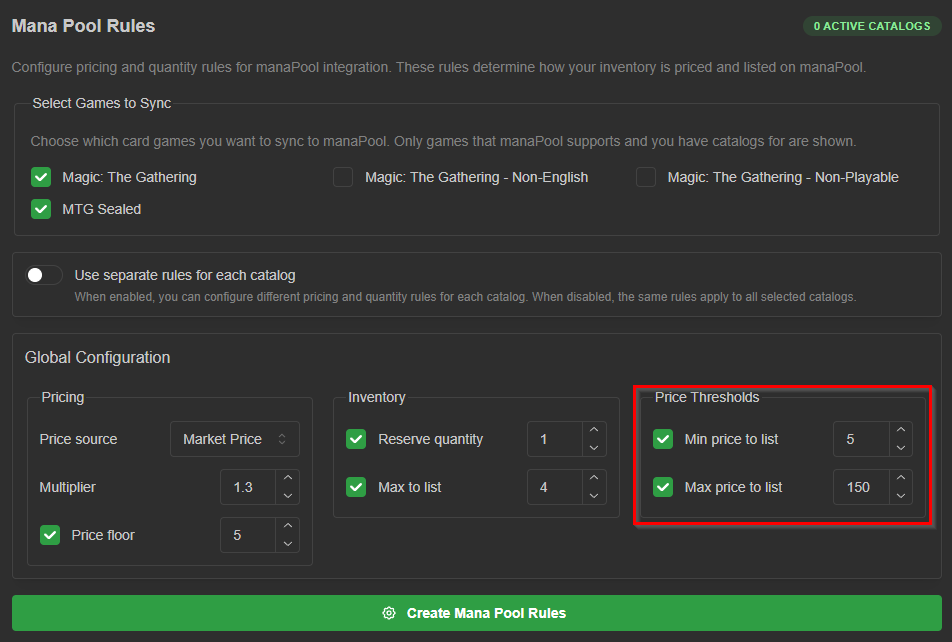
With these example rules in place. We would be listing all Magic: The Gathering singles and sealed products, priced between $5 and $150. Each card would be listed as 1.3x Market Price, and no more than 4 of the same card would be listed at a time, always saving at least 1.
Once you have completed your Mana Pool rules, click “Create Mana Pool Rules”
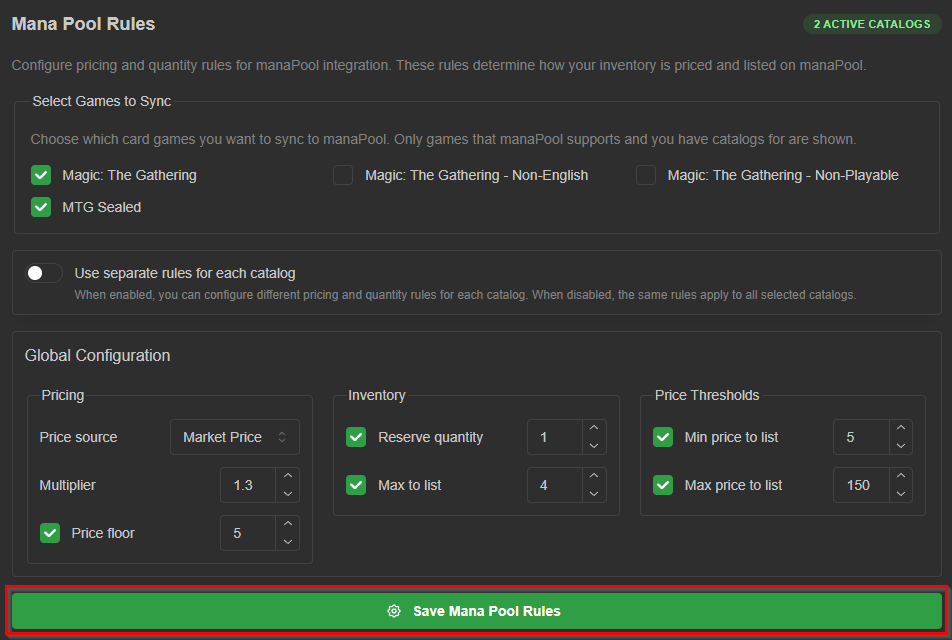
The rules manager should disappear and be replaced by a box that says “Mana Pool Rules are saved and active.” This means your Mana Pool rules are complete, and both accounts are fully linked! You should see your inventory populate on Mana Pool once these rules are complete.
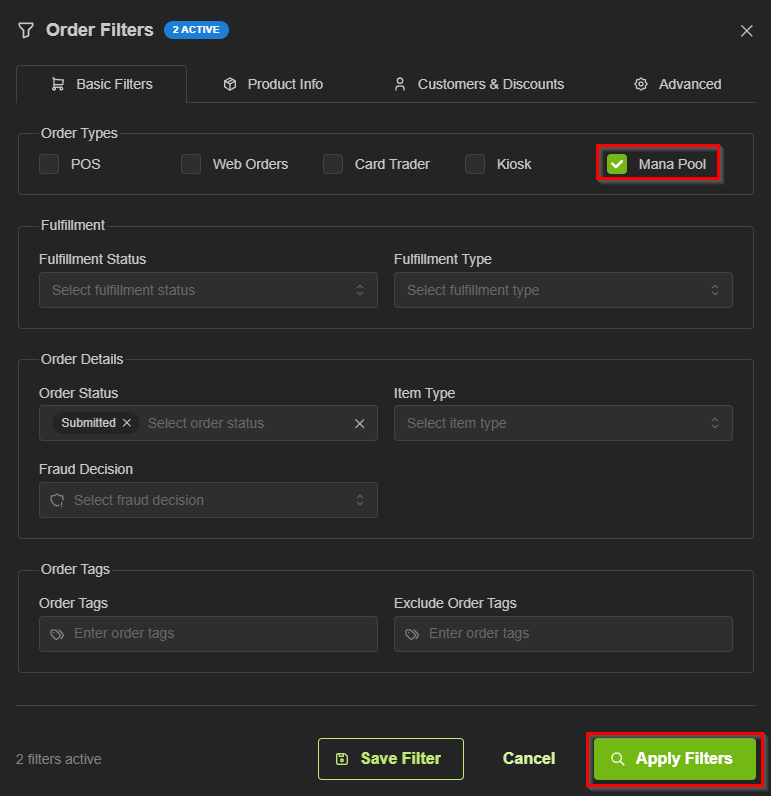
Orders that customers place through Mana Pool will appear in your “Orders” page in ShadowPOS with the “Source” as “Mana_Pool”. You can also go into your “Order Filters” and filter your orders list to only show Mana Pool” Orders.
Was this article helpful?
That’s Great!
Thank you for your feedback
Sorry! We couldn't be helpful
Thank you for your feedback
Feedback sent
We appreciate your effort and will try to fix the article