Inventory is the quantity of a particular product you have in stock. There are a few ways you can view and manage existing inventory levels in ShadowPOS. Most scenarios for individual products can be taken care of here, as well as creating CSVs for exporting product in bulk on the Transfers page.
We'll discuss these topics:
- Adjusting inventory of multiple products/variants (Show variants view)
- Creating a product (Edit product vew)
- Creating 'bulk' line items
- Setting a price override (Edit product view)
- Viewing/Filtering specific products
- Bulk operations
- Exporting product
- Importing product (visit Products menu > Imports page)
Visit Products > Products
Adjusting inventory of multiple products / variants:
Search for a product by name or known tags. If you control multiple stores, it must be selected from the dropdown list to the right of the search bar to search that store's inventory. When searching, the system will return all results from catalogs you are subscribed to. 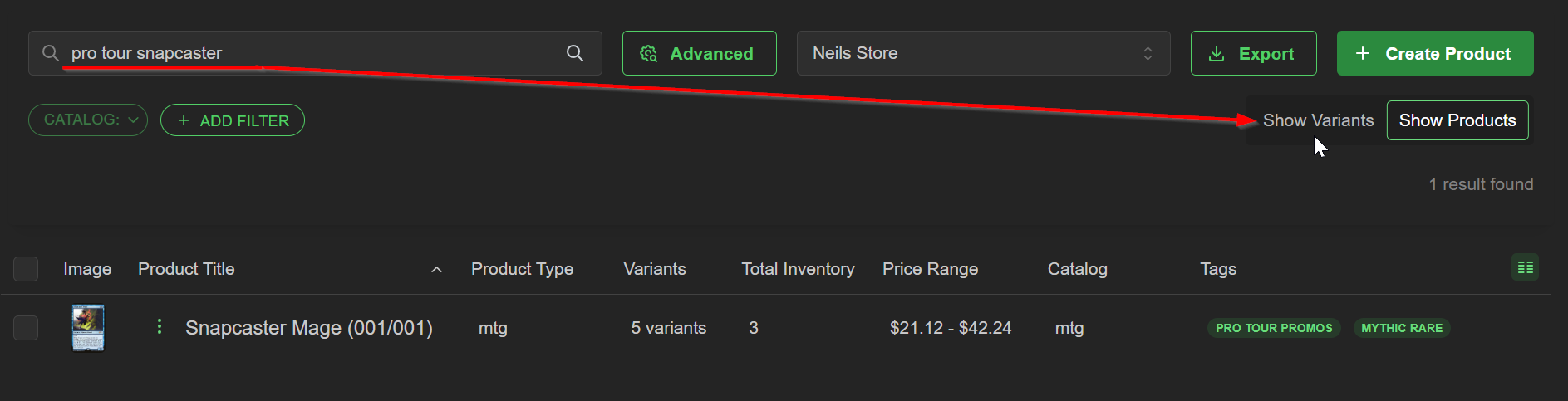
Once satisfied with the result, toggle Show Variants in the top right to see an expanded list of each variant of searched product on this page in line-by-line view.
Any change in quantity made will have a cost associated with that change you'll need to associate with it. Toggle whether you are tracking the entire quantity of the change with a Total Cost or Unit Cost. Choose a reason and leave a note, if desired, and click 'Save' to update your inventory. 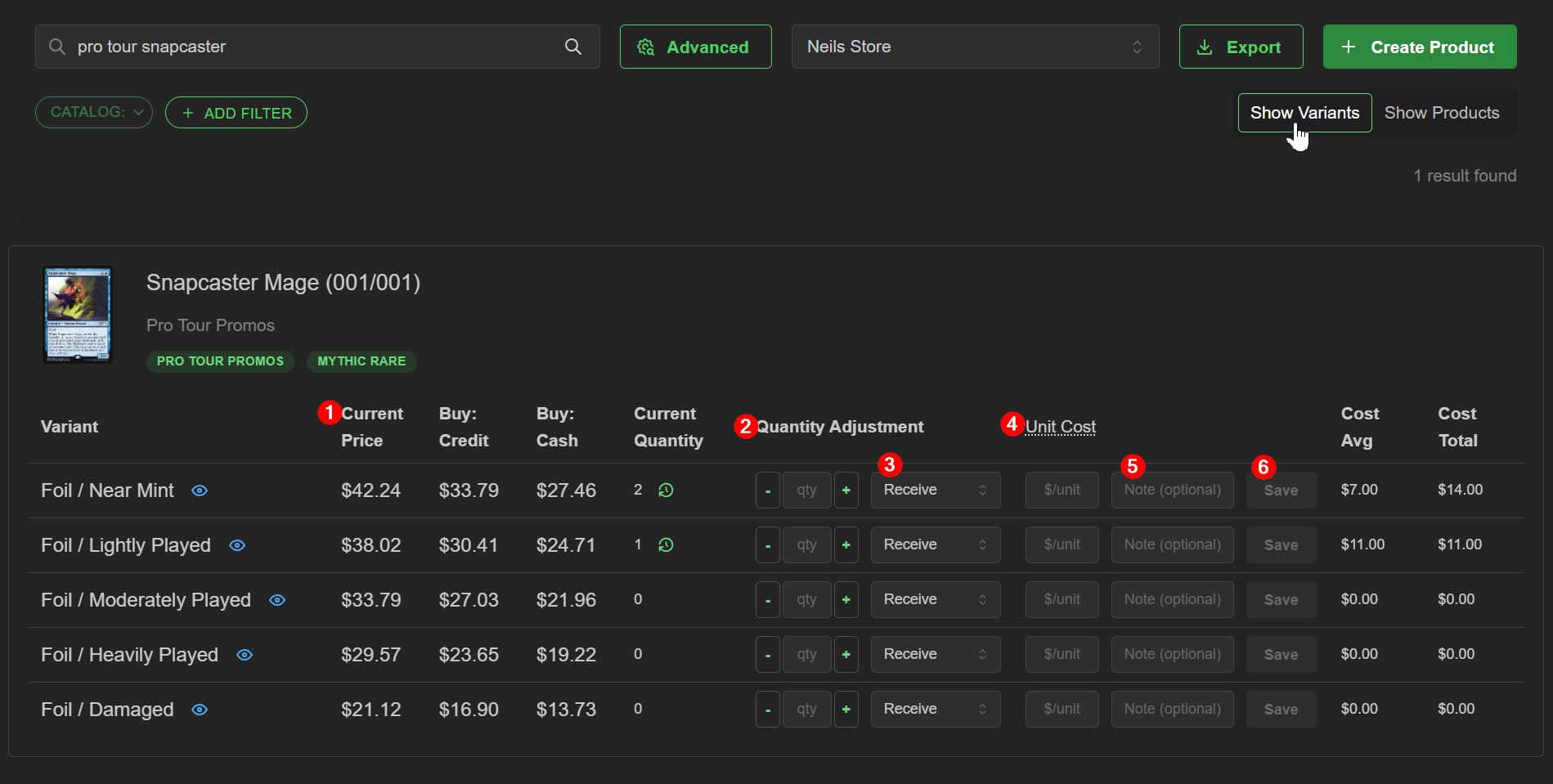
- Current Price is what the customer pays to buy a unit of product. by default, price is automatically determined by your price rules, shown as Price (Rule). If the Market value of the product is X, your price is X times the percentage you set per condition in Price Rules
- Quantity Adjustment adjusts your variant quantities. A negative value defaults to 'Correction' in the Reason field but 'Loss' may be selected alternatively
- Reason
Receive adds quantity to your stock
Loss or Correction removes quantity from your stock. Both are functionally identical, but helps with internal disambiguation - Unit/Total Cost (click header to toggle mode)
Unit Cost is the cost of each individual unit you are adjusting
Total Cost is Unit Cost x Quantity
Note: Click the Total Cost/Unit Cost header to toggle between how you prefer to input your cost. You can choose your default preferences on the inventory adjustment Setting Page. - Note (optional)
Any information regarding this specific adjustment; for your store's reference - Save updates inventory immediately (confirmed by a 'Success' notification pop-up in bottom corner)
Creating a product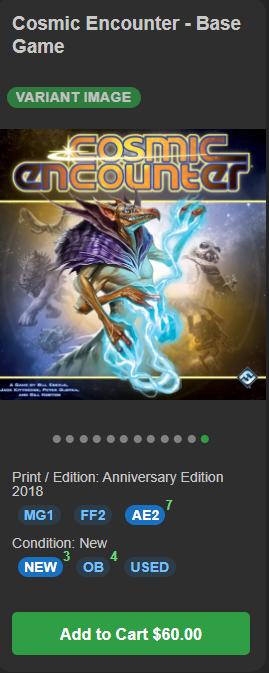
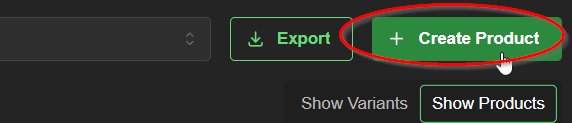
Get started by clicking the '+Create Product' button in the top right.

You'll see 9 sections of editable information fields
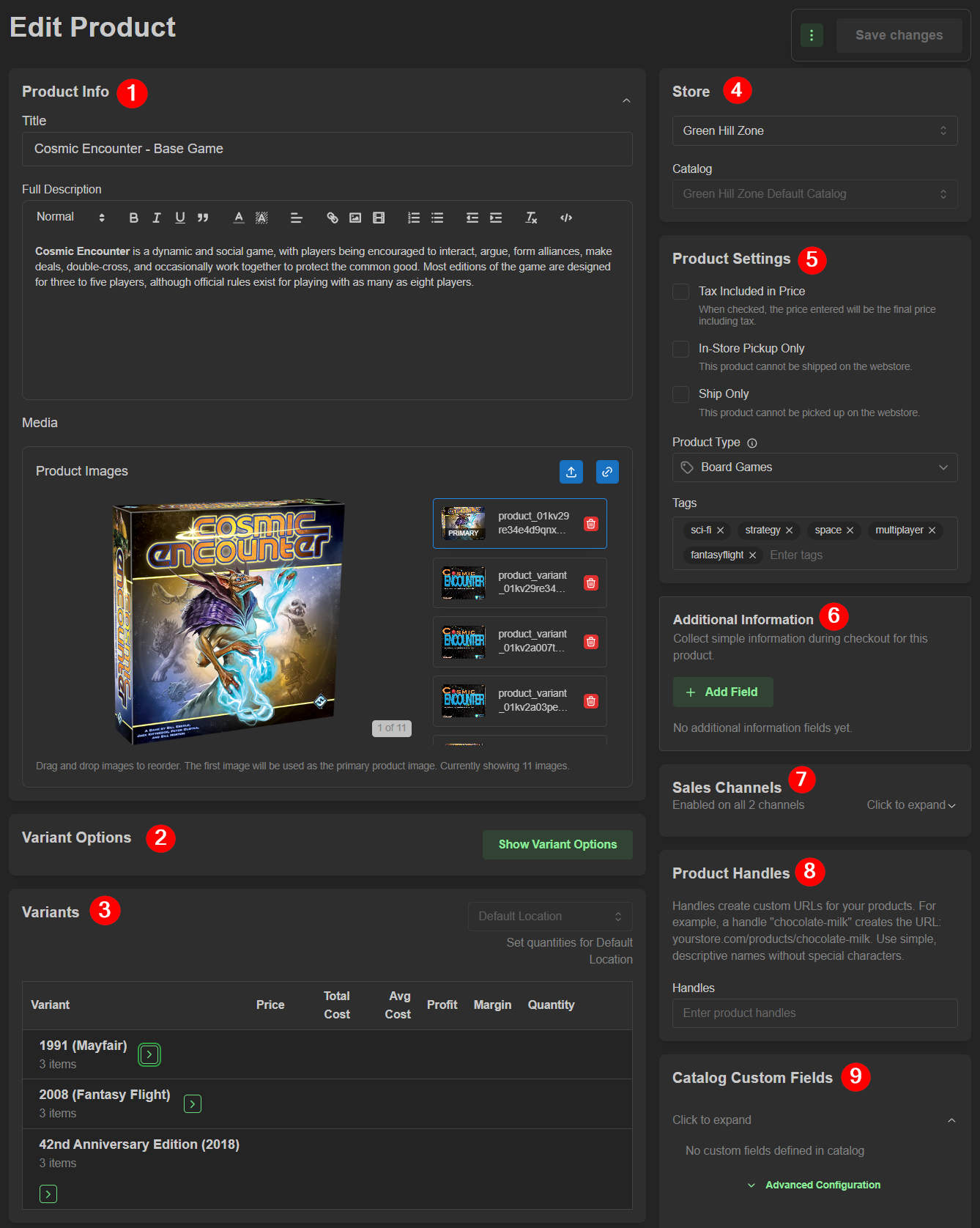
- Product Info
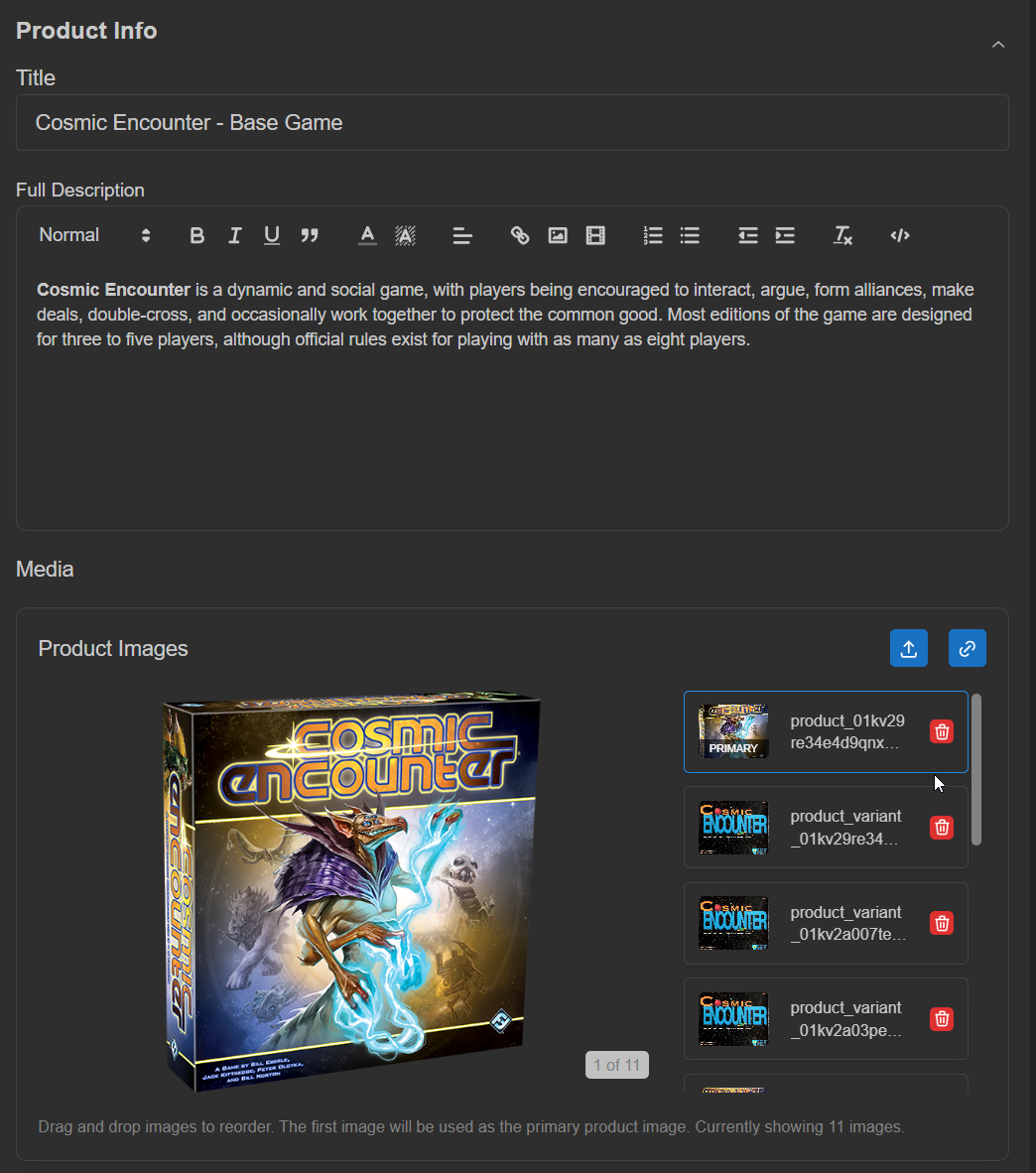 Name your product and take advantage of the helpful text formatting tools for your description if desired.
PNG images with transparent backgrounds are pleasing to the eye whether you're in light or dark mode. - Variant Options
includes 'Option Name' (ex: color, size, shape)
and 'Option Values' (ex: red, large, hexagonal)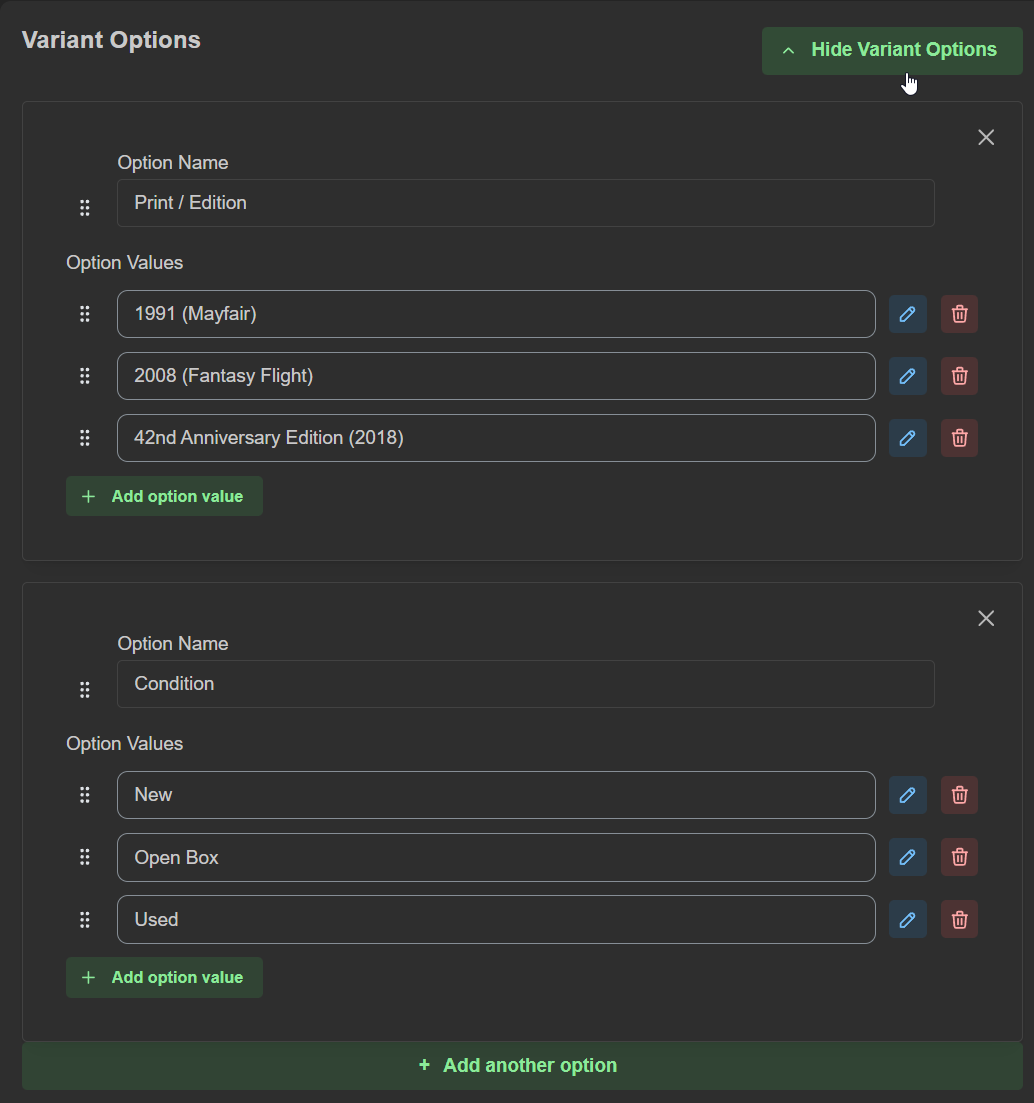
For product with no variants, it's not required to add any options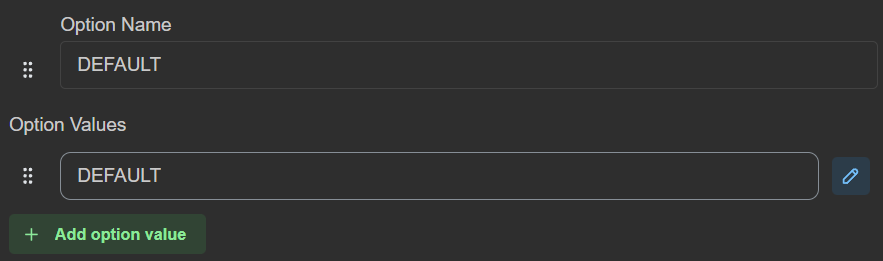
- Product Details / Variants
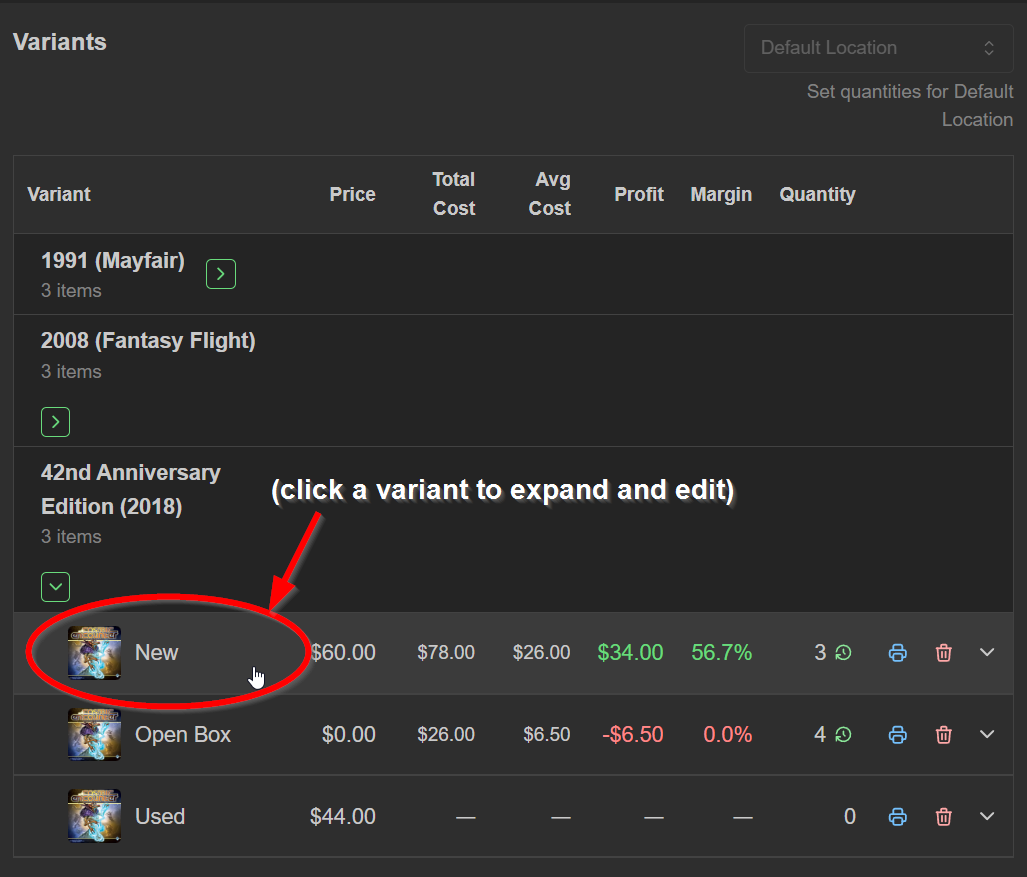 You can set price overrides, attach unique SKUs and barcodes to your products, define item shipping rates, and adjust other properties of your product. Some of these features are also accessible from other menus.
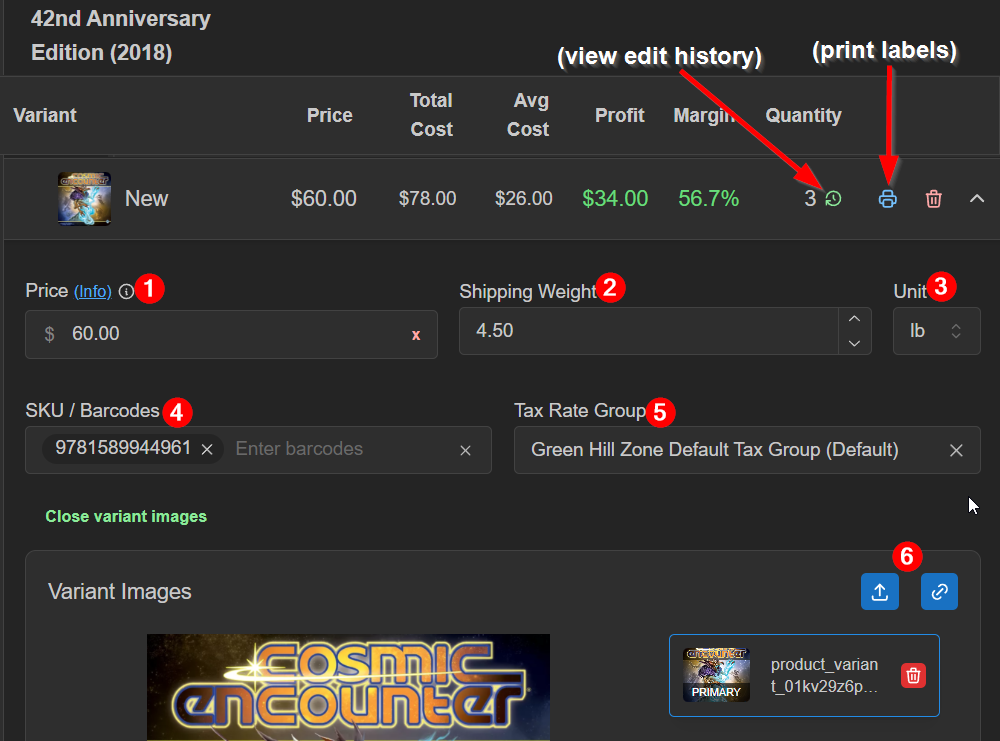 (1) Price
Price (Info) is your static sell price.
Price (Rule) is your current sell price, driven by one of your price rules; it can fluctuate based on rule conditions
Price (Override) is your sell price until manually changed or deleted
(2) Shipping Weight
Enter a number value only
(3) Unit
choose: lb, oz, kg, g
(4) SKU / Barcodes
You may add multiple values in this field. Separate each by pressing enter between entries
(5) Tax Rate Group
You'll likely use your store's 'Default Tax Group' for most of your products
(6) +Add variant image
This is especially useful when there are multiple options for similar product variants where wording may not be so helpful.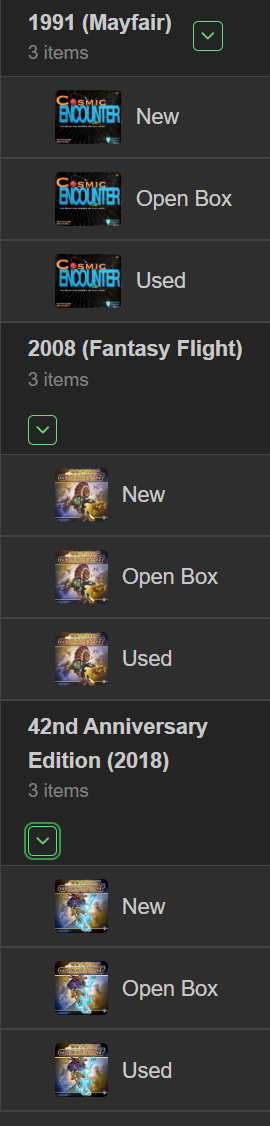
 Tip:
Tip:
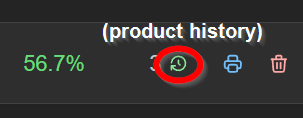
You can view the entire history of edits made to, or print labels for this variant. see the green clock icon, and blue printer icon to the right of the margin percentage value. - Store
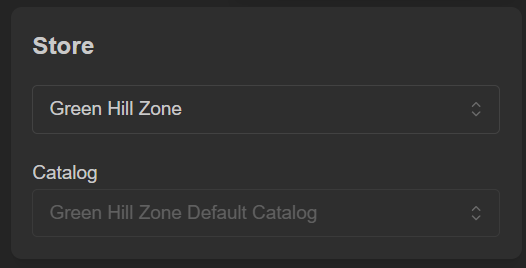 Store: Select which store will be affected by this product edit (if you control multiple locations).
Catalog: Select which catalog this product belongs to (if you control multiple owned catalogs) - Product Settings
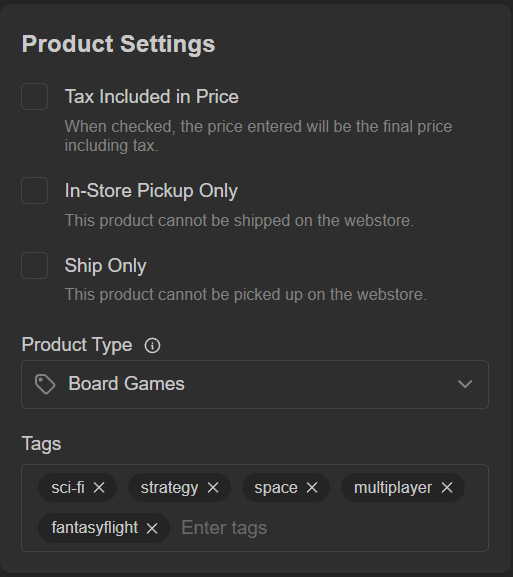 Tax Included in Price
The price entered in the Product Details section will be the final price after tax is charged at the time of sale, meaning it is dependent on the Tax Rate Group selected for this product. Not meant to be a substitute for true tax exemption or a 'no tax' assigned tax group
In-Store Pickup Only
when checked, this product can't be shipped on the webstore. If present, affects all other cart items' fulfillment options. 'In-store Pickup Only' items are clearly marked in webstore searches, product pages, and the cart.
Ship Only
when checked, this product won't provide a pickup option in webstore checkout. If present, affects all other cart items' fulfillment options. 'Ship Only' items are clearly marked in webstore searches, product pages, and the cart.
Product Type
example: plushie; shirt; soda; dice
Tags
example: drink; toy; custom
Tags help in searches that may not have these words in the product title
Tip:
Tags can have collections created from them and drive price rules, too! - Additional Information
Gather optional or required information from the purchaser at checkout.
Just configure your fields, collection mode, sales channels, and toggle whether the information is required or not.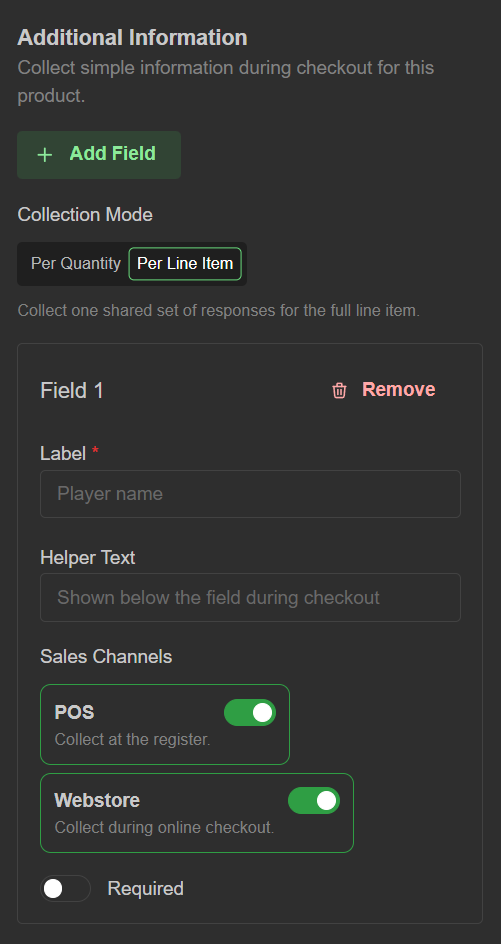 Information collection modes:
Per Quantity: Collect one set of responses for each quantity on the line item
Per line item: Collect one shared set of responses for the full line item - Sales Channels (toggles)
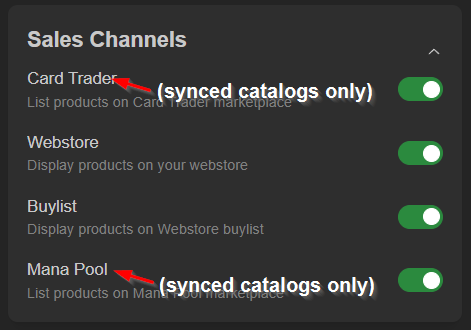 Card Trader: List products on Card Trader marketplace. Not available for created product.
Webstore: Display products on your webstore
Buylist: Display products on Webstore buylist
Mana Pool: List products on Mana Pool marketplace. Not available for created product. - Product Handles
Enter product handles in this field (do not include spaces)These are for store-specific handling for SEO and useful for seamless migration when importing from a previously operated website.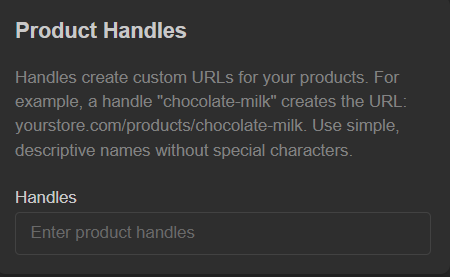
Tip: Handles create custom URLs for your products. For example, a handle "chocolate-milk" creates the URL: yourstore.com/products/chocolate-milk.
Use simple, descriptive names without special characters. - Catalog Custom Fields
(Advanced) Configure your custom catalog metadata (JSON) here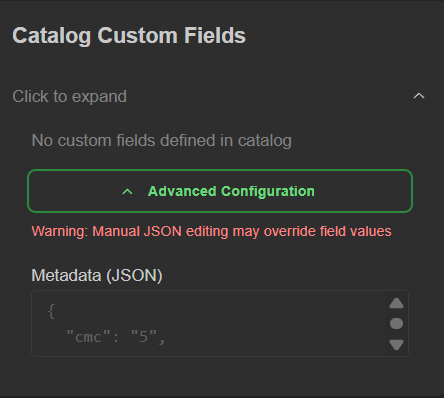
- When you're finished or want to save your progress, be sure to click 'Create Product' at the top of the page

Creating 'bulk' line items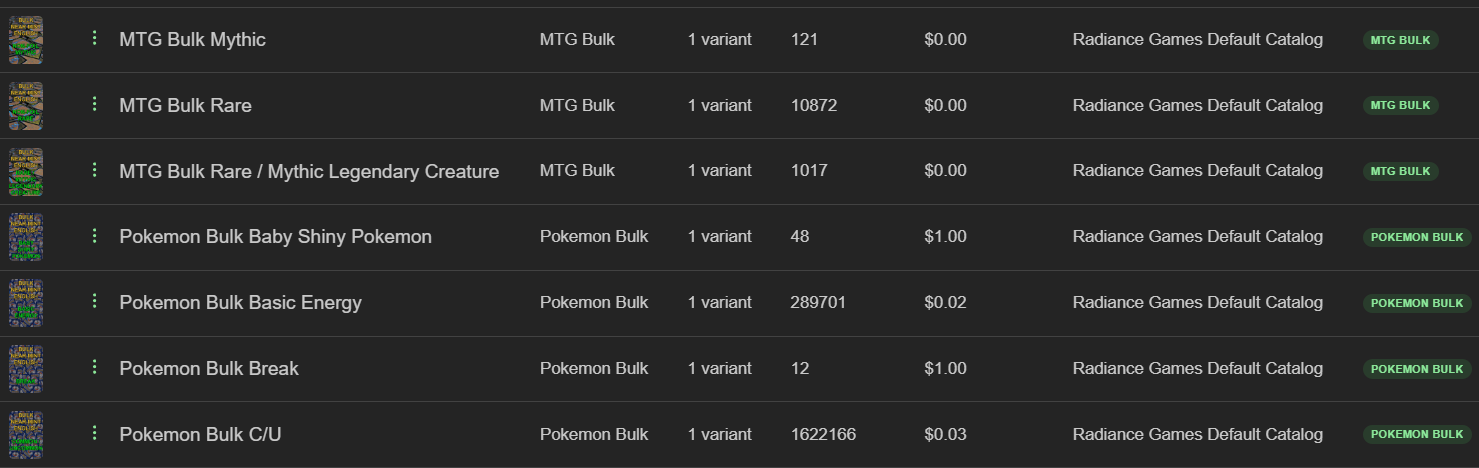 Different kinds of bulk calls for different pricing, but you typically don't want to inventory every unique piece of bulk. This is our recommended method of creating bulk line items for your POS and buylist
- Click 'Create +Product'
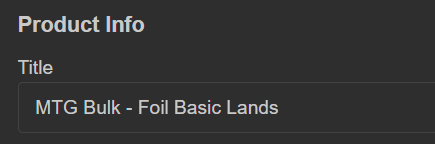
- Name your specific bulk group in the title field so it's easy for staff and customers to differentiate
- Create/associate bulk-specific product 'Types' and 'Tags'
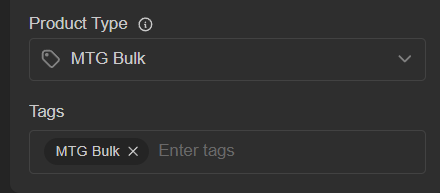 Note: This is important for your bulk collection(s) building
 - Enter your bulk rate for this bulk group.
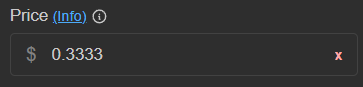 Note: Decimal positions past 2 will calculate appropriately, but will appear rounded in 'Show Products' view
- Remember to click 'Create Product' before leaving the page
 This bulk group is ready for use in the POS and Webstore!
Setting a price override:
Search for the product (in Show Products view) and click it to view the 'Edit Product' page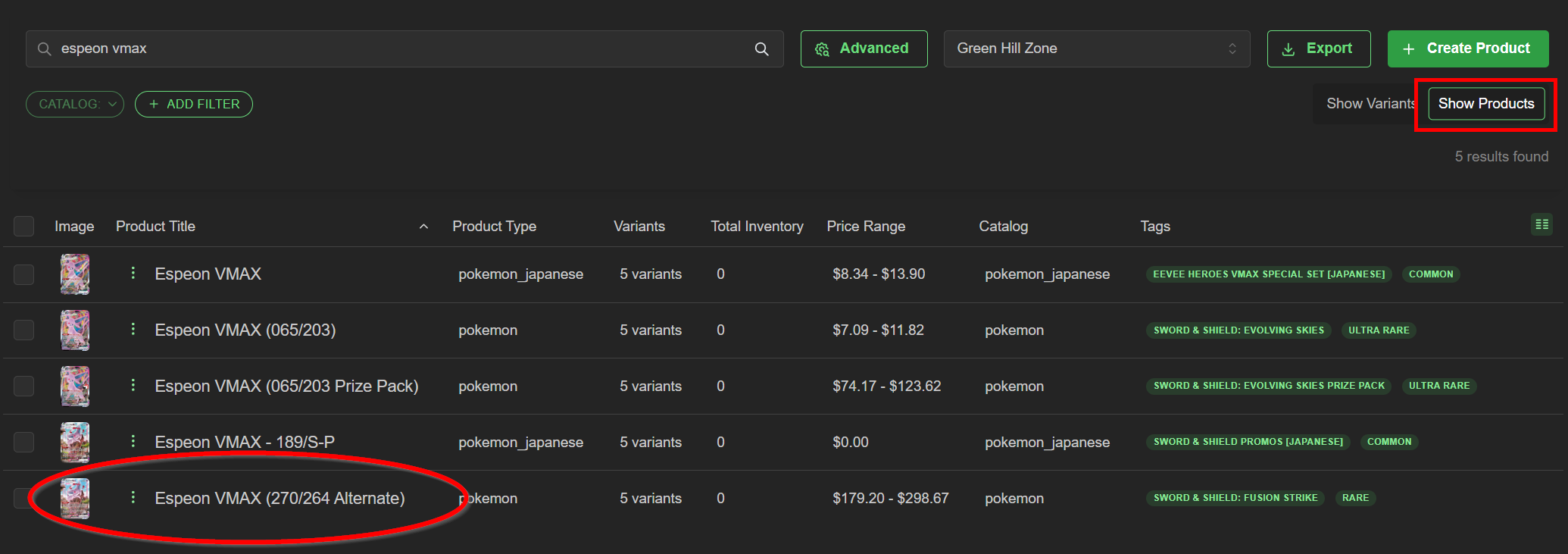
Click the variant you wish to edit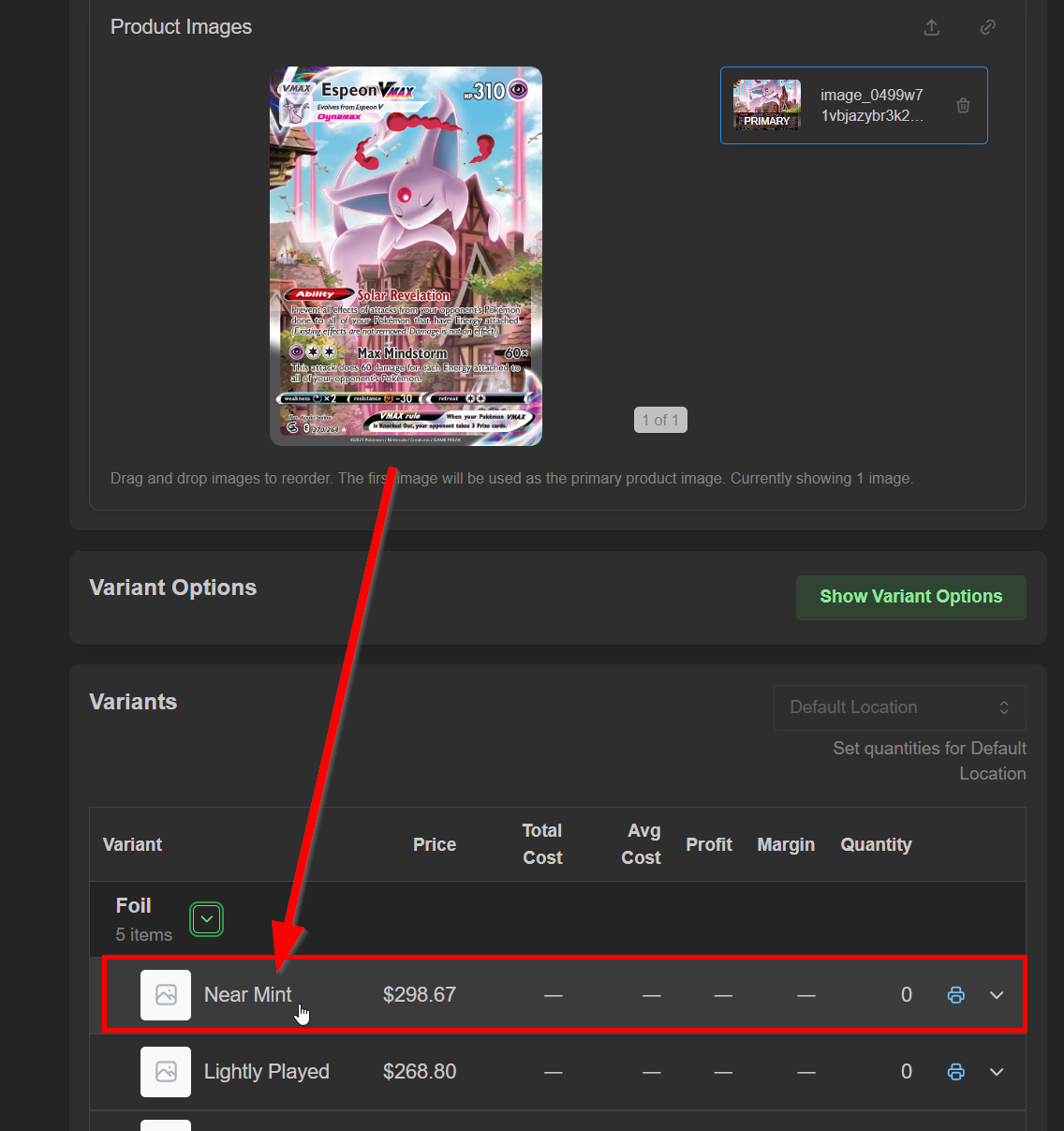
When the price header appears as 'Price (Rule)', the price is subject to fluctuate based on rule condition criteria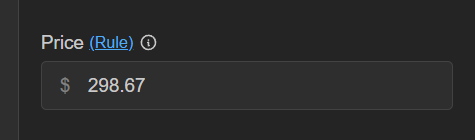 Enter a price override to set a new static price, effective immediately
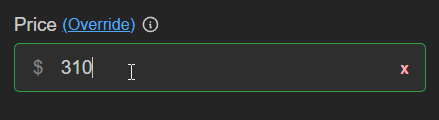 The price change will remain static until manually changed or removed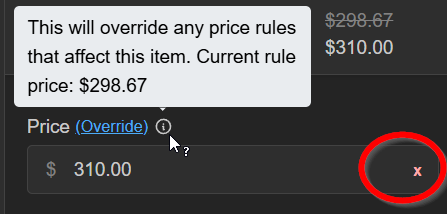
Viewing/filtering specific products
 Oftentimes you need to narrow down or find specific products. This is achieved with quickfilters and/or the advanced search. Quickfilters are cumulative, whereas the advanced product search can take advantage of and/or groups for complex product list returns.
Save time by:
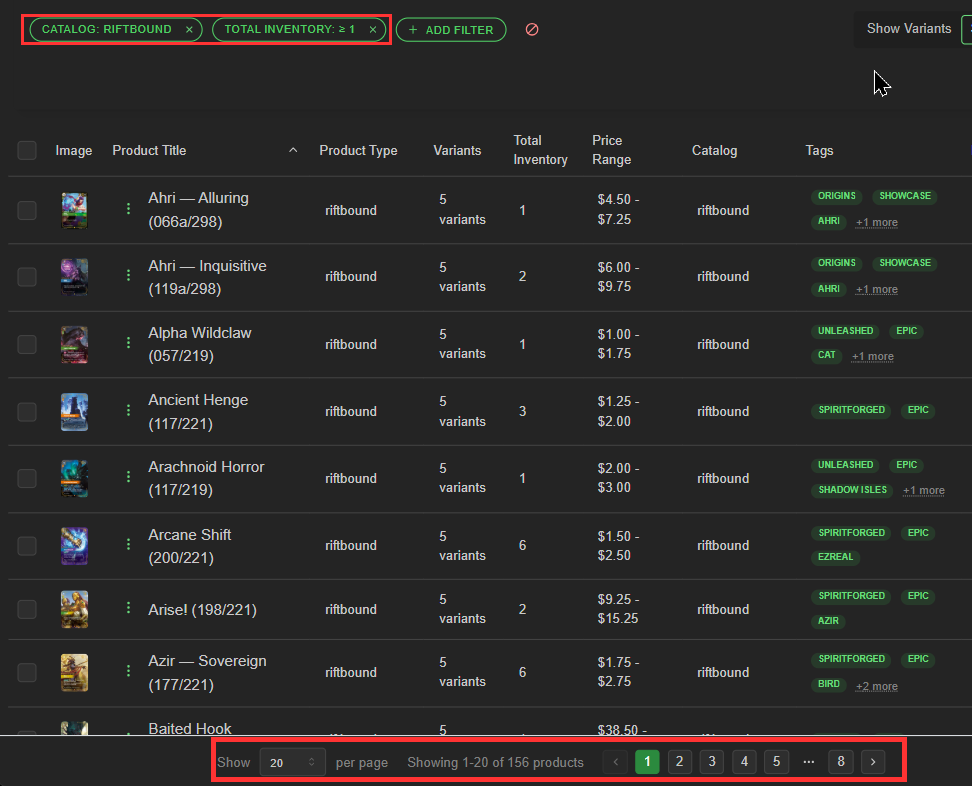
Browsing/searching in-stock items for a single game.
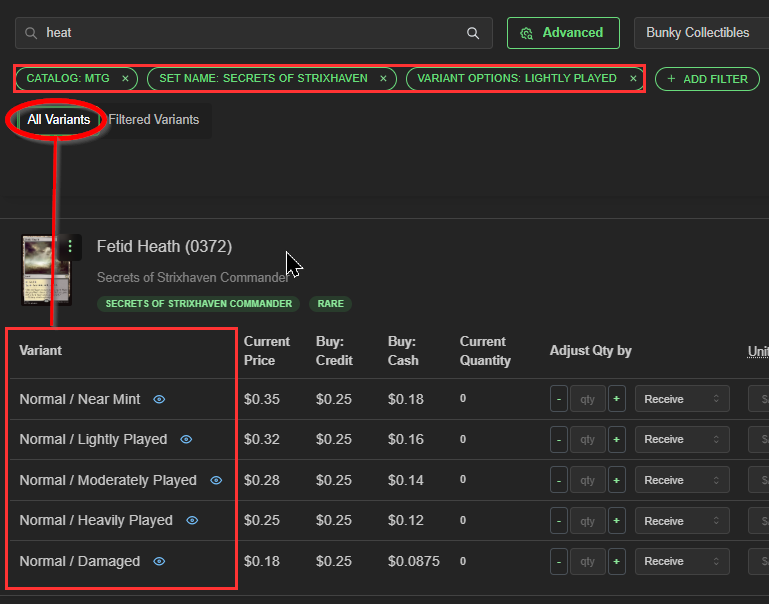
Filtering to a single catalog / catalog+set to streamline searching and manual quantity adjustment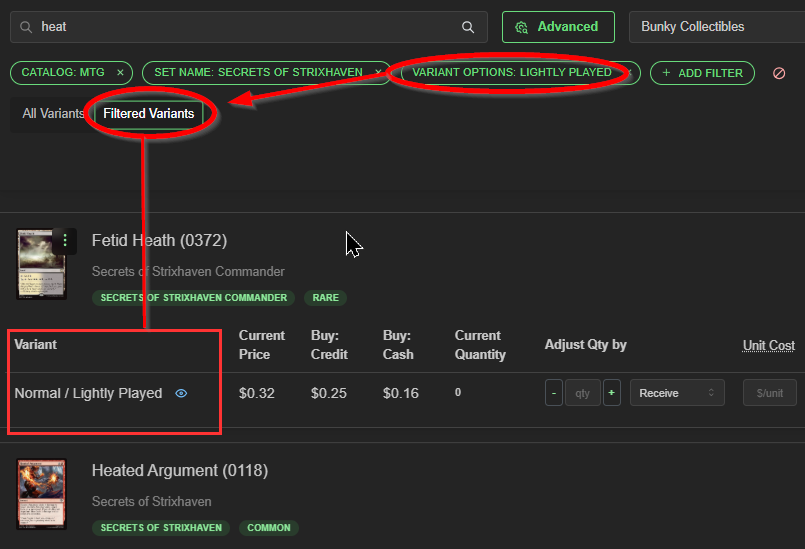
Hint: Toggle Filtered Variants to exclude all non-filtered options
Make inventory counts easier by:
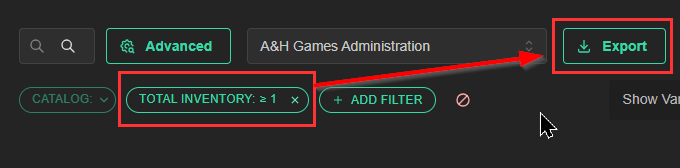 Exporting everything you need to count
 Or use the advanced search to exclude some product, which brings us conveniently to the section below
Using the Advanced Product Filters
The Advanced Product Filters, or 'advanced search' is powerful tool that works very similarly to our Advanced Rule editor. Take advantage of complex search conditions using multiple criteria paired with and/or/not logic to narrow your search results to the highest degree. This is especially useful for very specific CSV preparation.
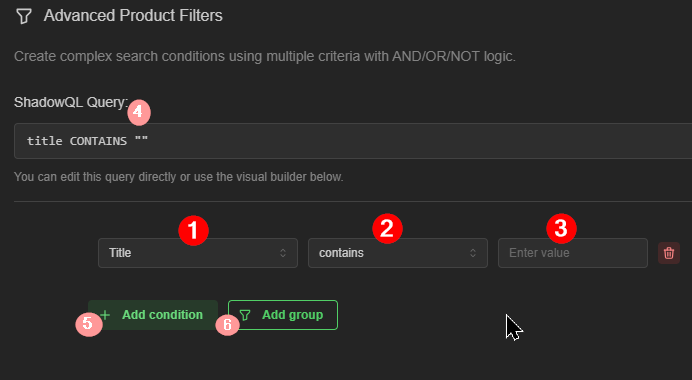 Filter Conditions are made of three parts: the Field (1), Operator (2), and Value (3). Conditions belong to logical groups; the most typical being 'And' and 'Or' groups.
'And' groups require all conditions to match to pull a search result. 'Or' groups require only a single condition match to pull a search result.
image info:
- FIELD: This determines the entire condition. There are over 160 unique metadata fields to choose from. Some are catalog or product type specific, so be sure to try alternatives if at first you don't find a value match. Popular options include 'Catalog', 'Title', 'Market Price', 'Variant Quantity'.
- OPERATOR: Options displayed here are fluid, dependent on the Field choice. Examples include 'greater than', 'less than', 'contains', 'does not contain', 'equals', 'does not equal'.
- VALUE: May populate with applicable options, depending on Field choice. Usually you must input a compatible precise value for your condition to work properly.
- ShadowQL is ShadowPOS' query language. You can type in the logical string to build your rules, though proper syntax is required. Using the visual builder is preferred for most users.
- Add condition: Adds a new condition to the existing group.
- Add group: Adds a new group to the filter.
Note: Until two or more conditions exist in a group, a new group will simply act as an extension of the previous group (inheriting its and/or stipulation)
Advanced filter example 1)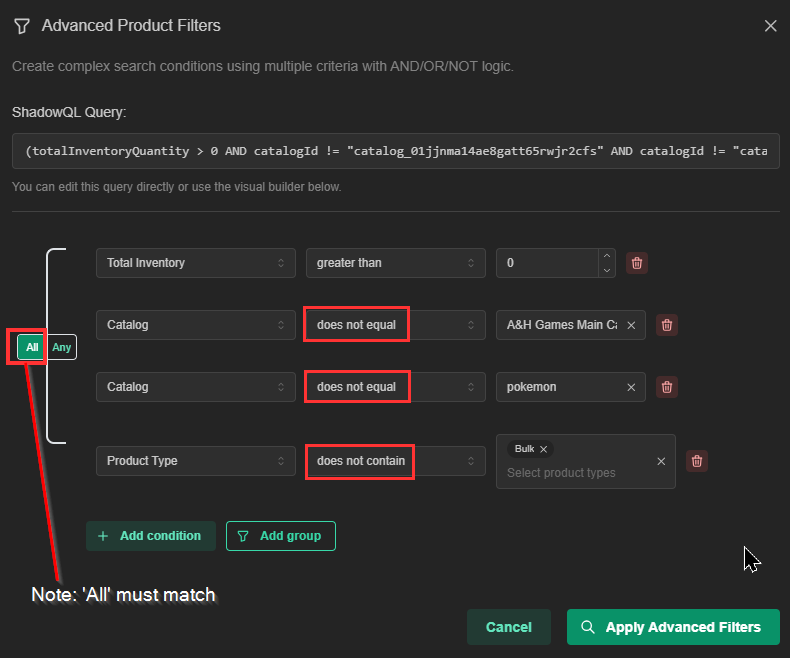
Reads like:
"All products in inventory with at least 1 qty, except for the store catalog, pokemon catalog, and anything bulk'
Advanced filter example 2)
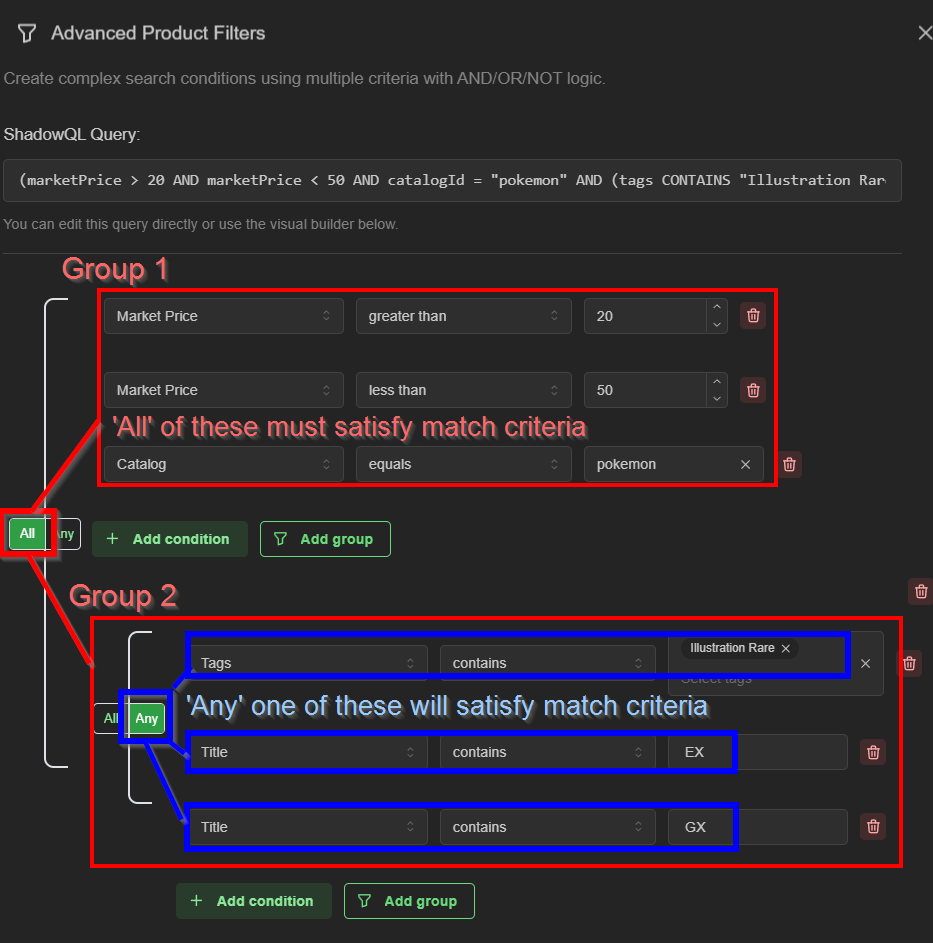
Reads like:
"All Pokemon products in inventory with market value between $20-$50 that are either Illustration Rares, EX, or GX cards."
Processing a bulk operation:
- Search or filter for product in 'Show Products' view
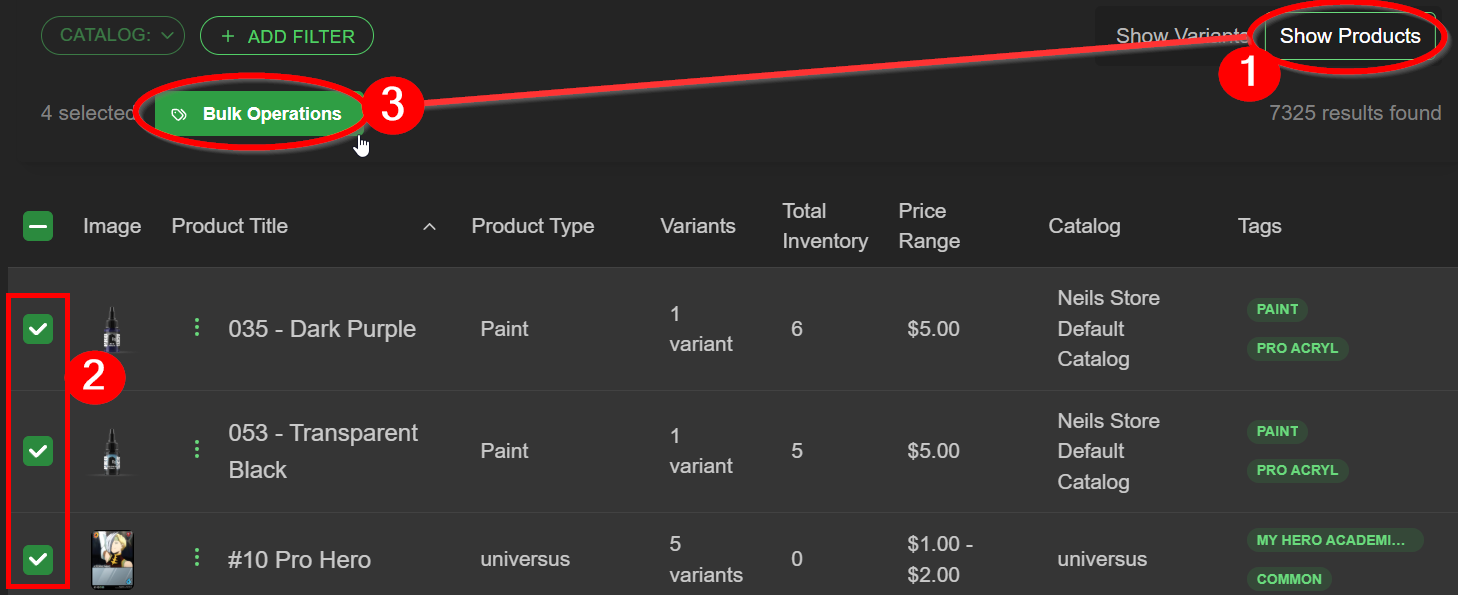
- Click the checkbox for individual items, or
Select 'all' search results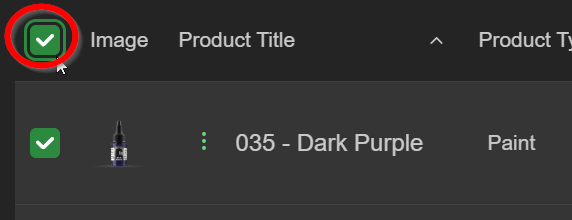
- Click 'Bulk Operations' to open the window, and choose options. Click 'Apply' when satisfied
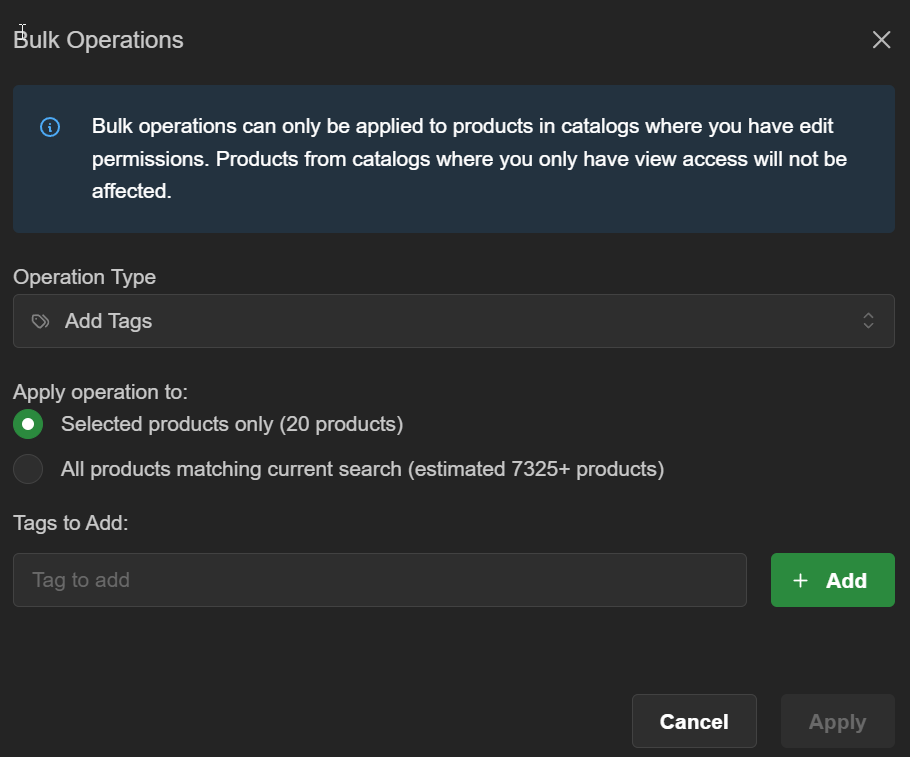
Bulk operation types:
- Add Tags
- Remove Tags
- Archive Products
- Unarchive Products
Exporting product
Export a CSV of filtered products whenever you need to:
- Perform an inventory count
- Bulk adjust all variant quantities at once
- Bulk adjust all prices at once (owned catalogs only)
- Bulk modify/change product types (owned catalogs only)
- Bulk add/remove other optional field columns and values of owned catalog product
(such as Tags, Title, Handle, Vendor, Body (HTML), Product Category, Option2 Name, Option2 Value, Option3 Name, Option3 Value, Variant SKU, Variant Barcode, Image Src, Cost per item, ProductId, Weight, Weight Unit)
Use the search, advanced search criteria, or quick filters to return all products you want to modify.
Click the 'Export' button in the top right of the page. example: All MTG singles in-stock with variant inventory 1 or more
Depending on how many products are being exported, it may take some time to generate the output .CSV file.
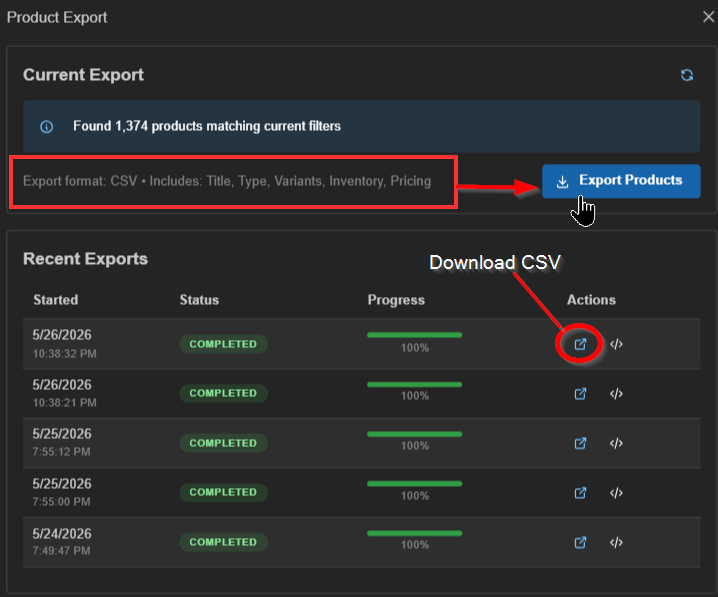
Once your .CSV file has been generated, click the download icon in the 'Recent Exports' section below the 'Export Products' button.
Hint: While your .CSV is being built. you're free to exit the products page and continue using the system. Exports and Imports won't hinder your productivity or impact ShadowPOS HQ's performance.
Importing product
Bringing products into ShadowPOS via CSV is easy! We accomplish this on a separate page.
Please visit Products > Imports
Was this article helpful?
That’s Great!
Thank you for your feedback
Sorry! We couldn't be helpful
Thank you for your feedback
Feedback sent
We appreciate your effort and will try to fix the article