ShadowPOS provides tracking of all your customers for reference, cart assignment, store credit, and other important features, including a versatile loyalty program.
Navigate to Customers > Customers
We'll provide an overview of:
- Bulk adding customers via CSV
- Adding/editing customers
- Merging customer records
- Enabling the customer loyalty program
Bulk adding customers via CSV file:
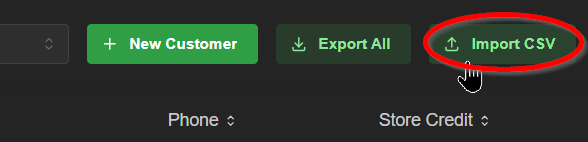
- Click the 'Import CSV' button
- Verify your CSV includes the expected columns.
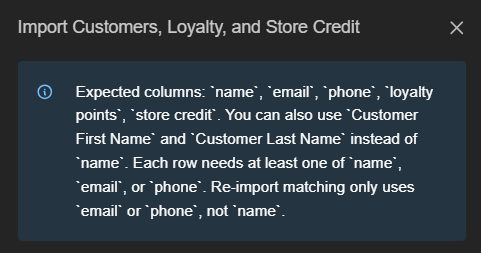 acceptable column configurations:
version A)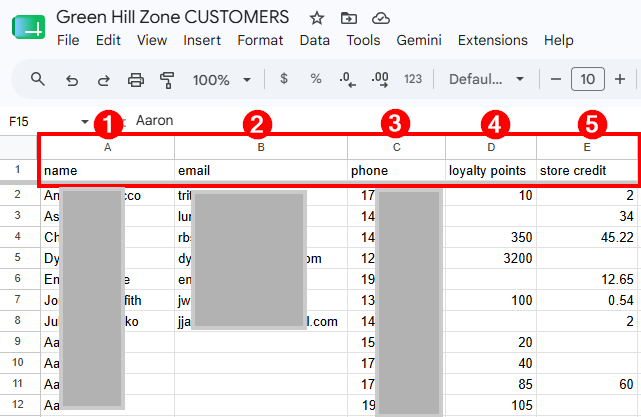 version B)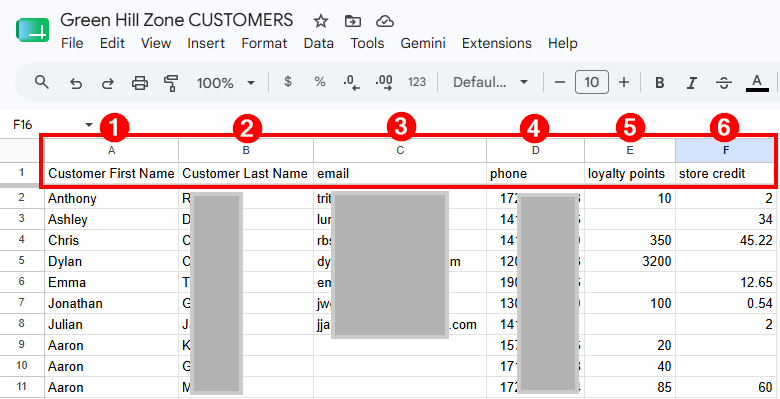
- Upload your customer CSV file
Note:
If invalid rows exist, they will be skipped. An optional download of skipped rows is provided if desired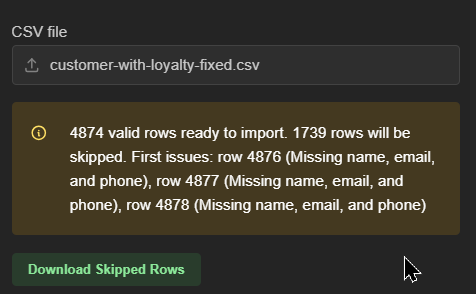
- Verify your 'Add' / 'Set' toggles for both store credit and loyalty are correct
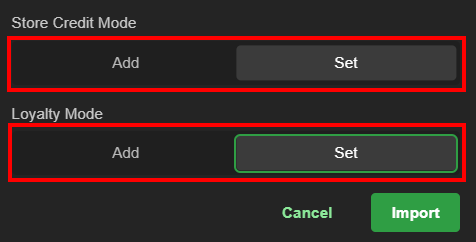 Important:
'Add' will add the amount from the CSV file to the amount already in ShadowPOS customer management
'Set' will override the amount in ShadowPOS customer management to the value defined in the CSV file - Click 'Import' to queue the import
Importing should begin shortly. You can keep an eye on large imports via the 'Import CSV' window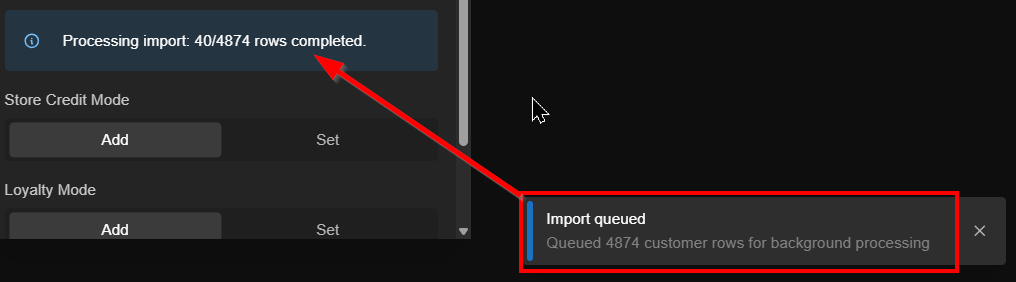 Hint:
Hint:
Closing this window or leaving the page will not interrupt the import process.
Adding a new customer:
- Click the '+ New Customer' button
- fill out the required name field, and any of the 5 optional fields.
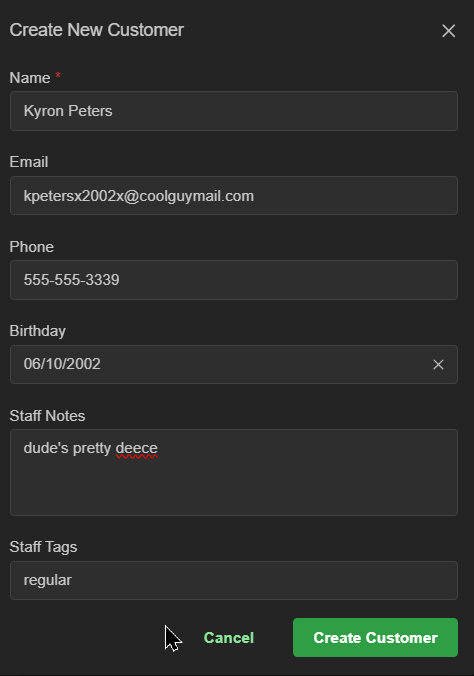
- Click 'Create Customer' to add customer to the database
Editing a customer:
1. Select a customer entry in the list to open the customer window
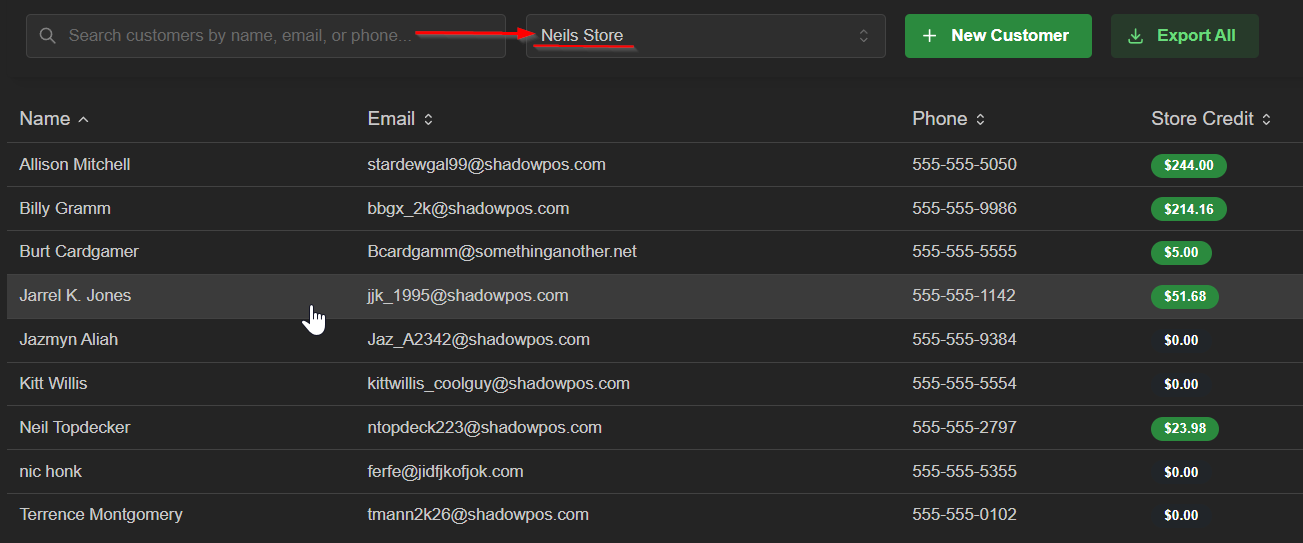
Hint: If you own multiple stores operated through ShadowPOS, ensure the proper store is selected from the dropdown next to the search bar if you have trouble finding a customer record
2. Click a tab to switch to that section. You can manually adjust a customer's store credit and/or loyalty point values here. A reason must be noted for each manual adjustment of either.
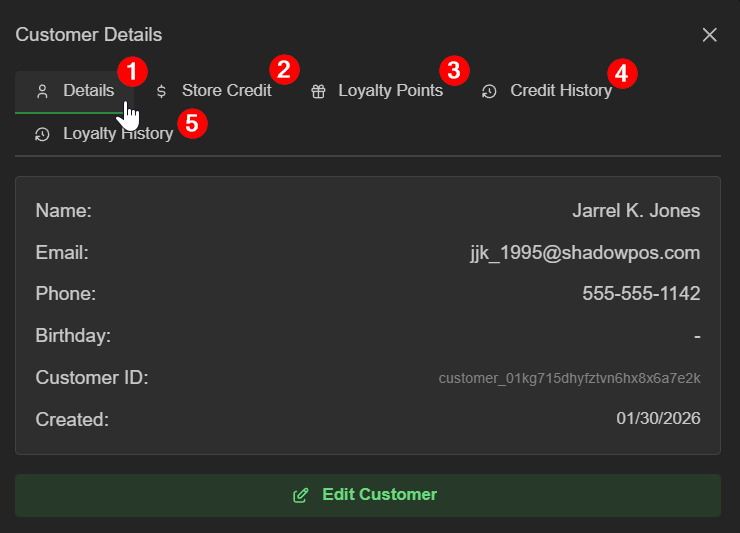
tab info:
1. Details show you customer's primary info
2., 3., Store Credit & Loyalty Points show the current balance (may be manually adjusted)
4., 5., Credit History & Loyalty History provides a convenient list of recent adjustments that include links to associated carts for review if needed. Histories can also be exported as .csv files.
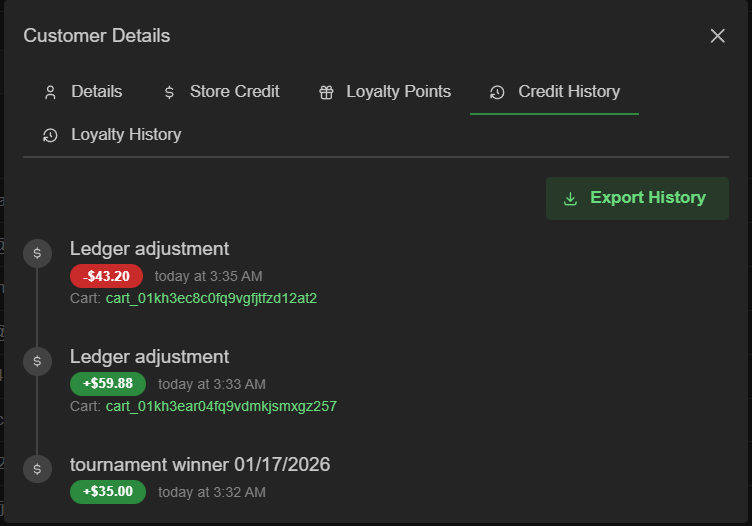
Note: In order to utilize Loyalty, the Loyalty Program must be toggled on. See below
Toggling on/off the Loyalty Program:
Before loyalty points can be issued or used, you must first enable the Loyalty Program. If the program is toggled off again, loyalty can still be issued, but not used.
Visit Customers > Loyalty Settings
Was this article helpful?
That’s Great!
Thank you for your feedback
Sorry! We couldn't be helpful
Thank you for your feedback
Feedback sent
We appreciate your effort and will try to fix the article