Enable your store's loyalty program to issue and redeem points. ShadowPOS currently keeps this program versatile and open-ended so that loyalty can be utilized to fit every store's needs.
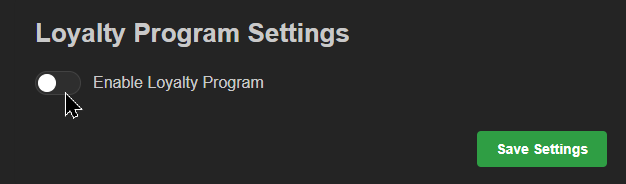
Visit Customers > Loyalty Settings
Here you may adjust your store's appropriate point value and redemption rate. Note the starting values are only a ShadowPOS default. If the program is disabled, loyalty can still be issued, but not used. Be sure to click Save Settings before leaving this page
Configuring the loyalty program:
- Click toggle to enable program
- Input the 'Loyalty Program Name': This name's shown anywhere the program is referenced (ex: 'Shadow Points')
- Name the 'Points Label': This is a short label shown beside loyalty balances (ex: 250 'SPs')
- Set desired 'Points per Dollar Spent': This is how many points customers earn for each dollar spent
- Set desired 'Points Redemption Rate': This is how many points equal $1 in value (ex: 100 SPs = $1)
- Set optional toggle: 'Include Taxes in Points Calculation': Whether you'll award points on tax amounts or not
- Set optional toggle: 'Accrue Points on Buy Items': Enable only if trade-in purchases from customers should also earn loyalty
- Click 'Save Settings' to finish
At a glance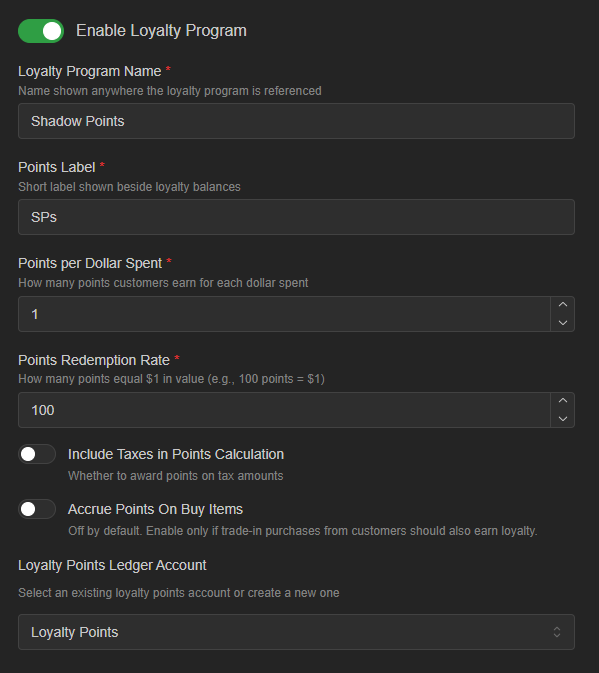
Your store's loyalty program is now active!

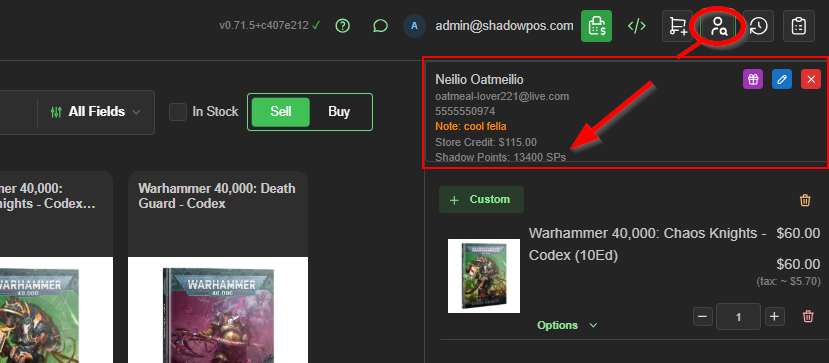
Loyalty visualized:
Customers Menu - customer details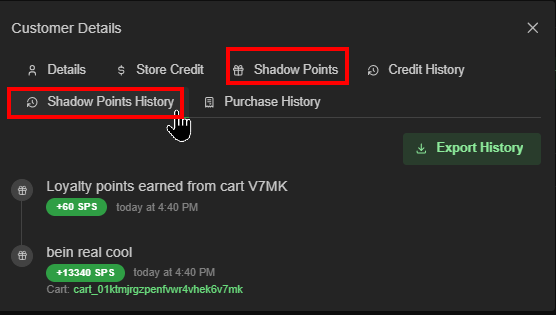
Point of sale - customer assigned to cart
Point of sale - point redemption
- Choose the loyalty icon and set the cart-completion loyalty point modifier
- Apply cart options' discount to match loyalty
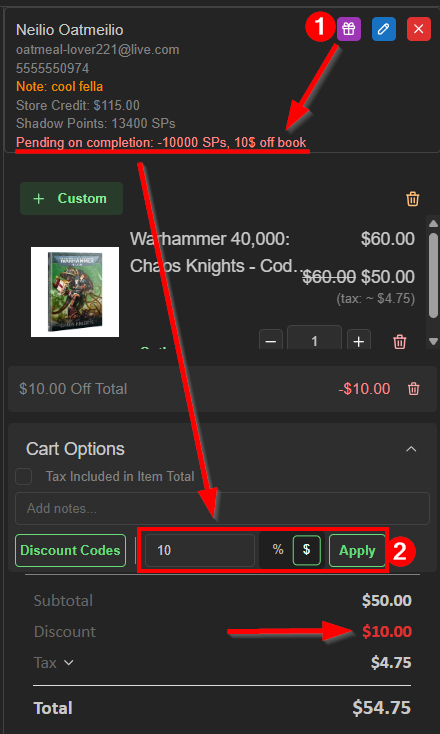
Points will be adjusted when checkout is complete
Was this article helpful?
That’s Great!
Thank you for your feedback
Sorry! We couldn't be helpful
Thank you for your feedback
Feedback sent
We appreciate your effort and will try to fix the article