Collections in ShadowPOS are essential to your webstore in making navigation to your products possible, and they're required for building your webstore buylists. Collections are also helpful in the point of sale in the form of search filters
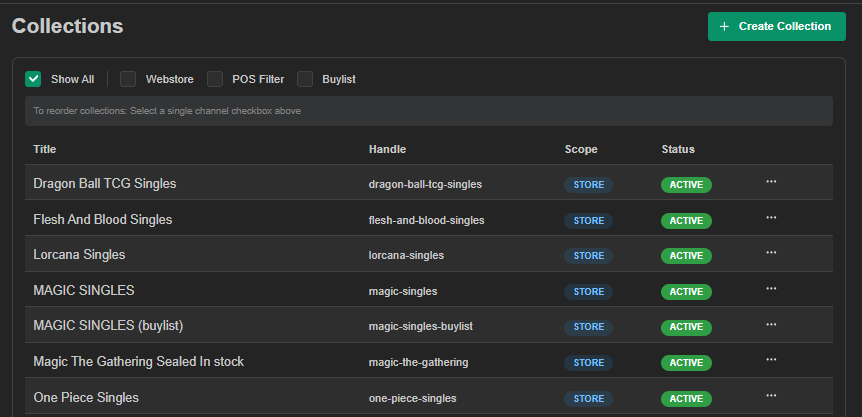
Visit Products > Collections
For each catalog you sell product from, it's best practice to set up general catalog collections for each of these games. You could think of collections as groups of specific types / eras of product, boxes of particular sets of cards, thematic binders of singles, or anything you'd like to include as a special page in your webstore!
Let's cover:
- Creating a basic collection
- Modifying a basic collection into a specialized collection
- Creating an 'in-stock only' collection
- Creating a specialized collection
- Advanced search alternatives for popular catalogs
- Creating a buylist collection for category line items aka 'bulk'
- Tips for buylist collections
Creating a basic 'catalog' collection:
- Select an existing collection, or click '+ Create Collection'
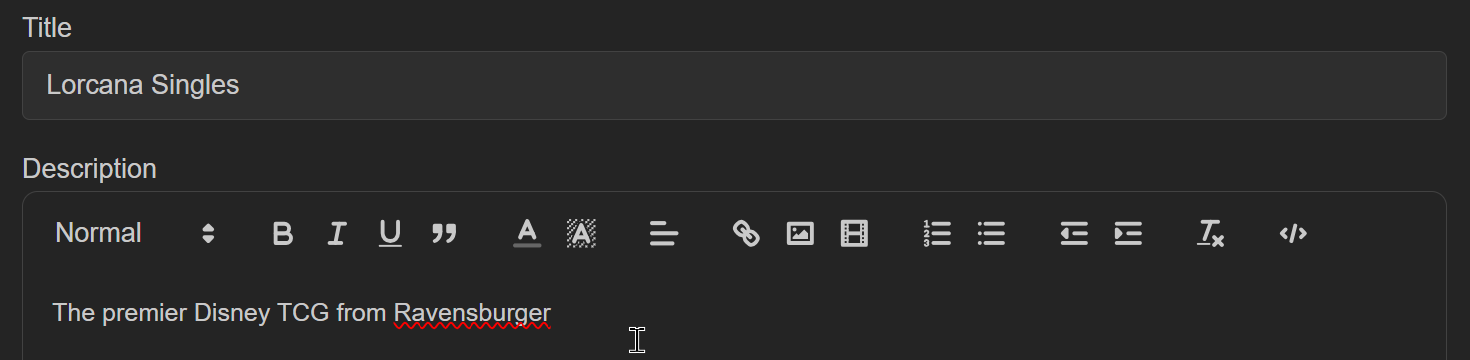
- Fill out the Title and Description fields
- Add a 'Catalog' condition

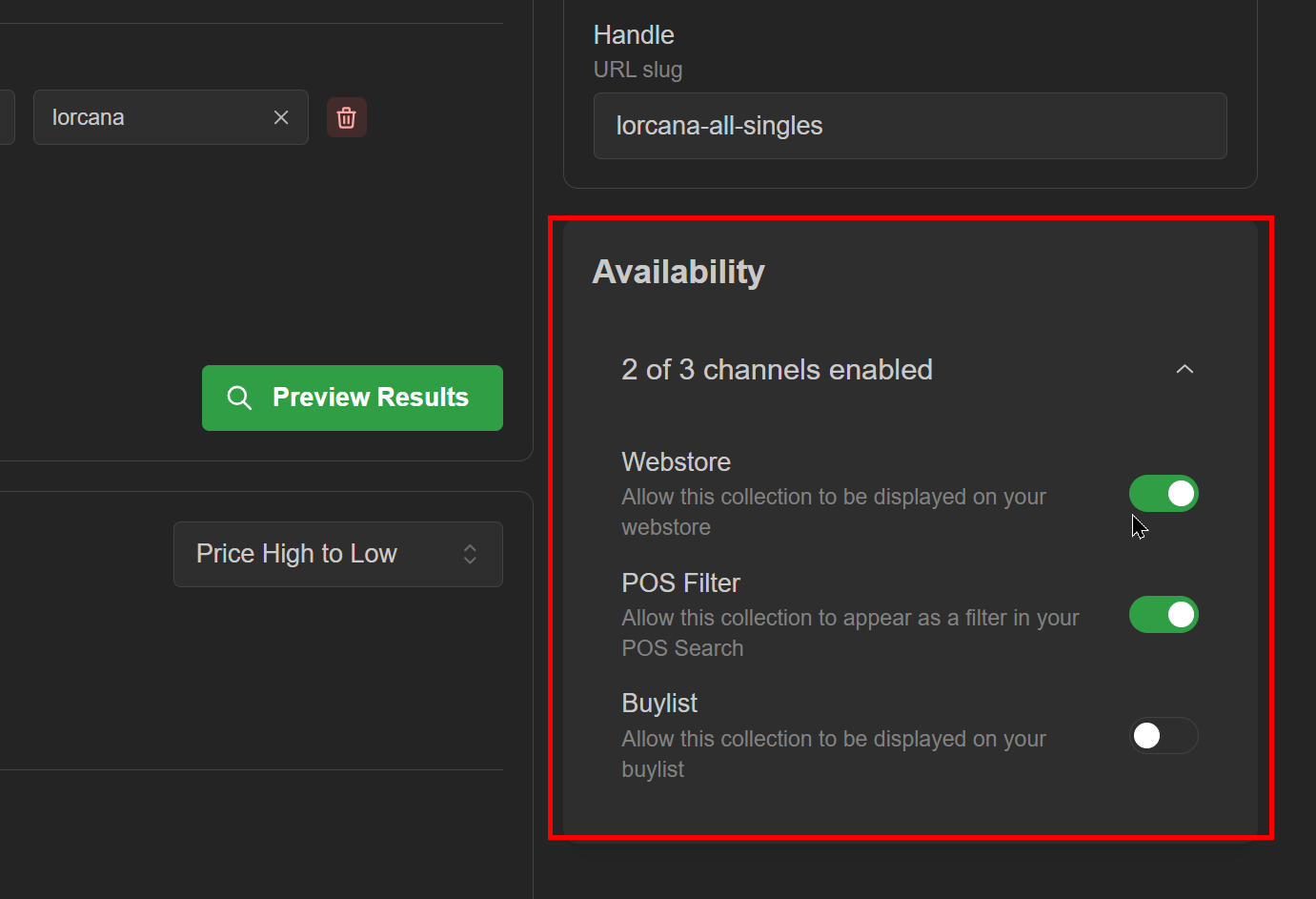
- Confirm which sales channels the collection will be included in
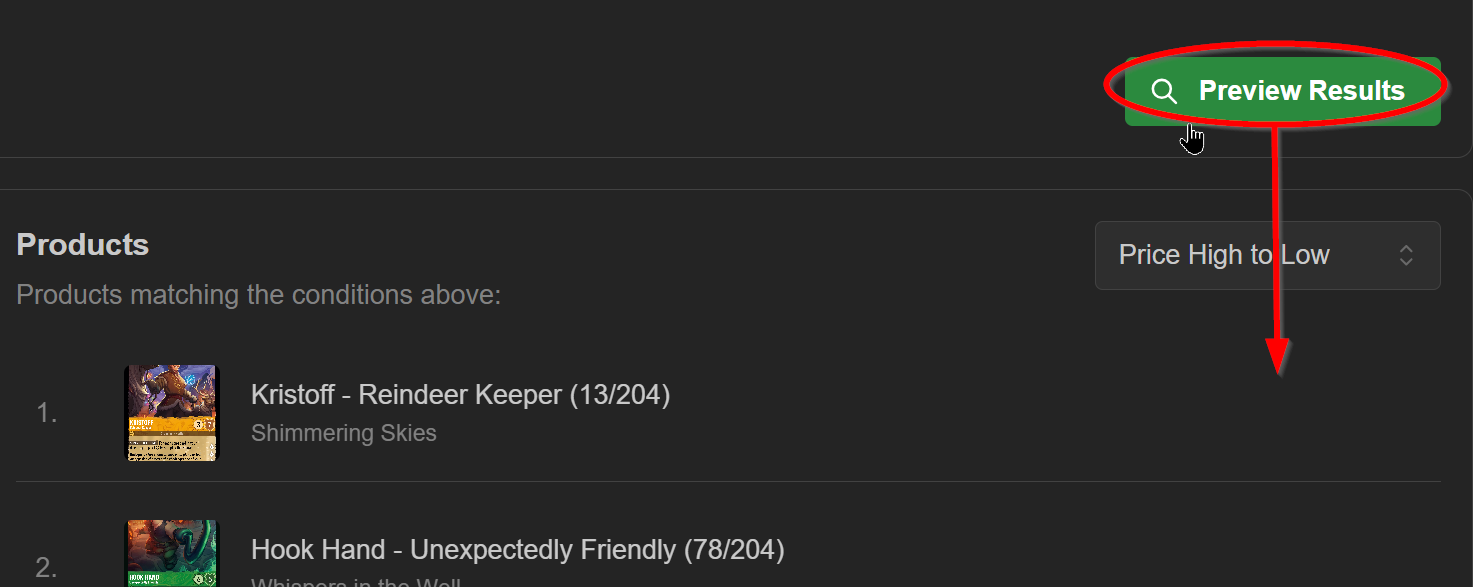
- Preview and save the collection
at a glance: a collection in its simplest form
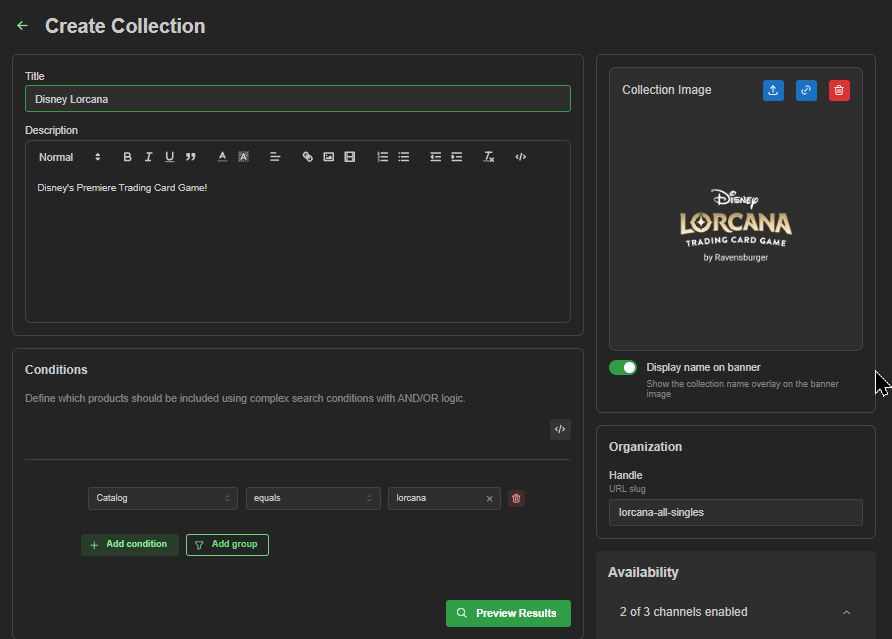
example: This is a collection of all Lorcana catalog product. If this collection is used as a filter in the point of sale, your search results will show only product from that catalog. If toggled on for availability in the webstore, the displayed product on that page will be all singles from the catalog (whether in-stock or not).
Next we'll try modifying what we've made it into an 'in-stock only' collection.
^continued from
Creating an 'in-stock only' collection
You might not want out of stock items to ever populate with your simple catalog collection; in this case, you need to add a condition (note the 'All' match field to the left is toggled by default).
- Create new, or open a collection with no prior inventory quantity restraints
- Click the +Add condition' button
- select options: 'Variant Inventory' / 'greater than or equal to' / '1'.
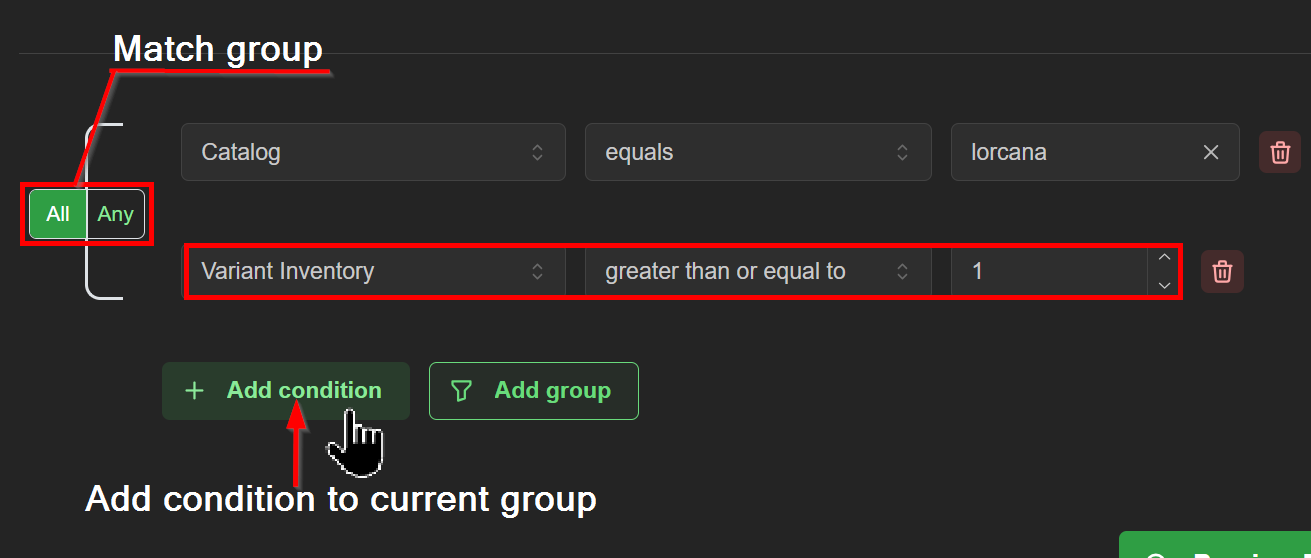
image: this is a collection of Lorcana singles you have at least 1 quantity of in-stock for purchase! Simple enough.
Let's get even more involved below, specializing the collection even further to only higher-priced and/or specialty-rare cards.
^continued from
Modifying a basic collection into a specialized collection:
- Open target collection
- Click 'Add condition' or if necessary, the 'Add group' button
In this case, we are choosing 'Add group'. This unlocks a layer of matching that may be suitable for your collection's needs. This second condition group contains 2 conditions, in which we toggled over the match group from 'All' to 'Any'. Observe the added conditions below.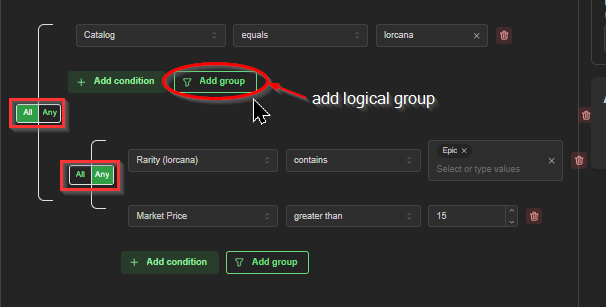
above condition groups read as: This collection includes all Lorcana Epic rares, plus singles of any rarity so long as their market value is currently over $15.
Hope the above examples help you in your journey creating fun and interesting collections in ShadowPOS! We'll briefly look at one more example below -this time from scratch
Creating a specialized collection:
- Select an existing collection, or click '+ Create Collection'
- Fill out the Title and Description fields
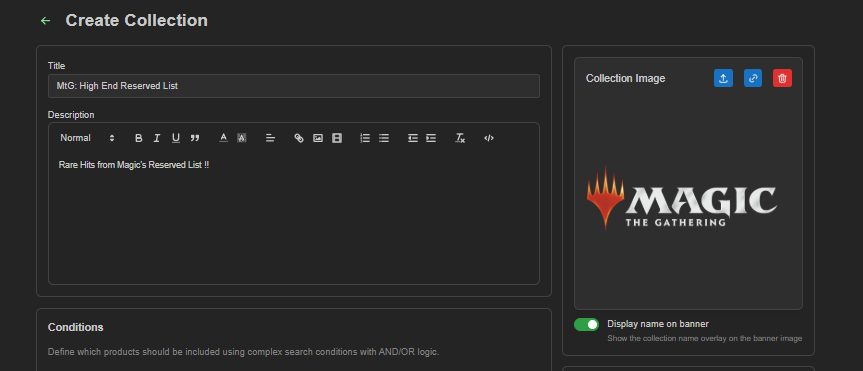
- Use the Conditions filter editor to define the attributes that will build the range of product for this collection.
- In the Organization field, confirm the auto-generated handle name or enter a new one (no spaces; must conform to URL syntax rules)
- In the Availability field, toggle on/off applicable locations this collection can be accessed.
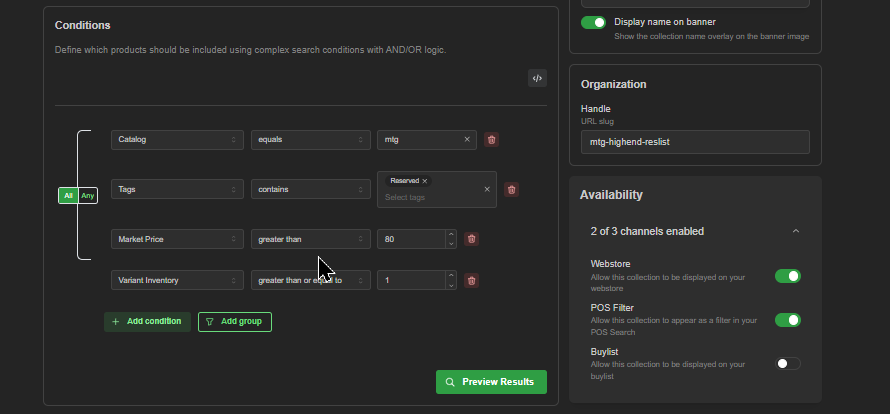 above condition groups read as: This collection includes all Magic: the Gathering 'reserved list' singles with current market values of $80 or more
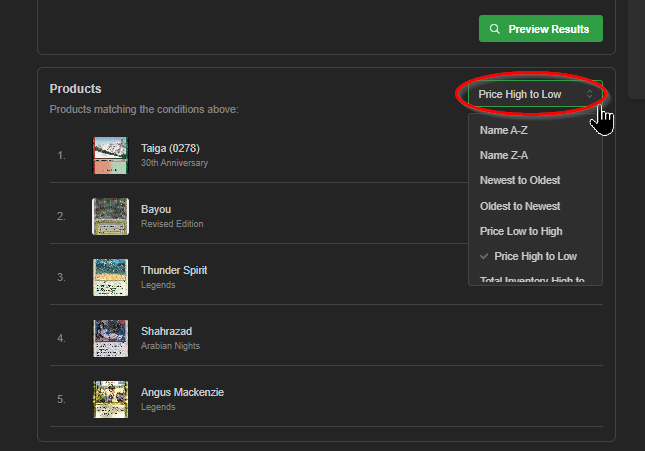
 - Use the 'Preview Results' search button to check product accuracy
 Don't forget to click save at the top!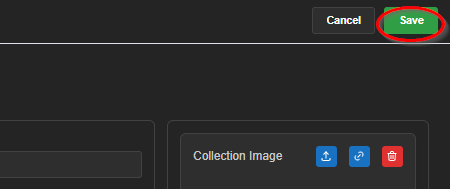
Hint: Building a collection of manually created products? Those are all a part of your store's default catalog. You can subscribe/unsubscribe from it the same way as other catalogs in Catalog > Catalog
Hint: Creating a collection that shares multiple traits of an existing one? You can copy the query code over to a new build to save some time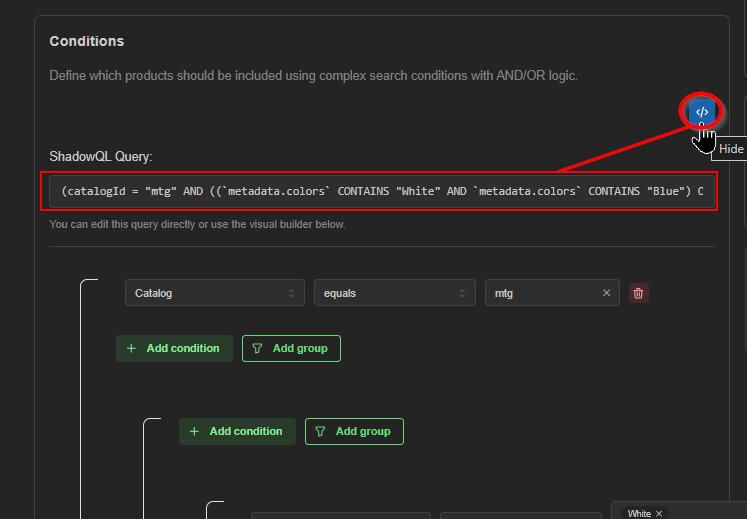
Note: The Buylist toggle must be switched on for a specific collection before a customer is able to submit cards from it for sale to your store.
Advanced search alternatives for popular catalogs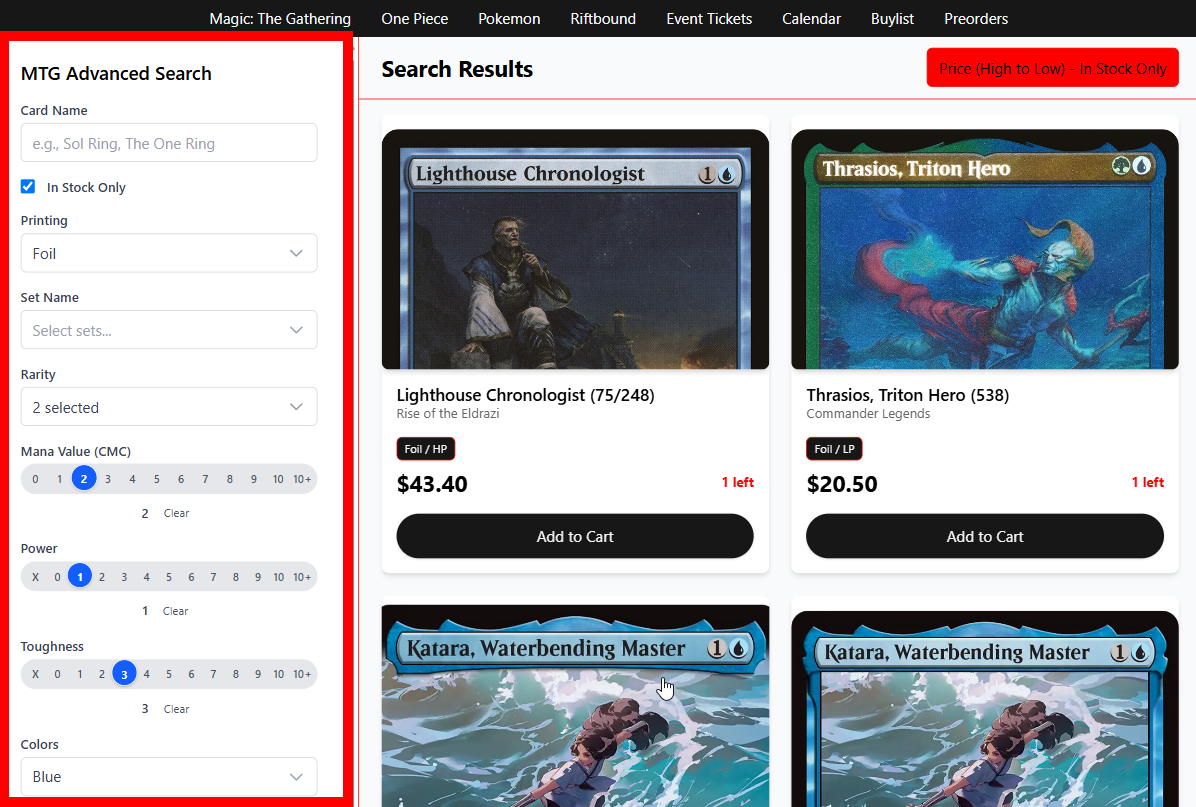 For some our most popular synced catalogs, an 'Advanced Search' option is available as an alternative to the collection; these catalogs don't require collections made in advance to display these products in the webstore, and provide special game-unique search criteria in addition to simply title/tag searches.
Available advanced search links (Use in the website editor navigation instead of linking a collection):
- /advanced-search-mtg
(Magic: the Gathering ) - /advanced-search-pokemon
(Pokemon) - /advanced-search-onepiece
(One Piece) - /advanced-search-lorcana
(Lorcana) - /advanced-search-riftbound
(Riftbound) - /advanced-search-yugioh
(Yu-Gi-Oh!) - /advanced-search-fab
(Flesh and Blood) - /advanced-search-gundam
Gundam - /advanced-search-swu
(Star Wars: Unlimited) - /advanced-search-hololive
(Hololive) - /advanced-search-shadowverse-evolve
(Shadowverse Evolve)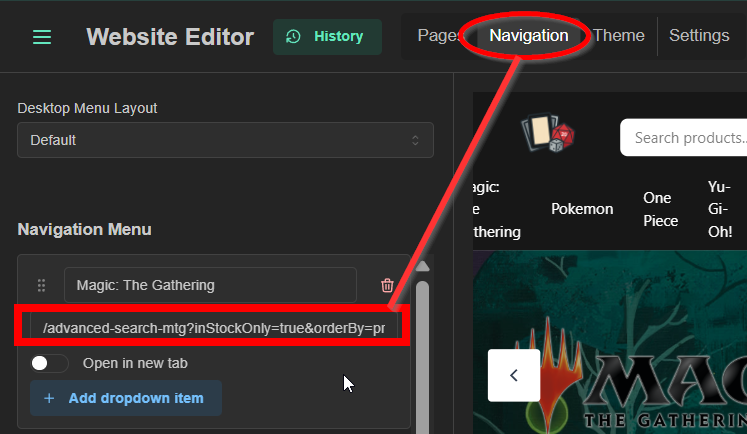 Tip:
Tip:
Append one of the suffixes below to the end of an advanced search route to preload a default search option: - ?inStockOnly=true&orderBy=price-desc
(In-stock only sorted highest price first) - ?inStock=true&orderBy=last_stocked&order=desc
(In-stock only sorted newest arrivals first) - ?inStock=true&orderBy=price&order=asc
(In-stock only sorted cheapest first) - ?inStock=true&orderBy=last_sold&order=desc
(In-stock only sorted most recently moved first)
example: /advanced-search-pokemon?inStockOnly=true&orderBy=price-desc
(Pokemon in-stock only, sorted highest price first)
Creating a buylist collection for category line items
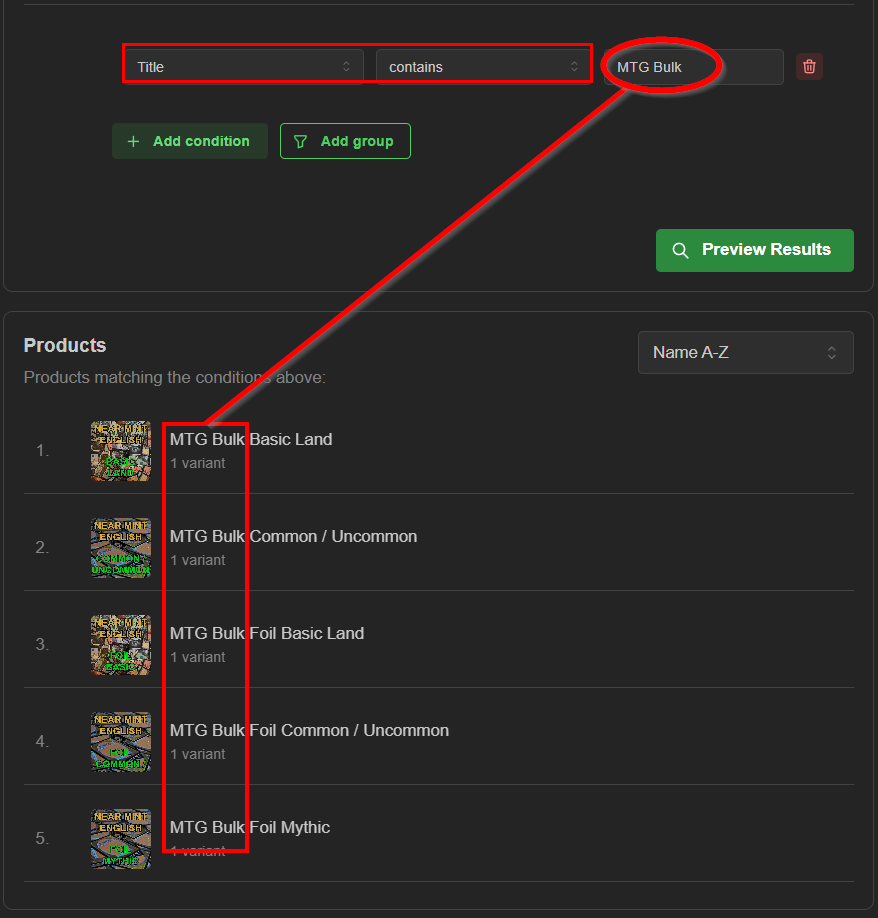
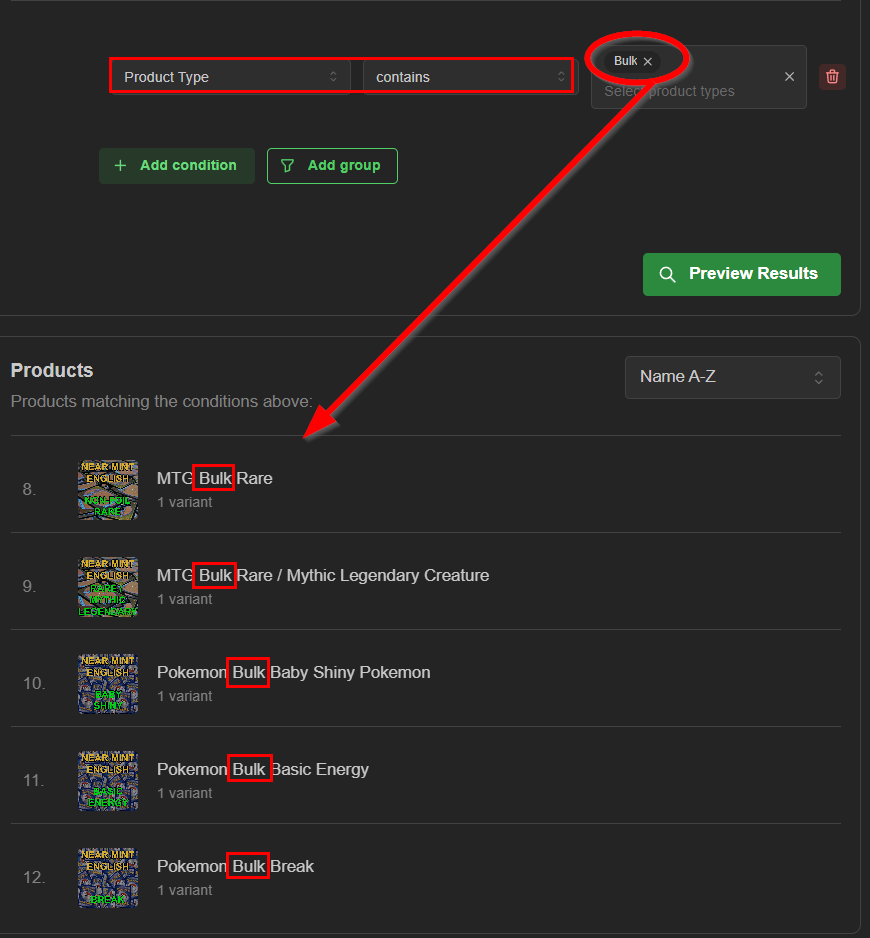
collections for non-itemized 'bulk' can be built a few different ways depending on your store's preference and product staging thus far. Here are two collection examples that work with 'category line items' and sync well with related instructions provided in our other articles for 'Products' and 'Price Rules'
- 'Title-contains' driven
 Hint:
Hint:
Not seeing any preview results? Create your line items first! - 'Type-contains' driven
Attention:
You're likely not selling these; keep the Webstore availability channel off!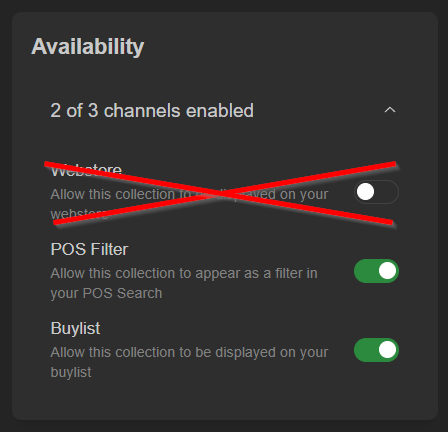
Hint:
Need help setting up your buy prices? Read more here!
Tips for buylist collections:
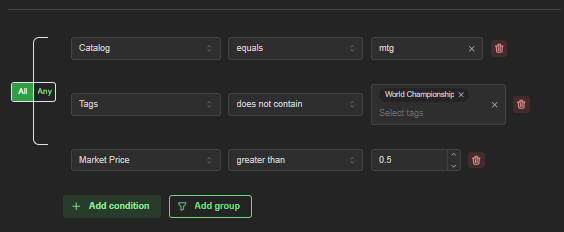
1) For each game you accept cards for, it's best practice to use a general catalog collection (toggle 'buylist' sales channel for it) unless you don't accept all product from it, in which case it may be best to build a separate buylist version of a catalog collection, using conditions to exclude sets, tags, value ranges, etc.
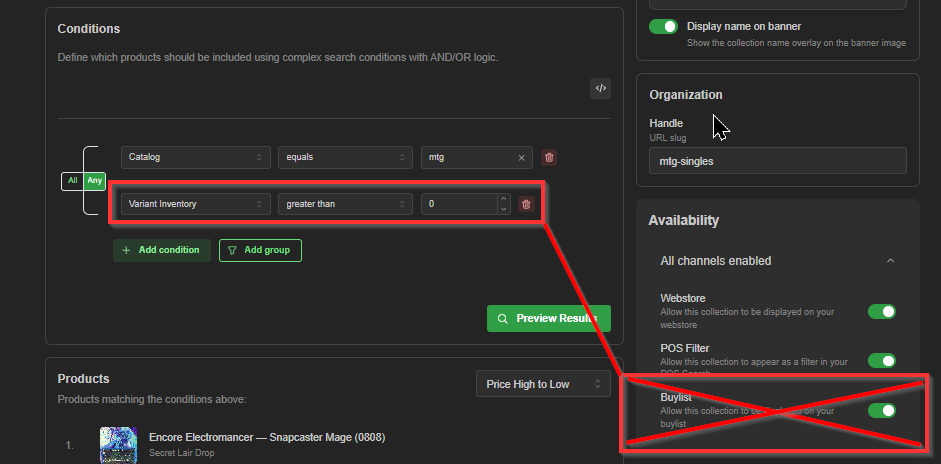
2) It might seem intuitive to toggle your buylist on for your sole in-stock singles collections you've made and call it a day, but if you don't have a general collection for that catalog (without inventory conditions) available, this will restrict your buylists by only allowing customers to submit cards that you already have 'variant inventory greater than 0' in-stock.
* Bonus *
A couple buylist-centric collection examples:
1) One Piece DON!!s
This is a fluid buylist page that displays all One Piece DON!! cards you accept through buylist, as long as you have fewer than 3 of any particular variant already in stock, and each of their current market value is $40 or less.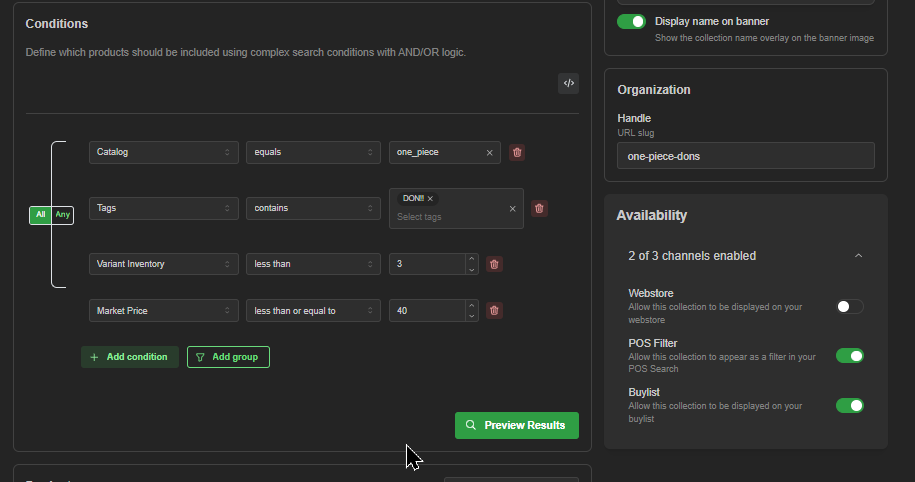
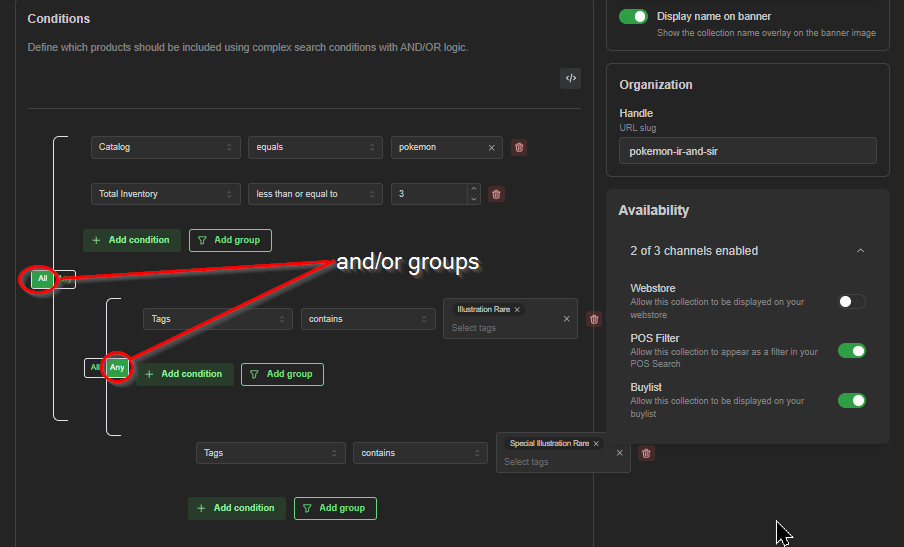
2) Pokemon IRs and SIRs
Special attention is needed to ensure the 'All/Any' matching stipulations are properly set for this one (Catalog is 'Pokemon' AND tags contain 'Illustration Rare' OR 'Special Illustration Rare'), but here's a great example of an all-purpose collection. The same collection works to display product for sale and for buylist purposes, since it doesn't include any in-stock condition restrictions.
Note:
Advanced pricing rules can also be used to effectively refuse buylist items even if they appear in your buylist pages.
Was this article helpful?
That’s Great!
Thank you for your feedback
Sorry! We couldn't be helpful
Thank you for your feedback
Feedback sent
We appreciate your effort and will try to fix the article