You and/or a designated organization administrator can utilize the ShadowPOS role management system to control the level of access granted to each employee position in your store. Create roles; assign permissions to those roles; add users; and conveniently send email invites to your crew members, all from one central location
at a glance
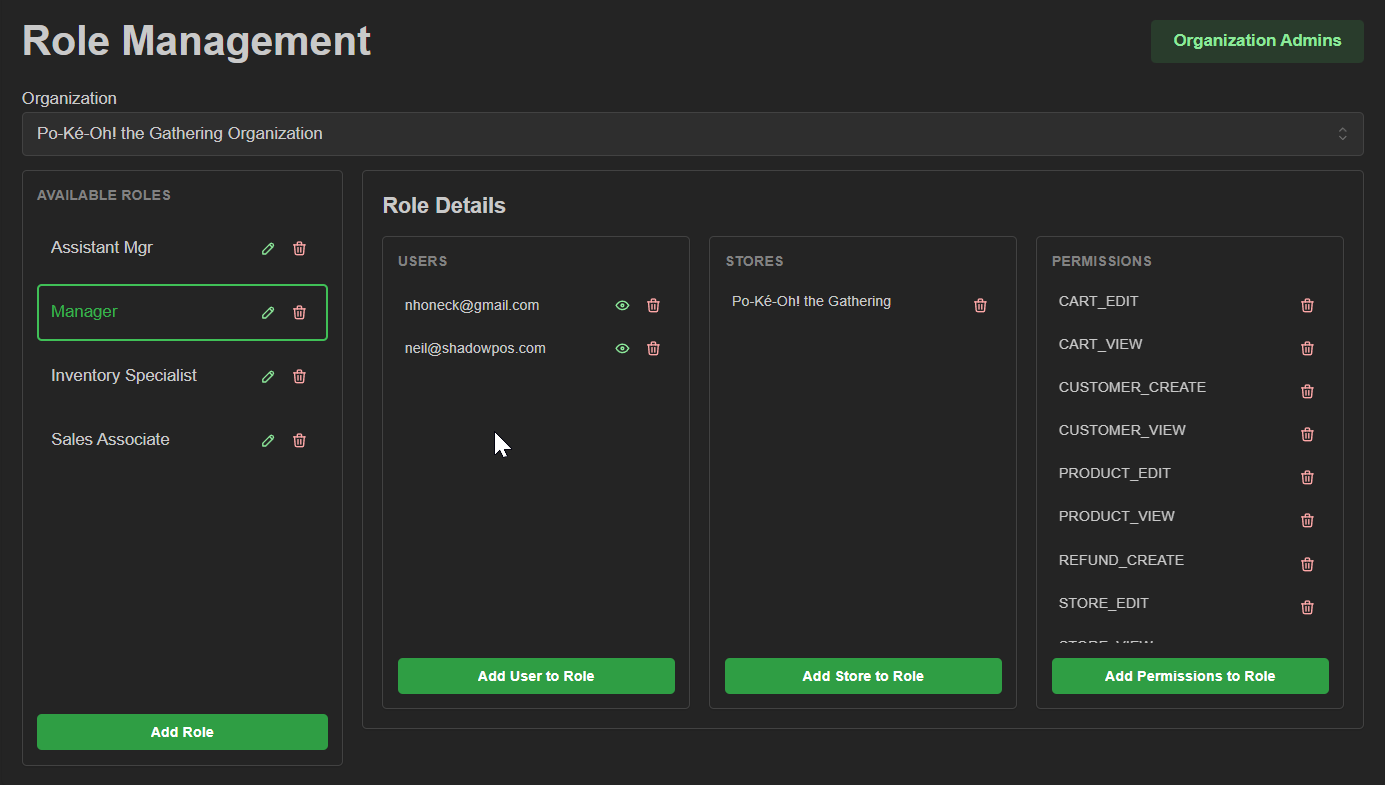
Visit Settings > User Roles
Permission required: Organization Admin
We'll cover:
- Organization admins
- Defining user roles
- Adding users/crew members
- Permissions (overview)
Organization Admins:
Before anyone can modify this page, they must be designated an organization administrator. The original ShadowPOS HQ account holder is an Org. Admin by default; they must add any new admin here:
- Click the 'Organization Admins' button at the top right

- In the pop up window, enter the email below of an existing user you need to designate as an organization administrator, then click the 'Add Admin' button.
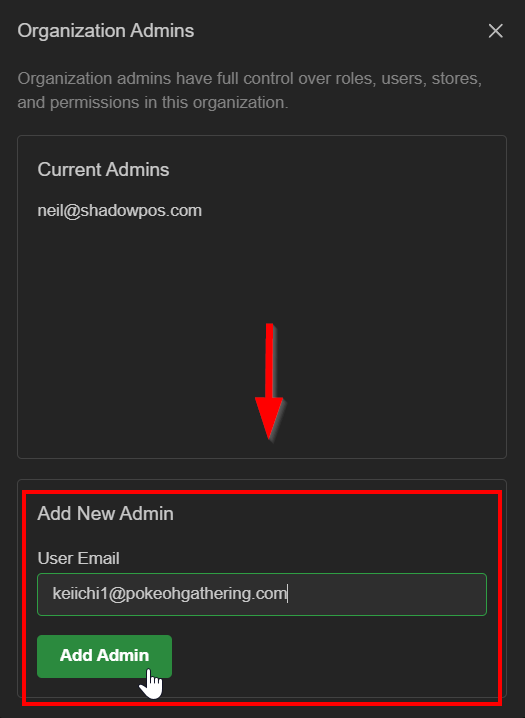 Reminder: Only an existing role-assigned user can be an org. admin
Defining user roles:
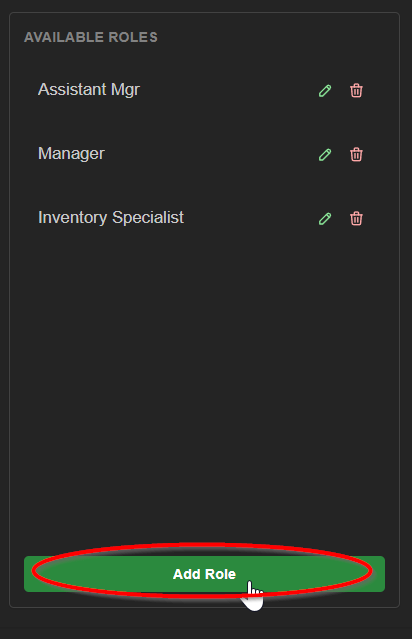
- Click the 'Add Role' button in the 'Available Roles' section
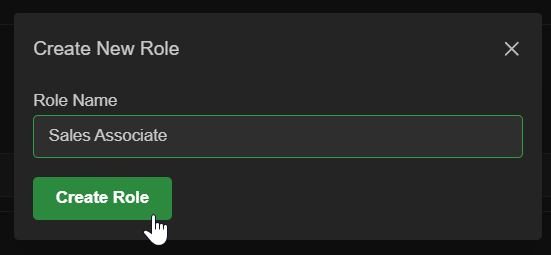
- Define the role and click 'Create Role'
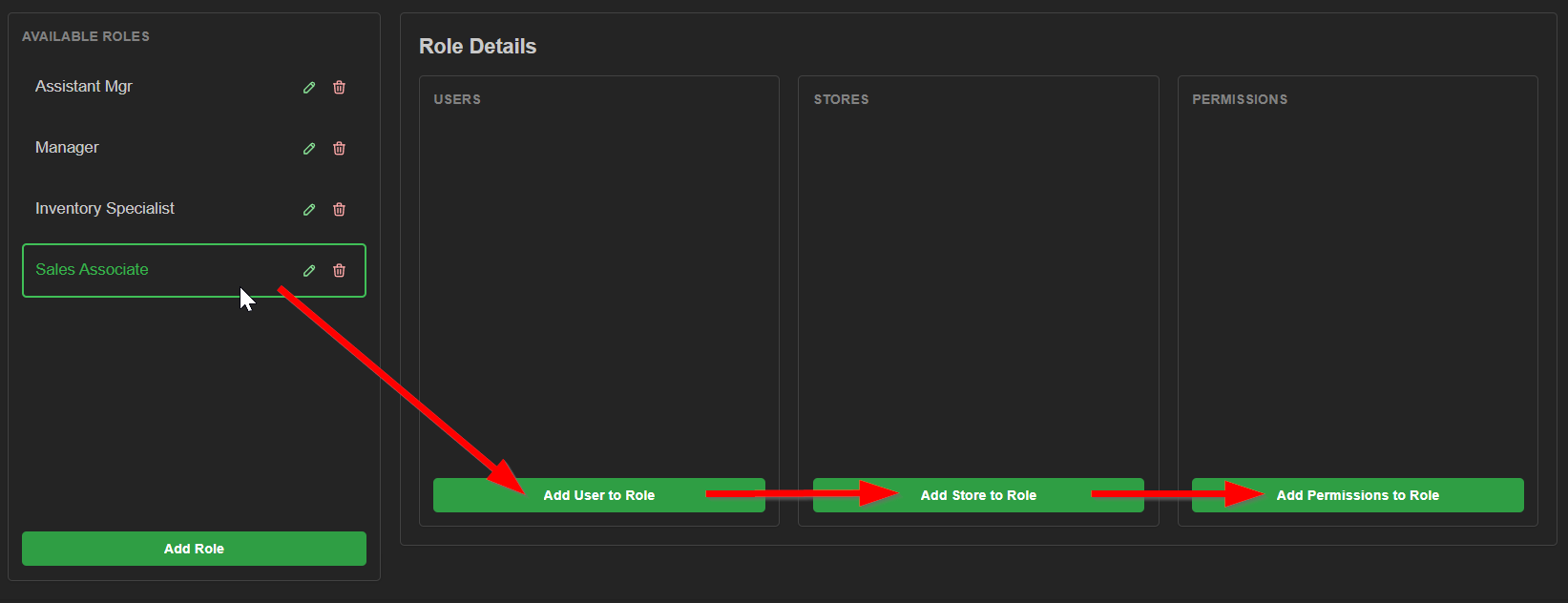
- Select the newly created role to expand the role details panel.
 Note:
Note:
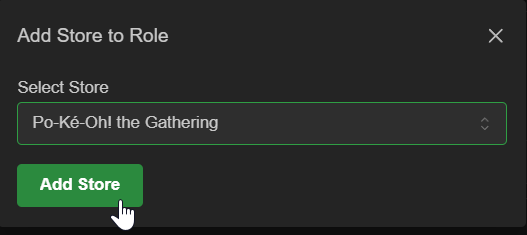
New users can now be added to your store's crew (see next section for adding users) - In the 'Role Details' section, Click 'Add Store to Role'; then select the appropriate store (especially important when multiple stores are managed under the organization), then click 'Add Store'.
- Finally, click 'Add Permissions to Role' and select the applicable permissions this user role is allowed
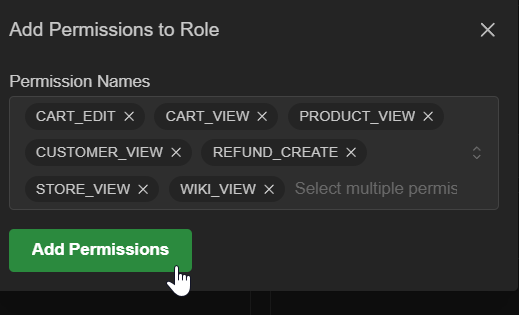
- Click 'Add Permissions' to complete a role definition.
Adding users/crew members:
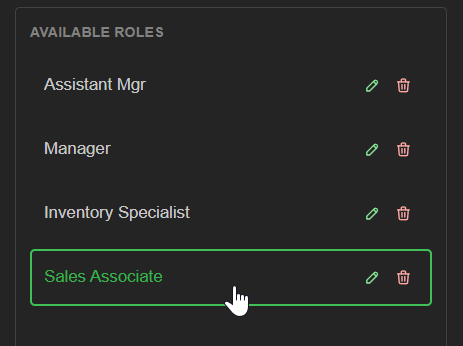
- Select a user role from the 'Available Roles' section
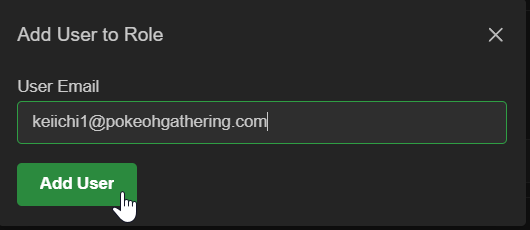
- In the 'Role Details' section, click'Add User to Role' to enter the email for the crew member being assigned this role, then click'Add User' to send an invite.
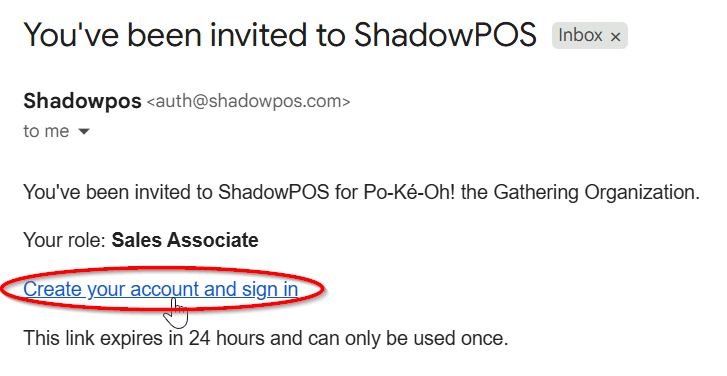
 Appears in inbox as:
 and when viewed:
 visualized: password prompt for account creation
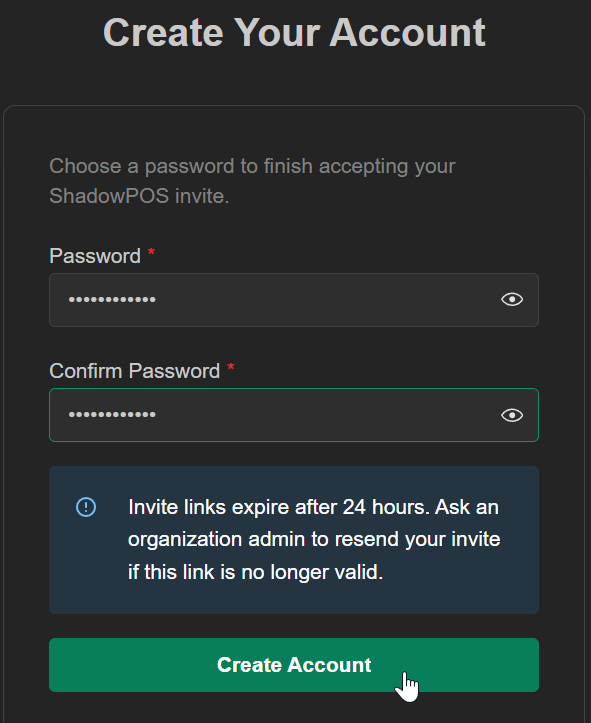 Note: Allow a few minutes for the e-mail invitation to be generated and sent.
The invitation is valid for 24 hours from the time sent - (optional) Resend the invite if needed by clicking the envelope icon in the 'Users' section of 'Role Details'
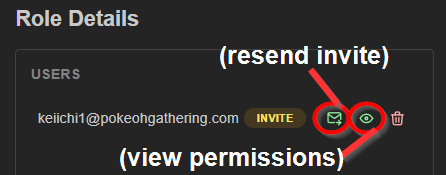
Permissions overview:
Currently, full access to your store is segmented across these 20 user permissions:
Sales & customers
CART_VIEW
- View carts/orders, receipts, and return details.
CART_EDIT
- Modify carts/orders, process payments, and update fulfillment, tracking, notes, and tags.
REFUND_CREATE
- Create returns and process refunds.
CUSTOMER_VIEW
- Search/view customers and their store-credit, account-ledger, and loyalty balances/history.
CUSTOMER_CREATE
- Create, edit, import, and merge customers.
- Allows manual store-credit and account-ledger adjustments.
Products & inventory
PRODUCT_VIEW
- View products, pricing information, and inventory/transfer information
PRODUCT_EDIT
- Create, edit, import, archive, and delete products
- Manage price overrides, images, tax assignments, and sales-channel availability
TRANSFER_CREATE
- Create/update transfers and delete unprocessed drafts
- Perform inventory adjustments, reclassification, and average-cost corrections
TRANSFER_EDIT
- Actually a placeholder for upcoming segmentation of the TRANSFER_CREATE permission. Currently you are able to edit transfers only via the TRANSFER_CREATE permission
TRANSFER_ACCEPT
- Receive transferred inventory, partially or in full, for authorized destination stores
Tills
TILL_OPEN
- Open a till session
TILL_CLOSE
- Close a till session
TILL_ADJUSTMENT_CREATE
- Record till adjustments and tender deposits
Store & employees
STORE_VIEW
- Access store information, including tills, tenders, tax groups, and till sessions
STORE_EDIT
- Change store/till settings and access billing information and the billing portal
USER_EDIT
- Manage employee PINs, PIN policies, and trusted registers -including pairing, unlocking, and revoking them. Role management and invitations separately require organization-admin access
Reports
REPORT_VIEW
- View and run available reports, including end-of-day summaries
REPORT_EDIT
- Manage organization reports and access applicable drafts; does not grant control over ShadowPOS’s official reports
Wiki
WIKI_VIEW
- Browse/search wiki content allowed by its access rules
- Designated editors can also edit permitted pages
WIKI_ADMIN
- Administer wiki content and its ownership/editor settings, including creating pages
Note: Permissions are store-scoped through roles.
Don’t assume an 'EDIT' permission automatically includes 'VIEW'. Grant both where needed.
Was this article helpful?
That’s Great!
Thank you for your feedback
Sorry! We couldn't be helpful
Thank you for your feedback
Feedback sent
We appreciate your effort and will try to fix the article