Our loyalty tracking is fairly simple, and by design! We wanted to make sure as many people as possible would be able to utilize it within their store. It allows your customers to accrue points that can be used in store.
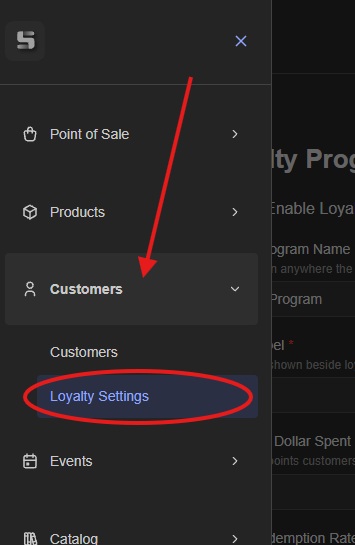
If you're interested in implementing a loyalty system for your customers, the first step is to navigate to the 'Loyalty Settings' in the menu:
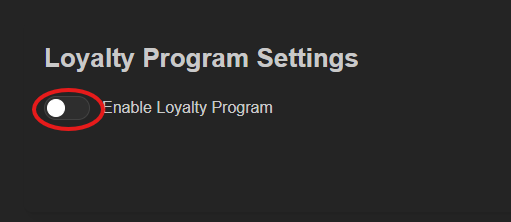
Now toggle the program on:
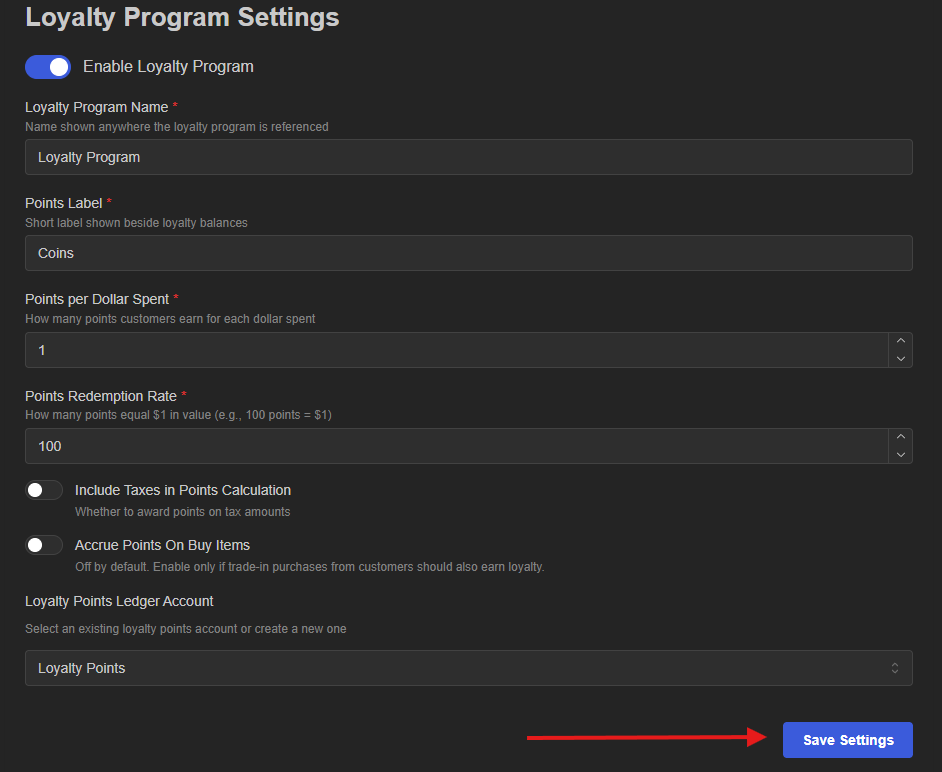
Now pick what you'd like to name the program, you can get as creative as you want or be straight forward:

Next you need to name your 'points,' again this can be whatever you'd like or you can do something simple, you can make it play on what you named it. For ours, we'll set it as 'coins' to make sure it's not confusing for the customers:

Following that, you'll decide how many points customers get per dollar spent. This can be however many you want, we'll go with '1' to make it easy.

You can adjust the amount at anytime by clicking the arrows at the end of the bar:

Next are two toggles. The first will decide whether your customers will accrue points on the tax of the sale as well as the sale price itself:

The second toggle is whether you want to have points on trade ins as well as purchases. This is turned off by default but you can switch it on any time.

Lastly, you have the Ledger Account:
You'll just need to make that once the program is created that you have it selected!

Remember: hit save after making any changes
Now what this will look like in the POS
Here you can see that Garrus has no points but is making a purchase:
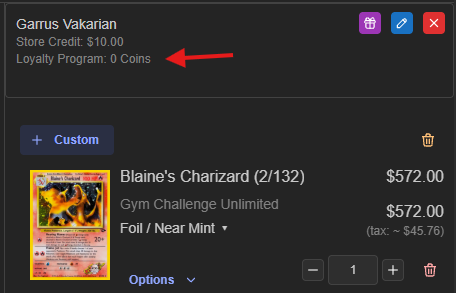
After completing the order, you'll notice for his next transaction he has Coins!
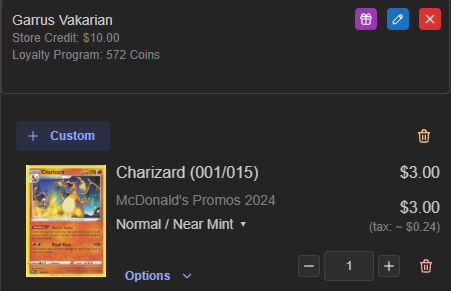
In order to use the Coins on this purchase you'll click the loyalty system button:
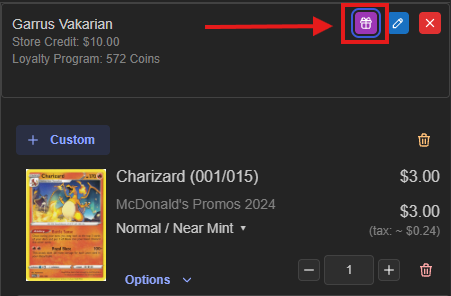
Note: there being no automatic deduction of points is intentional, this way if a customer wants to save up their points for a big purchase, they can!
Clicking on the loyalty system button will bring up this window:
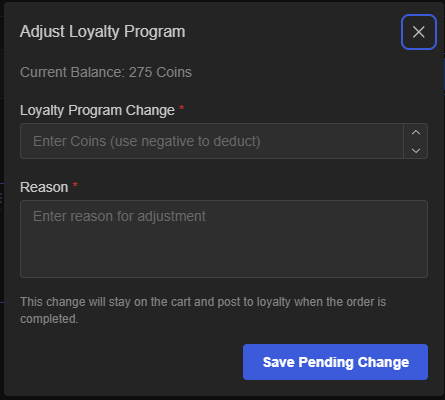
Since this order is three dollars, we'll go ahead and deduct three hundred points:
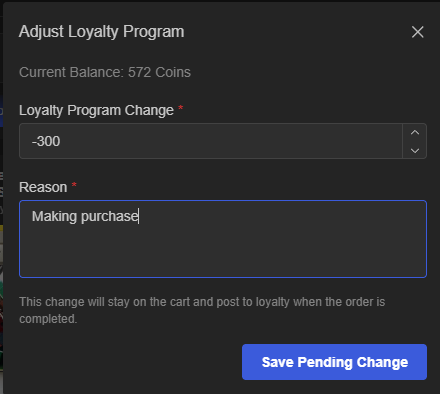
Note: If you're subtracting points, you'll want to use a negative here. For adding points, as long as the customer is attached, the system will add those once the transaction is complete. You should only use this window for adding additional points.
And you'll now see a note showing the point deduction:
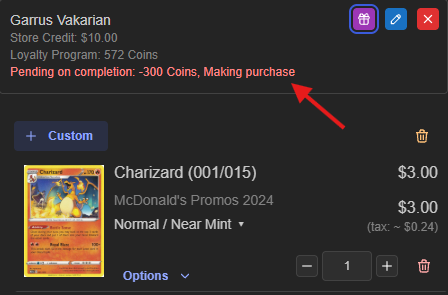
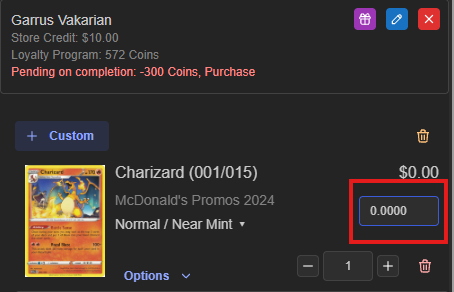
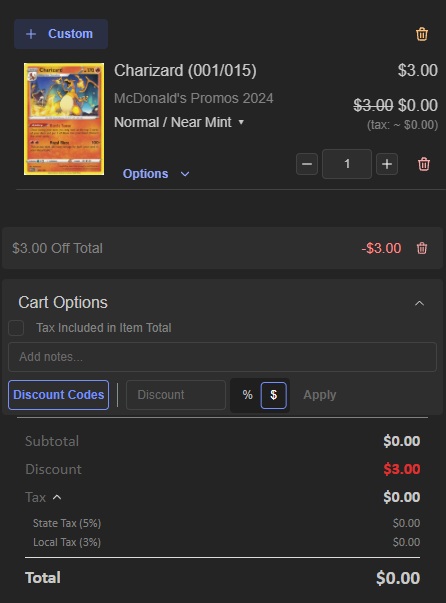
Next, the system does not change the price automatically, so you'll have to adjust the price of the card to reflect the price change.
The first way is to do it directly on the product:
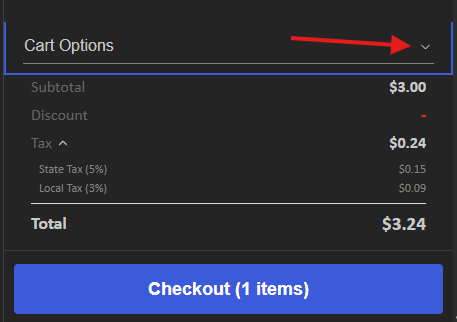
Or you can do it as a discount on the cart by going to the 'Cart Options' close the bottom of the cart:
And then adding the total:
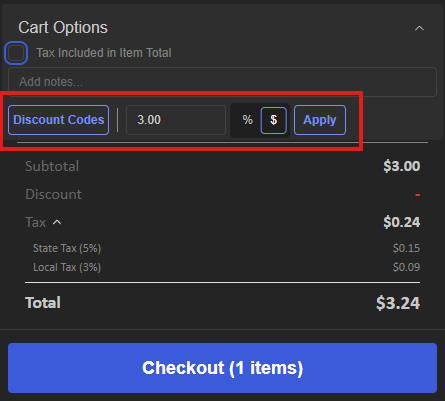
Here is what that looks like once applied:
Then you'll complete the transaction!
And you can see that the system deducted the appropriate amount of Coins:

Congrats! You now have a loyalty system for your customers!
Was this article helpful?
That’s Great!
Thank you for your feedback
Sorry! We couldn't be helpful
Thank you for your feedback
Feedback sent
We appreciate your effort and will try to fix the article