ShadowPOS makes it easy to configure buylists for customer interaction in just a few simple steps. Processing submitted buylists are just as easy to stage and process, in-part or in-full, all from a dedicated buylists page
Visit Point of Sale > Buylists
at a glance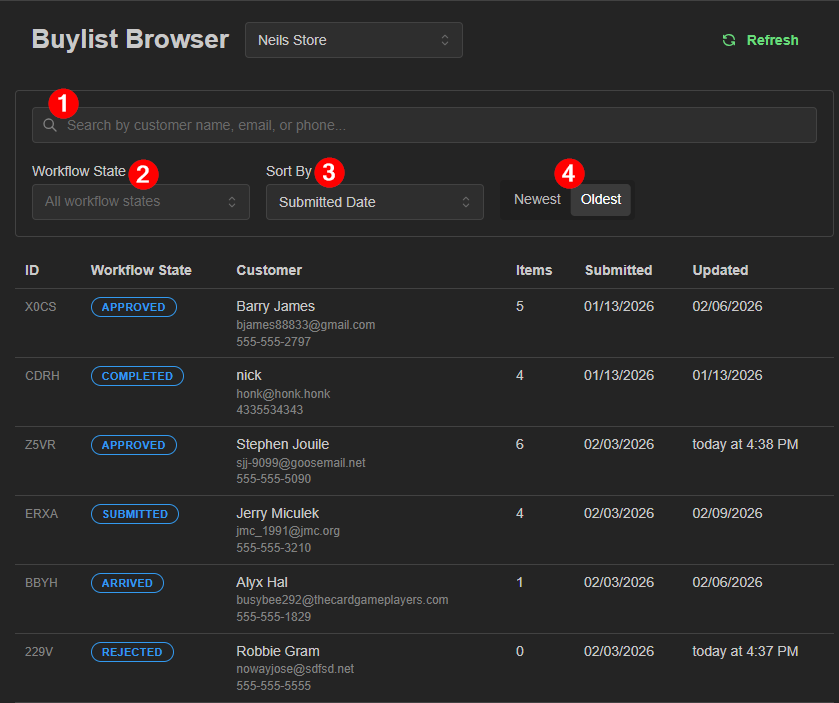 image info:
- Search by customer name, email, phone number
- Filter by workflow state: Customer buylists are always in various degrees of completion, called Workflow States. These adjustable statuses are helpful reference points for staff.
- Default Workflow State statuses
Open - list established but potentially incomplete / can still be edited by customer
Submitted - list arrived but still pending staff approval / customer editing only possible instore.
Approved - buylist content approved but awaiting arrival of items to store
Arrived - buylist arrived at store and currently processing
Pending Contact - buy is awaiting customer contact
Rejected - rejected buylist; cancelled by staff
Completed - buylist accepted; transaction complete
- Sort by the date buylist was submitted, or last updated
- Toggle whether orders load oldest or newest first
We'll cover:
- Activating buylists for your items/collections
- Setting manual or automatic buylist inventory additions
- Buylist processing (walkthrough)
- Alternatives to the default workflow
- Special actions
- Additional options and features
Activating buylists for webstore
Your buylist is driven entirely by collections.
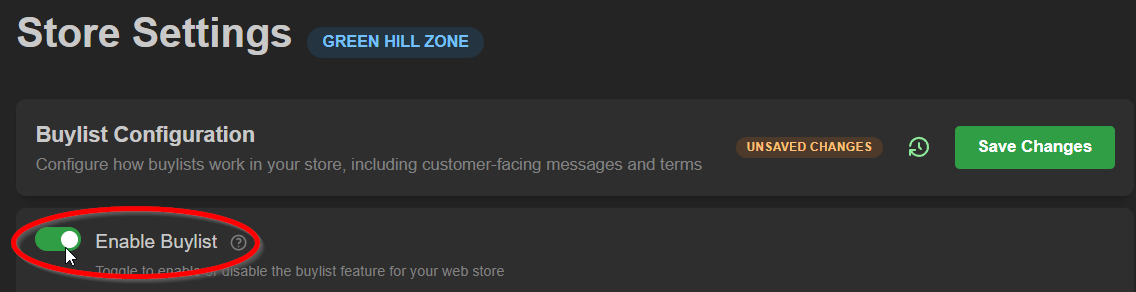
Enabling the buylist allows customers to view and interact with your buylist collections on the webstore.
- Visit the Settings menu > Settings > Buylist Configuration
- Configure your submission disclaimer and confirmation message
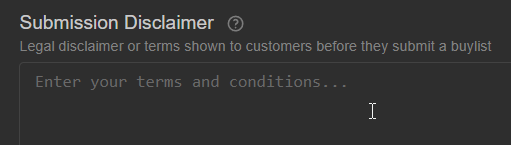
 Tip: You can use HTML formatting in these fields for better presentation
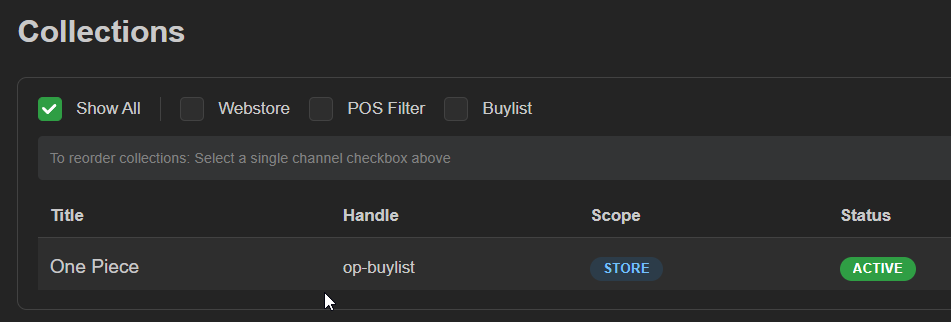
 - Visit the Products menu > Collections and choose or create a new collection
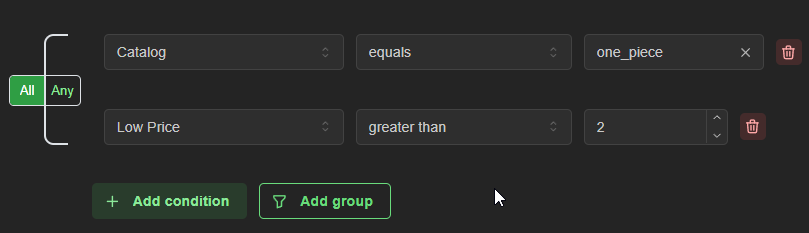
- Make sure your conditions are in line with your acceptance polices for buylist
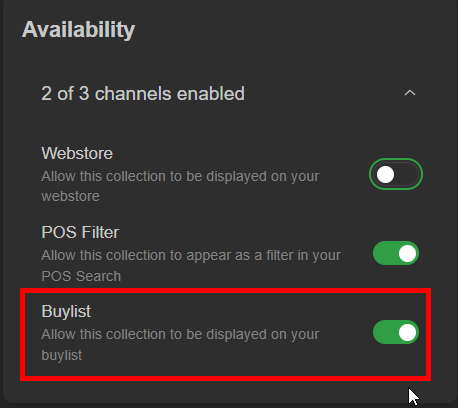
- Ensure the 'Buylist' toggle is on in this collection's channel group
 Note: The 'Webstore' channel doesn't need to be toggled on to appear in the buylist page of your webstore
Note: Some collections work for dual-purpose (webstore/buylist), depending on the collection conditions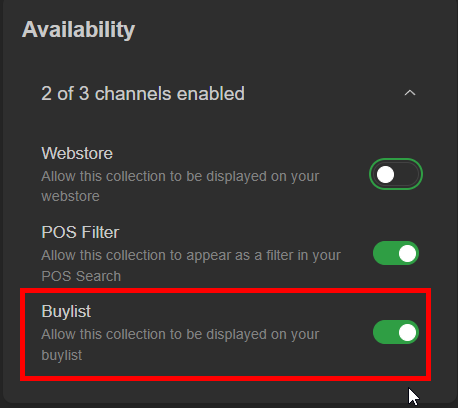 Tip: Have a few specific products you want to exclude from a collection? Visit that product's page and disable the Buylist sales channel toggle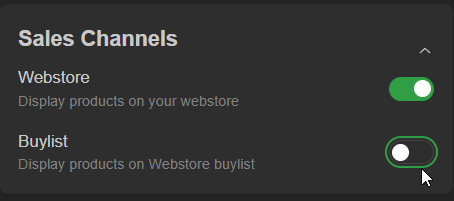
Buylist process walkthrough (all workflow states)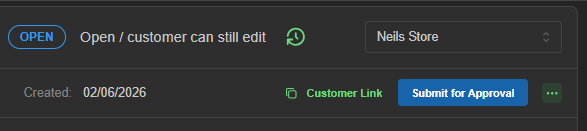
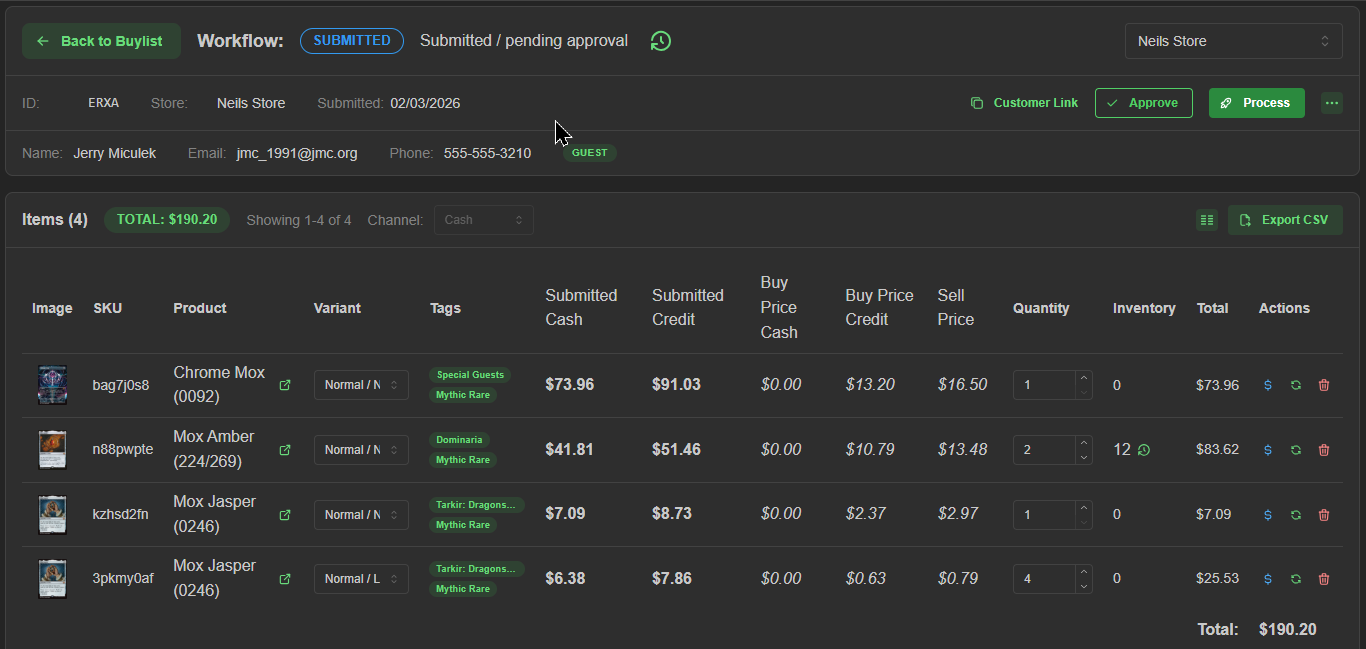
Open: Customer hasn't completed the checkout process for these buylist items. If they arrive instore with the items, you can adjust quantities and conditions as needed and/or verify and click 'Submit for Approval' button to mark this buylist's workflow state as 'Submitted'. Alternately, you can always convert a buylist immediately to cart, add to current cart, or reject it outright by clicking the '...' button in the top right and selecting from the drowdown.

Submitted: Customer has completed the list and submitted online. Quantities and conditions can be edited or removed by the customer if they arrive in store. Items can only be added if the list is converted to cart ('...' button > Convert to Cart)

Approved: Buylist items have not arrived in store, but staff has approved acceptance of these items based on the contents listed. Quantities and conditions can be edited or removed by staff. Click the 'Mark as Arrived' button once the customer has arrived instore with product. Alternately, if a customer arrives and wishes to add more items to the list in this state, convert to cart ('...' button > Convert to Cart).

Arrived: Customer's items have arrived instore for processing. Quantities and conditions can be edited or removed by staff or per customer request. Items can only be added if the list is converted to cart ('...' button > Convert to Cart)
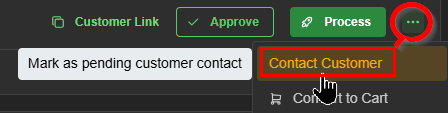

Pending Contact: Personal inquiry may be required. Use this setting ('...' button > Customer Contact) to convert any workflow state to Pending Contact.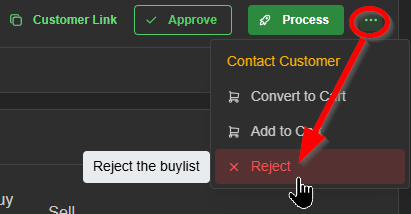

Rejected: Choose 'Reject' from the special options menu ('...' button > Reject) on a buylist's page to cancel processing at any time. 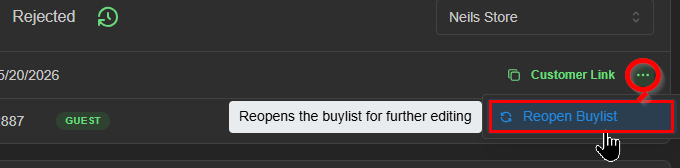 Reopen the list any time with quantities intact ('...' button > Reopen Buylist)

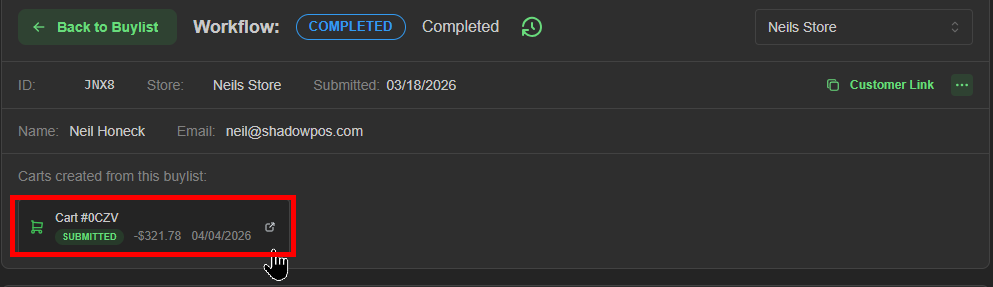
Completed: Buylist transaction has been completed and paid out. A buylist with 'Completed' status will display the Cart info and link to the transaction here,
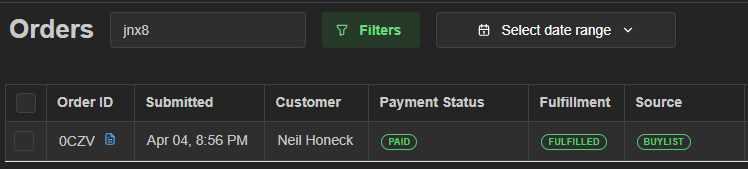
and will create an Order ID in your 'Orders' page.
Setting automatic or manual buylist inventory updates
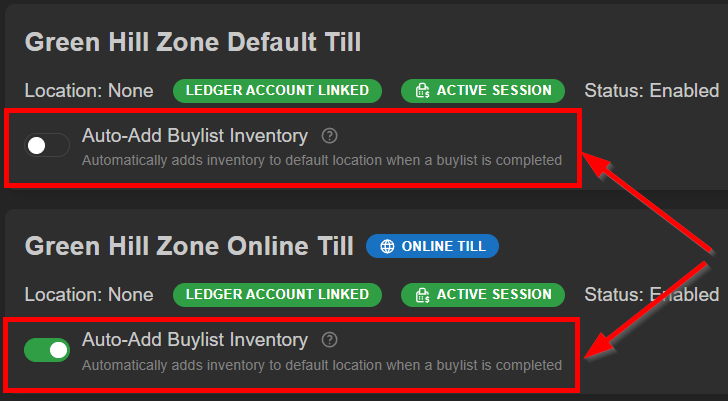
This is an important per-till setting that changes how inventory is added when the buylist process is completed. Inventory can automatically reflect the new products, or await manual acceptance in the 'Transfers' page
- Visit Settings menu > Till Management
- Toggle 'Auto-Add Buylist Inventory' on or off per till to update immediately
Alternatives to the default workflow buylist process
Sometimes you'll require an alternate process opposed to the default workflow.
Three options include processing immediately, converting contents to a new cart, and adding contents to an existing cart.
- Process Immediately
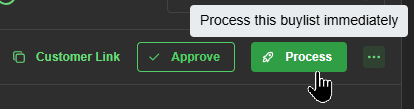 This action opens a window that bypasses the point of sale to process the buylist immediately.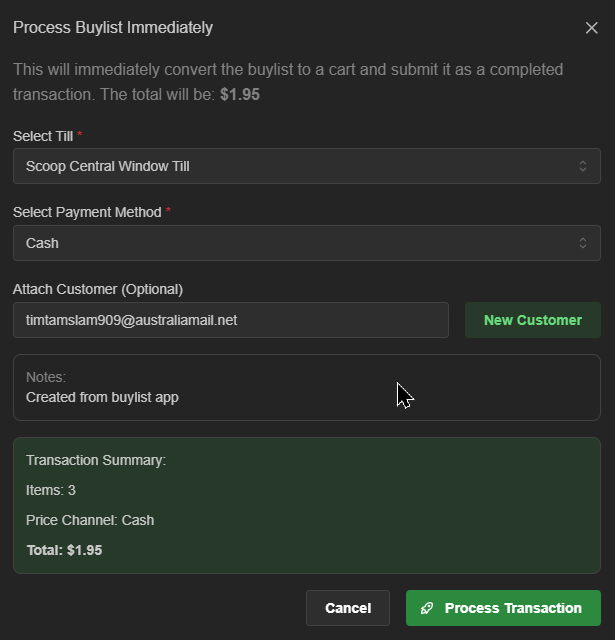
- Convert to Cart
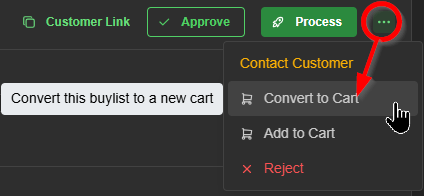 Open the special options menu and choose 'Convert to Cart' to create a new cart with the buylist contents intact. Useful when the customer arrives and wants to purchase in the same transaction, or if they need to change the intended payout option (cash vs store credit)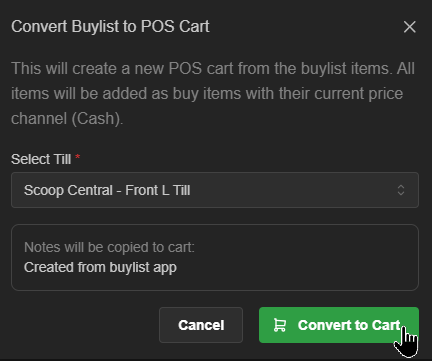
- Add to Cart
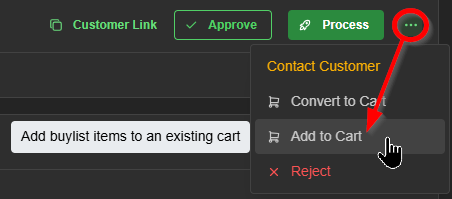 Open the special options menu and choose Add to Cart to open the window. Useful when the customer has both an existing cart and an active buylist submission in the system.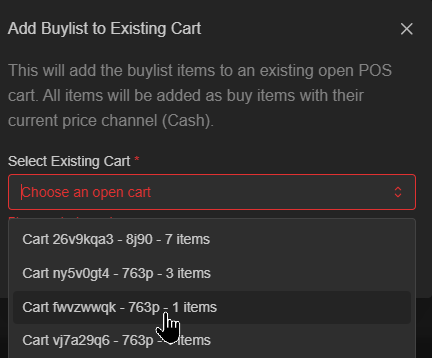
Once the 'Approved' state is reached, lists can be processed immediately, skipping other workflow states, by clicking the green 'Process' button
or converted/added to cart at any time. Regardless, it's most important to verify the contents, quantities, and condition of each item before the checkout process begins. By default, the buylist browser filters only 'submitted' buylist orders, but you can clear/set filters and sort method however you prefer at the top of the page.
Special Actions (icons) 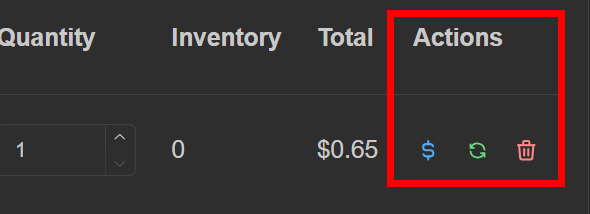
- $ icon
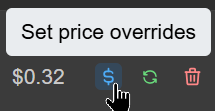 Opens a price override window for this item
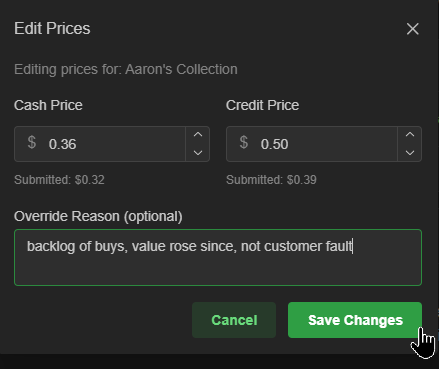 Useful when an item's submitted value fluctuates in the time between list submission and actual processing
 - Match icon
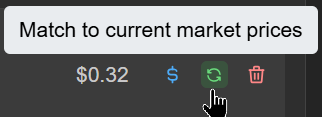
Overrides the cash and credit amounts to match current market values
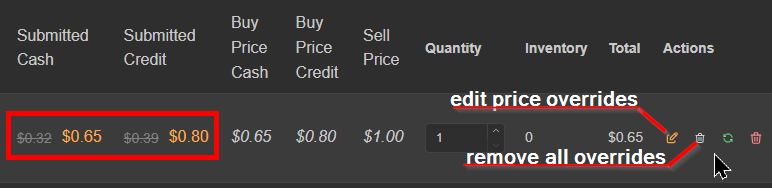 New edit buttons will appear when the match option is used, allowing you to further modify the price overrides, or remove the overrides altogether
 - Trash icon
Removes this line item from the buylist
Additional options and features
'Special options' menu
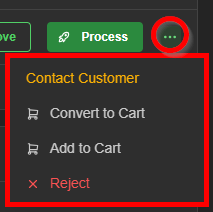 allows you to immediately move this buylist's contents to a cart, reject cart outright, or mark for customer contact, changing the the buylist workflow state to 'Pending Contact'
Customer Link
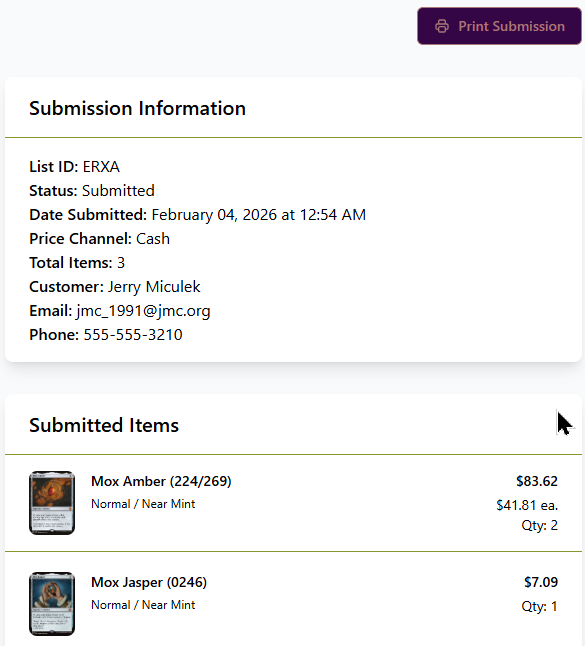 Copies the order web link to your computer's clipboard. Share or visit the link to open a printable page with submitted buylist items and customer information from your webstore record.
Configure Columns
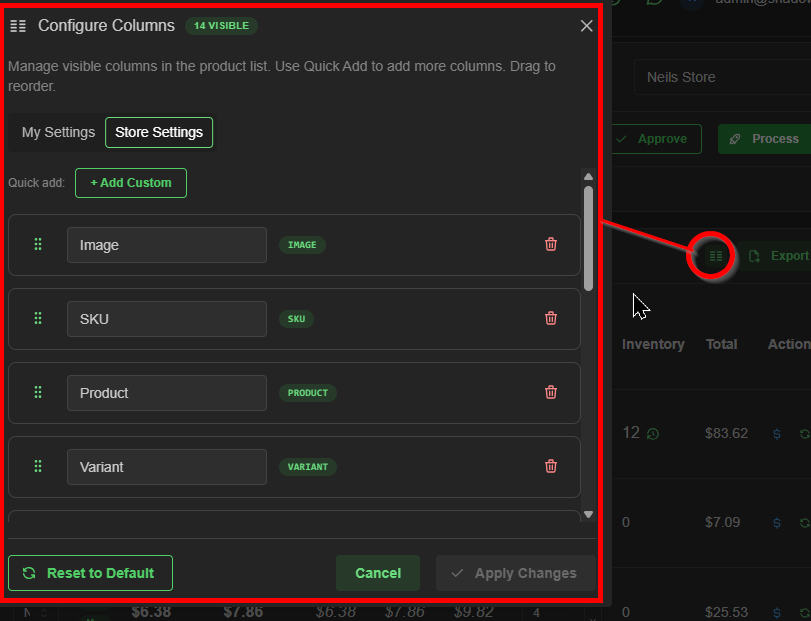 Enables you to customize which columns on this page are visible and in which order (left to right) they appear in. Be sure to click 'Apply Changes' to save.
Export CSV
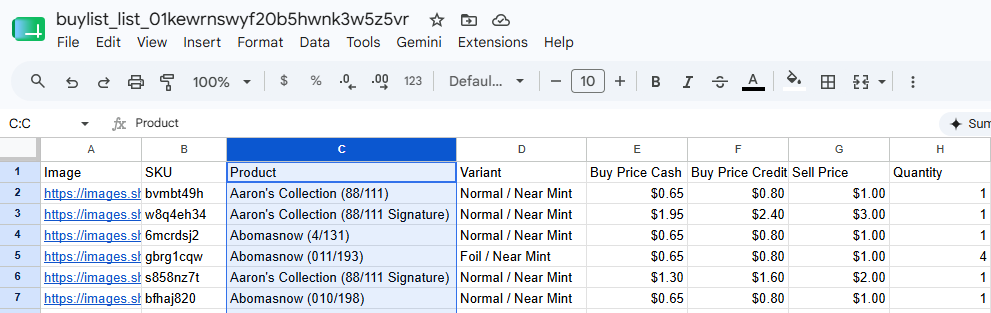 This initiates a CSV download to your computer with data from your current columns represented.
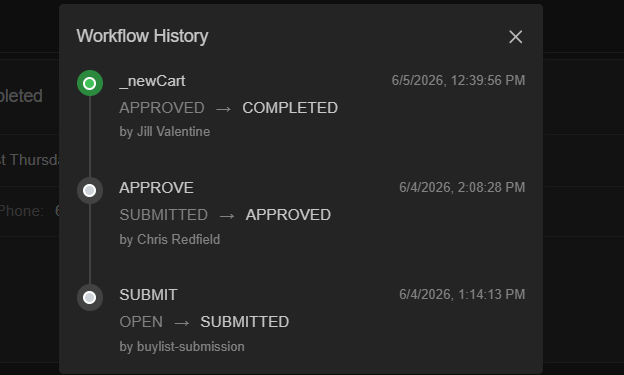
Workflow History (icon)
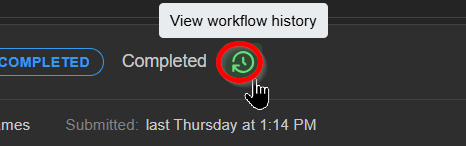
Conveniently reference workflow state edits made to this buylist via timestamped record
Was this article helpful?
That’s Great!
Thank you for your feedback
Sorry! We couldn't be helpful
Thank you for your feedback
Feedback sent
We appreciate your effort and will try to fix the article