On occasion you'll prefer a particular pulling method opposed to the default template. Let's open the Pull Sheet Template configurator and craft a custom template!
You can reach pull sheets through the point of sale or an order's page.
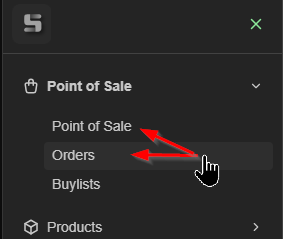
(in the point of sale, after 1 or more items are added to the cart)

(an order's page)

In the Pull Sheet page, click the gear icon in the top right to open the template configurator.

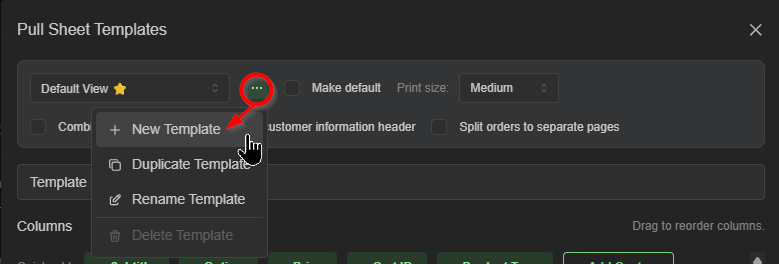
Let's create one from scratch by clicking the the menu button and selecting '+ New Template'
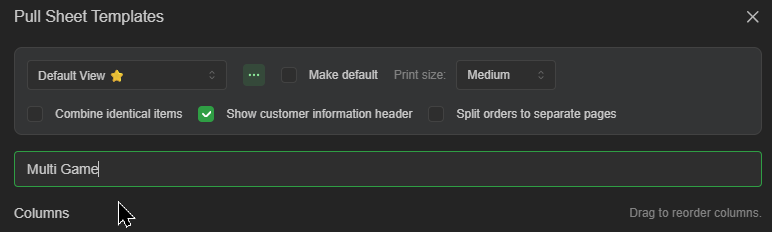
Name your template
By default, a new template is populated with only two columns: Title, and Qty.
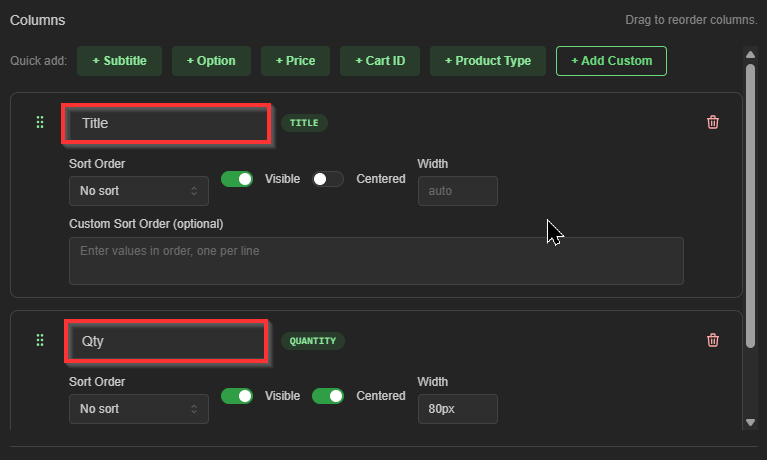
We'll dig right into '+Add Custom' to add a few special columns

Let's go with some popular choices:
-Product Image
-Product Type
-Option
-Set Name
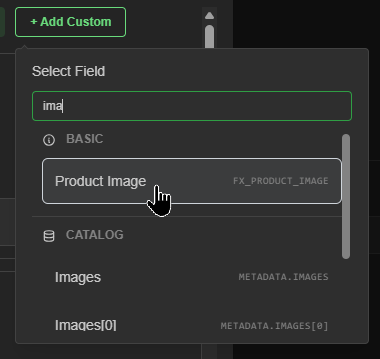
There's a ton of metadata we can choose from, just keep in mind that many custom column fields are only compatible with specific catalogs.
A column assigned 'Sort 1st' will sort each item on the pull sheet completely before sorting a 'Sort 2nd' column. Every sort order past 1 will only arrange products so long as it does not change the order defined by the previous column.
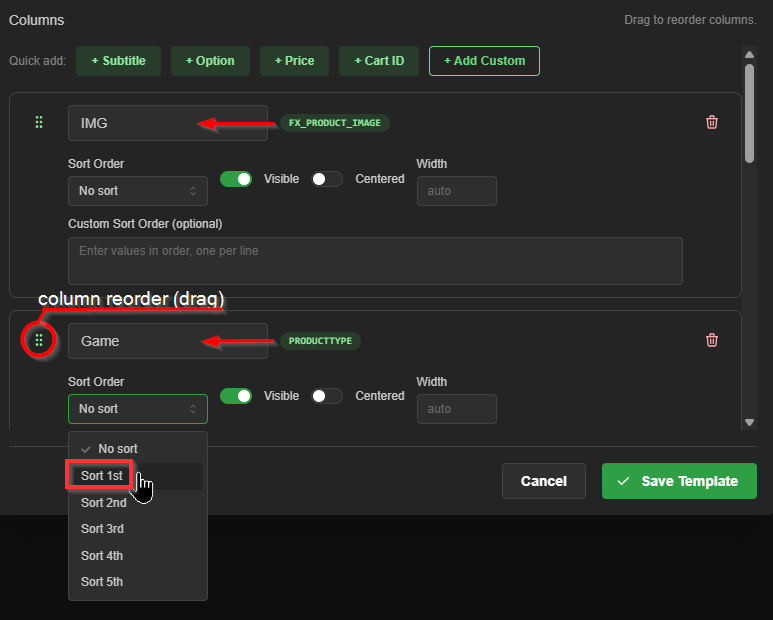
You can also rename columns here if desired

Be sure to name and save the template before closing the configurator.
Not the sort order priority, indicated by the numbered bubbles
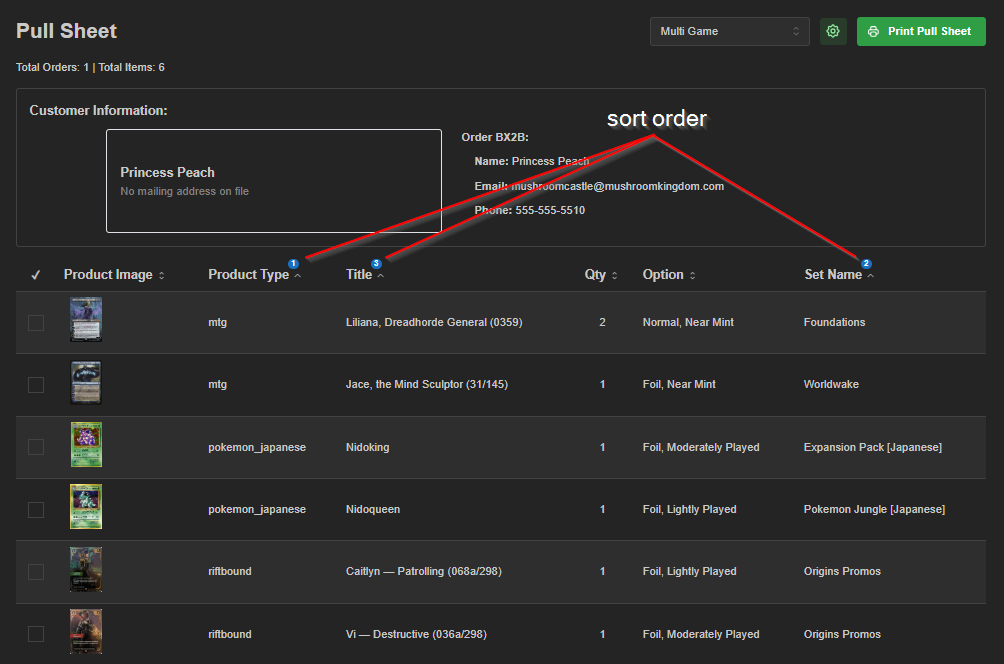
Create as many templates as needed to make pulling faster and more intuitive for your crew!
Was this article helpful?
That’s Great!
Thank you for your feedback
Sorry! We couldn't be helpful
Thank you for your feedback
Feedback sent
We appreciate your effort and will try to fix the article