A note before we get started: you must be subscribed to the catalog in order for a product to populate
From the ShadowPOS interface you go to the product creation page in the navigation:
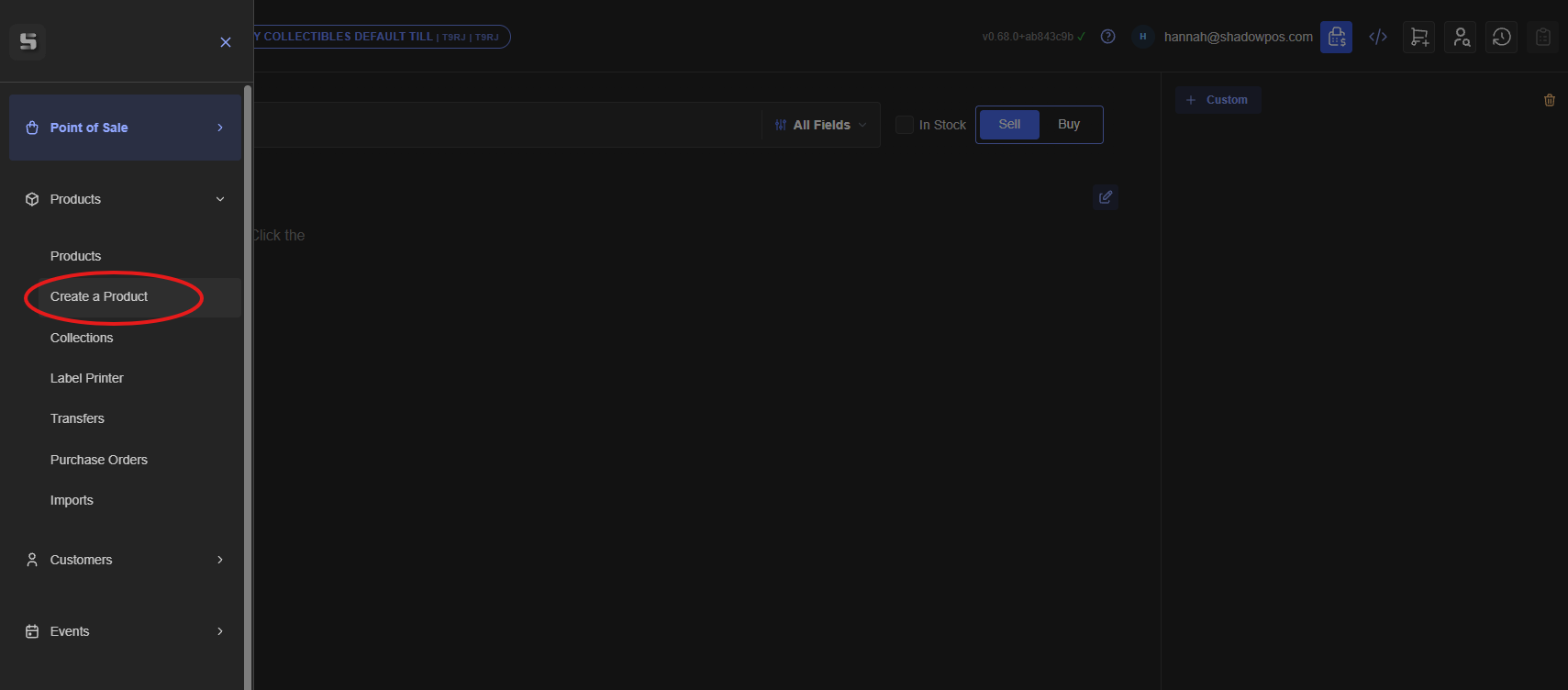
This will bring you directly to the 'Create Product' page:
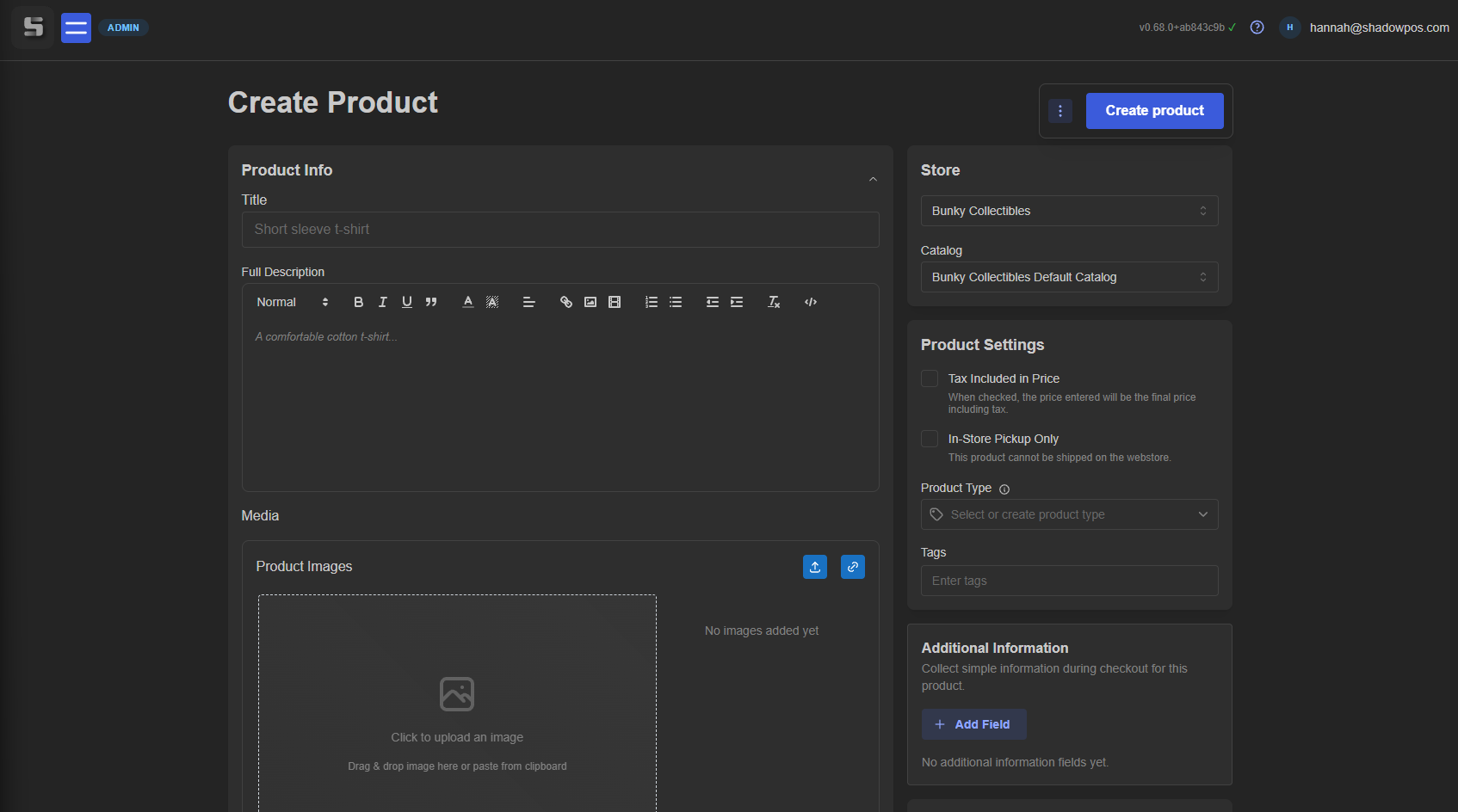
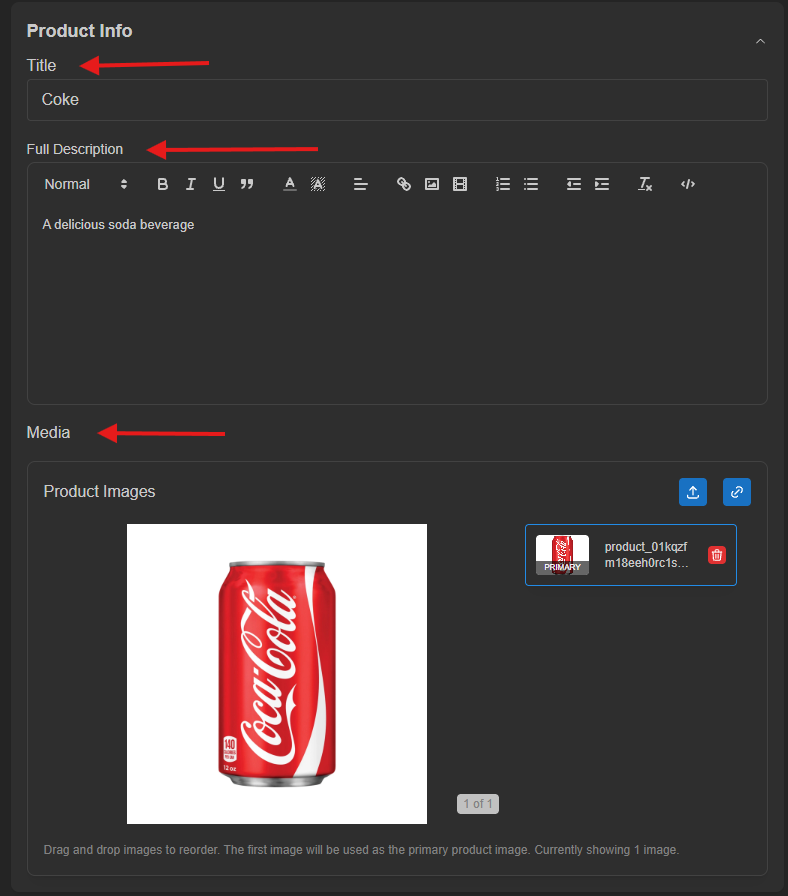
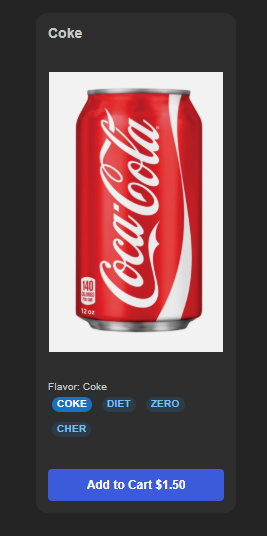
Then you'll fill out the appropriate information, we'll create a 'Coke' for this example:
First steps are to fill out the 'Title', 'Full Description', and the 'Media':
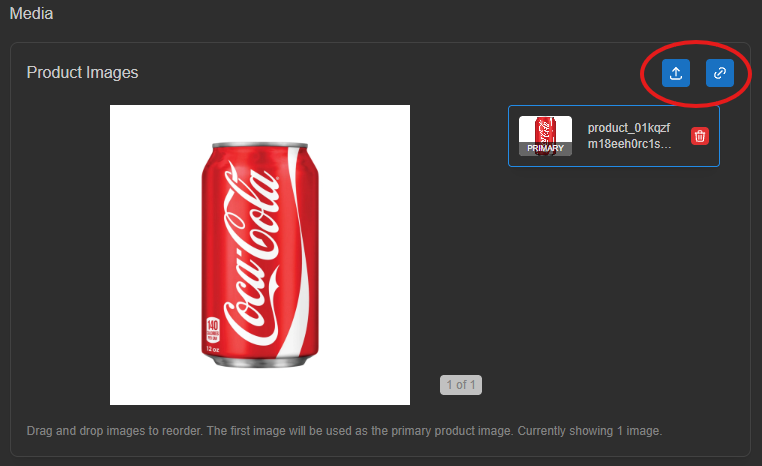
For the image, you can directly upload an image from your device, copy and paste from another source, or link an image URL. Those options are located in the top right corner of the media section:
Optional: Setting up variants
You can add variants to a particular product, but make sure to click the check mark once you're done:

You're able to add multiple:
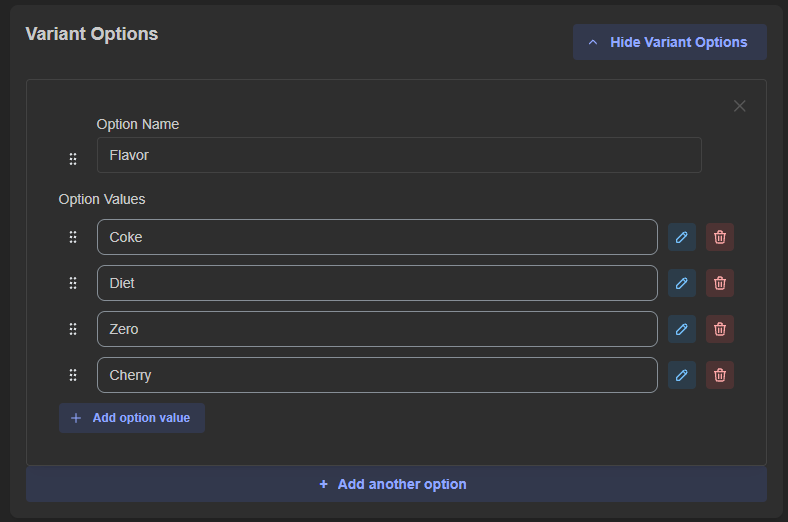
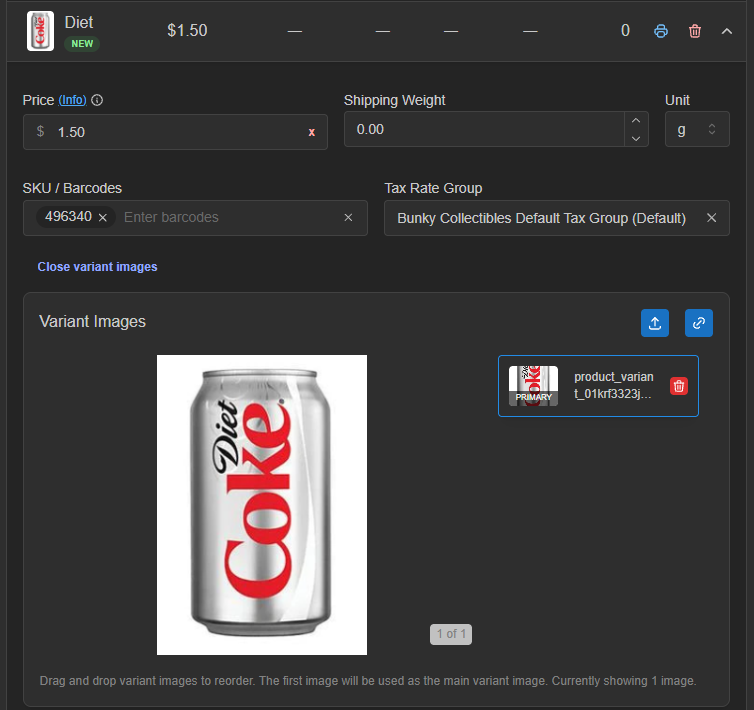
Next you'll add the info to your variants:
Keep in mind: the image that you originally added for the product is what the first variant will default to
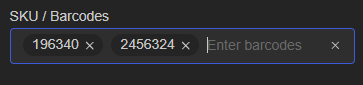
A note on skus/barcodes: if you have multiple skus/barcodes for a single product, e.g. the packaging changed but the product remained the same, you are able to add more than one to an individual variant or product, simply type the first, hit enter and then type the second one and hit enter
If you'd like to start with inventory at creation, you can add in the amount, or leave it blank if you want to start from zero:

Reminder: always remember to hit 'Apply Change' after any inventory adjustment
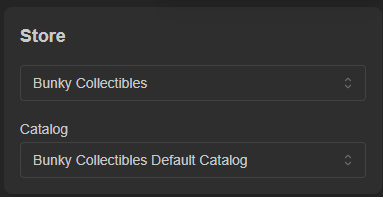
Now on the right hand side of the screen there are several modules, some optional, some not. The first you'll see is the store and catalog selector. For stores with multiple locations, you'll want to make sure you select the correct one. Then you'll pick the catalog you'd like to add the product to:
Next is the Product Settings section:
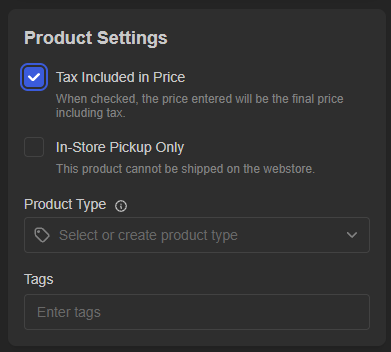
For this example (Coke) we're going to have tax included, that way it's simpler for customers as they're playing in store. Since this isn't going to be available on the webstore at all (more on that later), we'll leave 'In-Store Pickup Only' unchecked. But if you'd like to have your product available on your webstore for purchase but in store pick up only, you can check this option.
For Product Type, you'll select one that you've already created ahead of time:
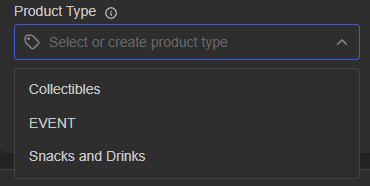
Cokes obviously fall into the 'Snacks and Drinks' category here, but you can create any type you'd like.
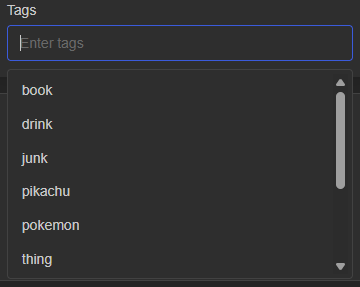
You can also select any number of tags that you'd like to apply to the product. You'll also have to create these ahead of time:
Additional information
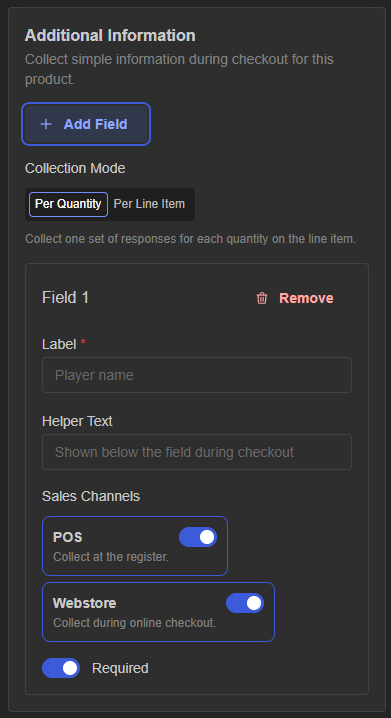
This is an area that will allow you to collect additional info at check out. Most of the time it's used for custom ticket creation, but you could also use it to create a note. We don't really need it for cokes, but here is what it looks like:
Sales Channels is where you'll decide where you'd like your product to populate. By default, all products will appear in the point of sale, but you have the option to decide whether you'd like a particular product to be available for purchase on the webstore and/or available for trade in the buylist.
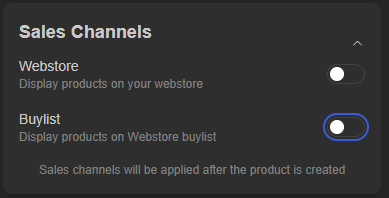
We have both toggled to off because we want cokes only available in store, and don't want anyone to trade in a used one (gross!).
Product handles are to make a product page URL on your webstore. You always want to pick something simple and easy to remember (if possible) and not use any special characters. We'll go ahead and add one to this just in case:
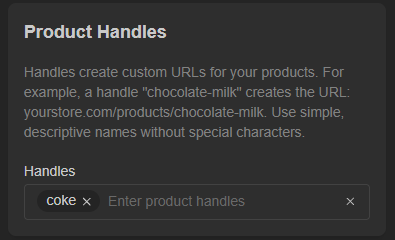
Be aware: if you add a special character to the handle it will cause the page not do display correctly when anyone navigates to it, so don't use them! Letters, numbers, dashes only please.
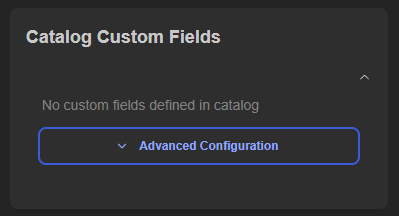
Custom fields
This isn't something that most stores will use, but if you are interested in creating your own custom fields yourself via code, let us know and we'll help walk you through it!
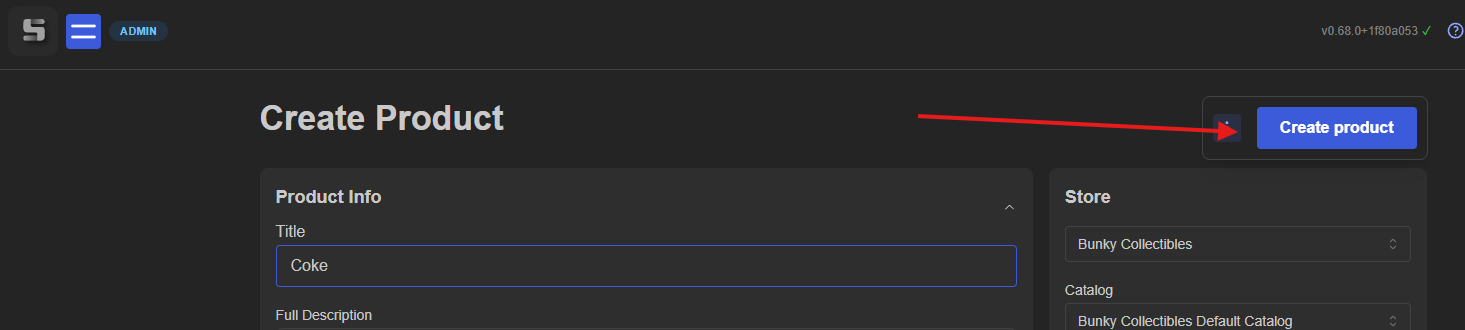
Once you've gotten everything filled out that you need, you'll just hit the big button in the top right and you're all set!
And there you have it!
Was this article helpful?
That’s Great!
Thank you for your feedback
Sorry! We couldn't be helpful
Thank you for your feedback
Feedback sent
We appreciate your effort and will try to fix the article