Notifications through ShadowPOS are helpful updates sent to customers or your store/staff in the form of email and Discord messages. They're built from preconfigured templates and triggered when a topic's condition is met. Keep your customers up to date during the order process, or ping your store/personal Discord channel when a new order comes in! There are tons of variables to choose from when constructing the perfect template for each and every scenario.
Visit Settings > Notifications
at a glance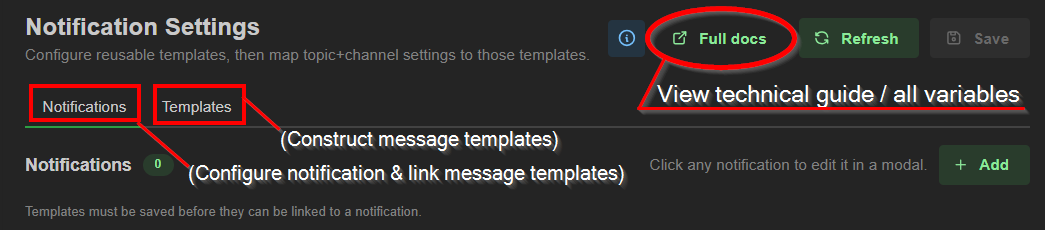
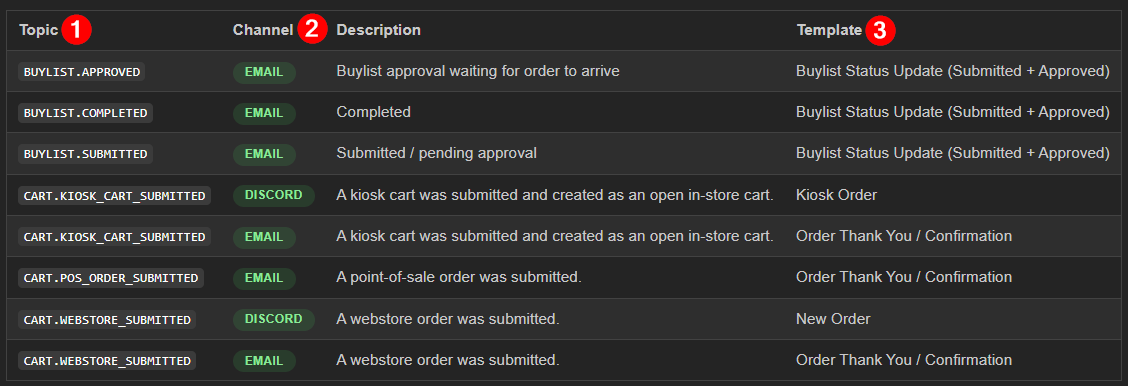
ShadowPOS notifications are built from three pieces:
- Topic - appears like 'BUYLIST.SUBMITTED' or 'CART.KIOSK_CART_SUBMITTED'
- Delivery Channel - such as email or Discord
- Template - which renders the final message
We'll cover:
- Adding notifications
- Setting up notification (message) templates
- Best practices and general-use info
Adding notifications: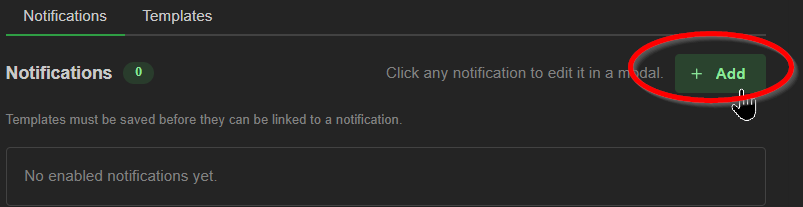
In the notifications tab, click '+Add' to open the configurator pop-up window
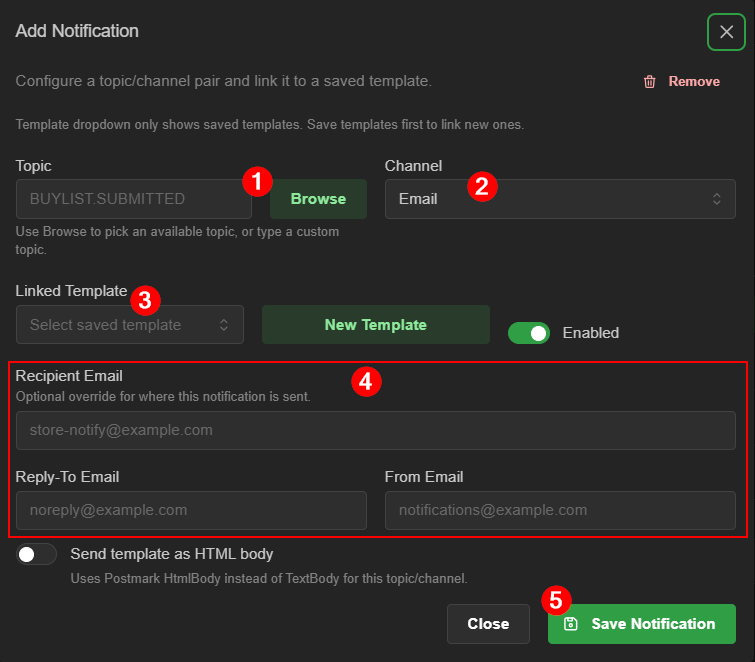
- Browse for available topics and choose one to apply, or type in a custom one (precise character entry is required for custom topics)
- Choose Email or Discord channel from the 'Channel' dropdown selector
- Choose a linked template from the 'Linked Template' dropdown selector, or create a new template to use here.
- a) For Email channel: Fill out Recipient Email field (if store-facing recipient or non-customer), along with the 'Reply-To' and 'From' fields.
or
b) For Discord channel: Obtain and copy your discord webhook
(visit your server settings > then Integrations > Webhooks in Discord),and paste it into ShadowPOS.
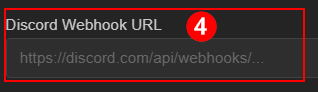 Caution: Treat the Webhook like a password. Anyone with the URL can post into that Discord channel.
 - Toggle this notification on/off anytime from this window,
 and click 'Save Notification' to complete the setup!
Important: Customer-facing email notifications usually work best when 'Recipient Email' is left blank so ShadowPOS can resolve the customer recipient automatically from the event data.
Your notification is ready for use!
Setting up notification templates:
First you'll want to add templates for consistent messaging across several topics or channels.
Click the 'Templates' (1) tab

Hint:
Before you create your first template, consider using one of our built-in templates first, which are available when setting up a default notification topic. These are basic, yet useful templates you can begin using immediately, and serve as great reference material when building your own customized templates. Don't forget to click 'Save' at the top of the page after adding new templates!
Click '+ Add Template'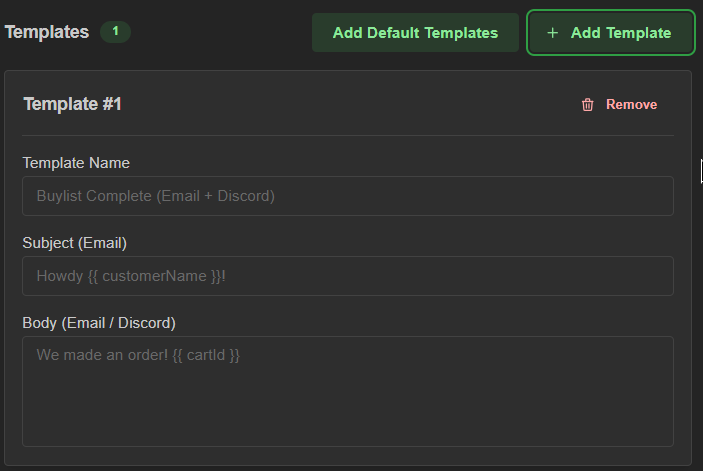
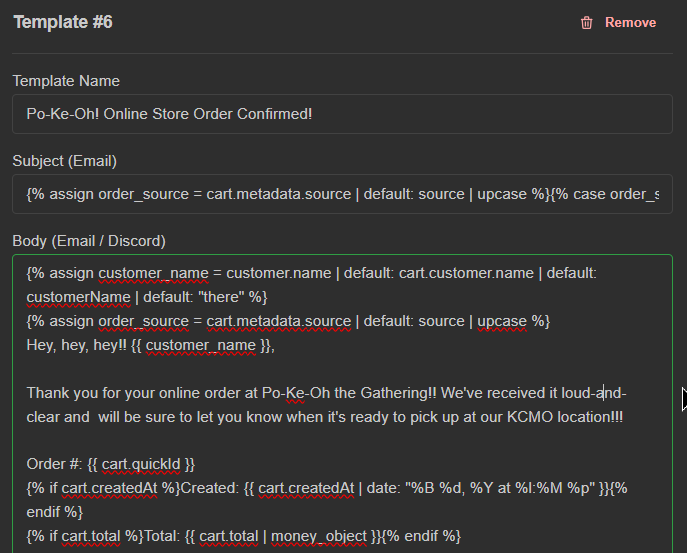
Fill out the template card using applicable variables where necessary, taking advantage of the documentation offered via 'Full docs' as well as the reference guide for variables.
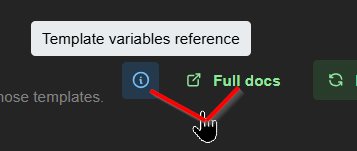
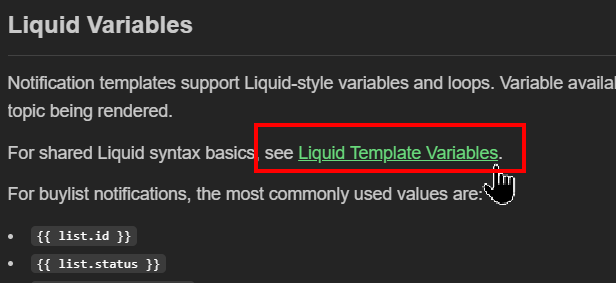
Hint: Visit the 'Liquid Template Variables' page for more!
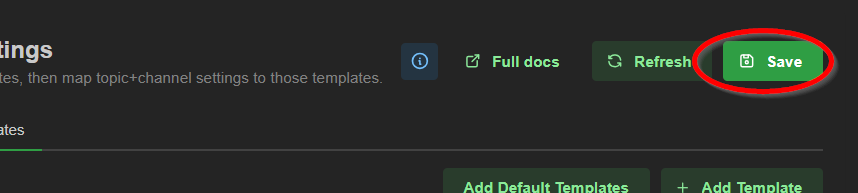
Be sure to click 'Save' at the top of the screen before leaving the page!
Once complete, your template may look something like this:
Hint:
Don't forget to save it!
Return to the Notifications tab
Best practices / General use case tips:
Channel Setup
The most common event setup patterns are:
- send an email to the customer using the email resolved from the event data
- send an email to staff using a fixed override address
- send a Discord message into a shared channel using a webhook URL
Best practice tips (Email):
when sending to the customer:
Leave the 'To Email' field blank when the template should go to the customer tied to the event. For buylist-style notifications, ShadowPOS will typically resolve the recipient from values like:
- list.metadata.customerInfo.email
- the customer record or delivery address associated with the event
This is the best choice for customer-facing updates such as:
- buylist submitted
- buylist received
- buylist completed
when sending to staff:
Use the email field override. Set the 'To Email' field to a fixed address when the message should always go to staff instead of the customer
examples:
- ops@yourstore.com
- buylist@yourstore.com
- notifications@yourstore.com
This is useful for internal alerts such as:
- a customer submitted a new buylist
- a workflow hit an exception state
- a review queue needs attention
when sending to both customer and staff:
The cleanest approach is usually to create two notification mappings for the same topic:
- one customer-facing email notification with no override
- one staff-facing email notification with 'To Email' set to your team inbox
'From' and 'Reply-to' address field tips:
- Use From Email when you want to control the sender address shown on the message.
- Use Reply-To Email when replies should go somewhere different from the sender.
examples:
'From' email: no-reply@yourstore.com
'Reply-To' email: support@yourstore.com
Best practice tips (Discord):
Use the discord channel when you simply want notifications to post into a Discord server channel.
Practical Discord use cases:
Discord is usually best for internal team visibility, for example:
- new buylist submitted
- high-value order created
- workflow error or sync failure
- store activity that should be visible to the whole team
Template tips:
Discord messages tend to work best when the template body is short and scannable:
- first line says what happened
- next lines give customer, order, or list context
- final line includes a link if one is available
Obtaining a Discord webhook URL:
In Discord:
- Open the server and channel where you want notifications to appear.
- Open Edit Channel.
- Open Integrations.
- Open Webhooks.
- Create a new webhook or choose an existing one.
- Copy the webhook URL.
Paste that value into the Webhook URL field in Notification Settings.
Webhook URLs will appear something like:
https://discord.com/api/webhooks/123456789012345678/very-long-secret-token
Caution:
Treat this URL like a password. Anyone with the webhook URL can post into that Discord channel.
Was this article helpful?
That’s Great!
Thank you for your feedback
Sorry! We couldn't be helpful
Thank you for your feedback
Feedback sent
We appreciate your effort and will try to fix the article