ShadowPOS offers a simple solution to providing your customers with a full view of their cart items and running total via the customer facing display; they'll appreciate the added layer of transparency when shopping at your store. And when transactions aren't in progress, the customer display can default to show store branding, welcome screens, event advertisements, and more. Activating is easy; just pair and position!
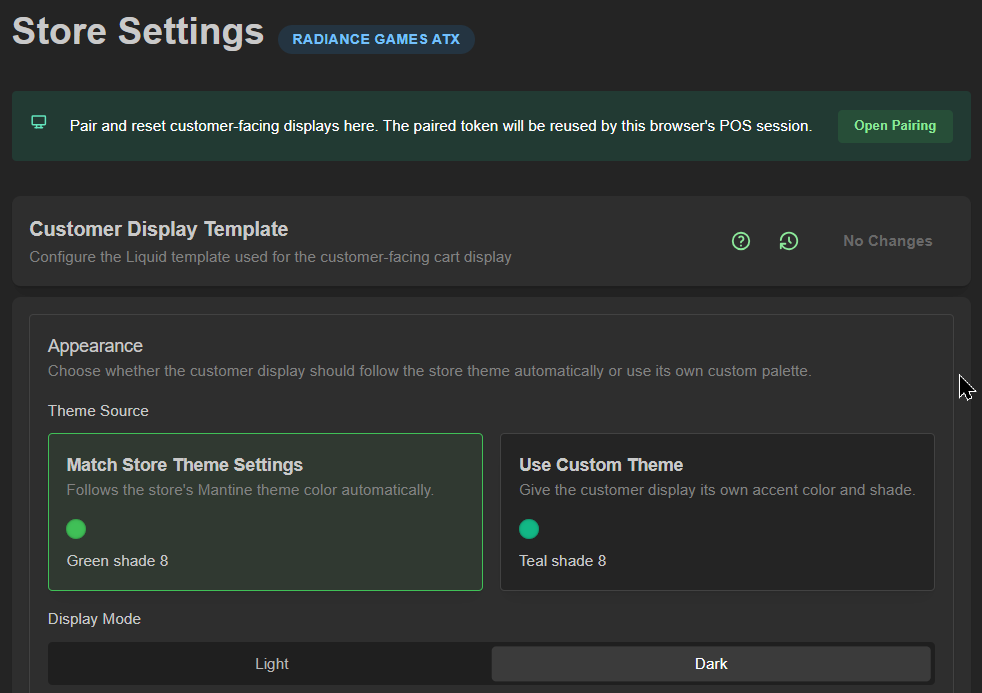
Visit Settings > Settings > Customer Display Template
We'll cover:
- Pairing a display by code
- Pairing a display by link / QR code
- Sample displays
- Removing paired devices
- Appearance & display template code overview
Pairing by code:
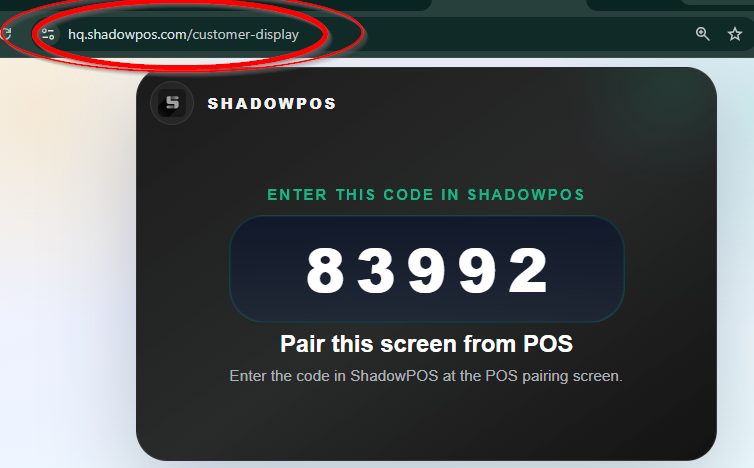
- On the device you intend to use for customer display, visit hq.shadowpos.com/customer-display on an up-to-date web browser. You'll need the code in just a moment
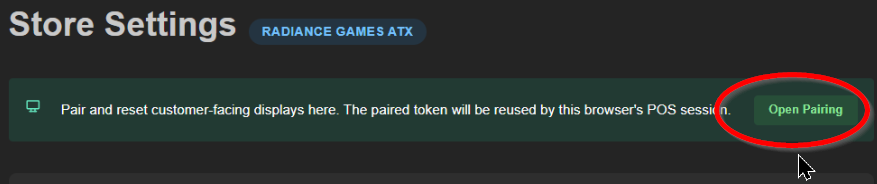
- On another browser/machine logged into hq.shadowpos.com, navigate to Settings > Settings > Customer Display Template and click the 'Open Pairing' button
- Enter the 5-digit code shown here in the POS pairing screen and click 'Pair Display'
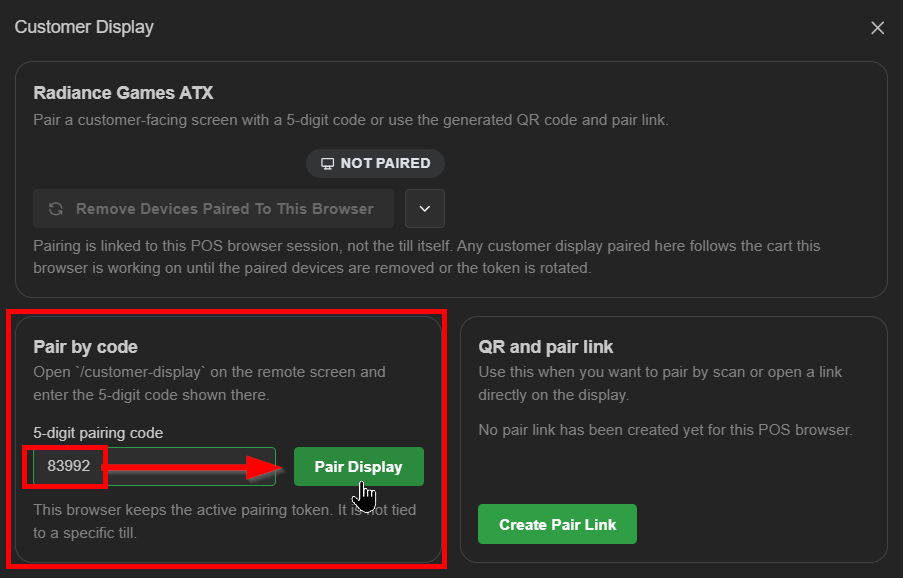 You should see a confirmation pop-up in the bottom corner of the screen
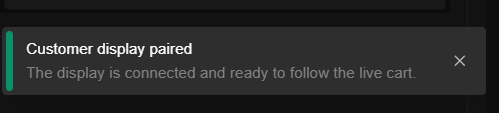 The configured display should update in just a few seconds to reflect the 'ready' default idle screen, or you can use a custom image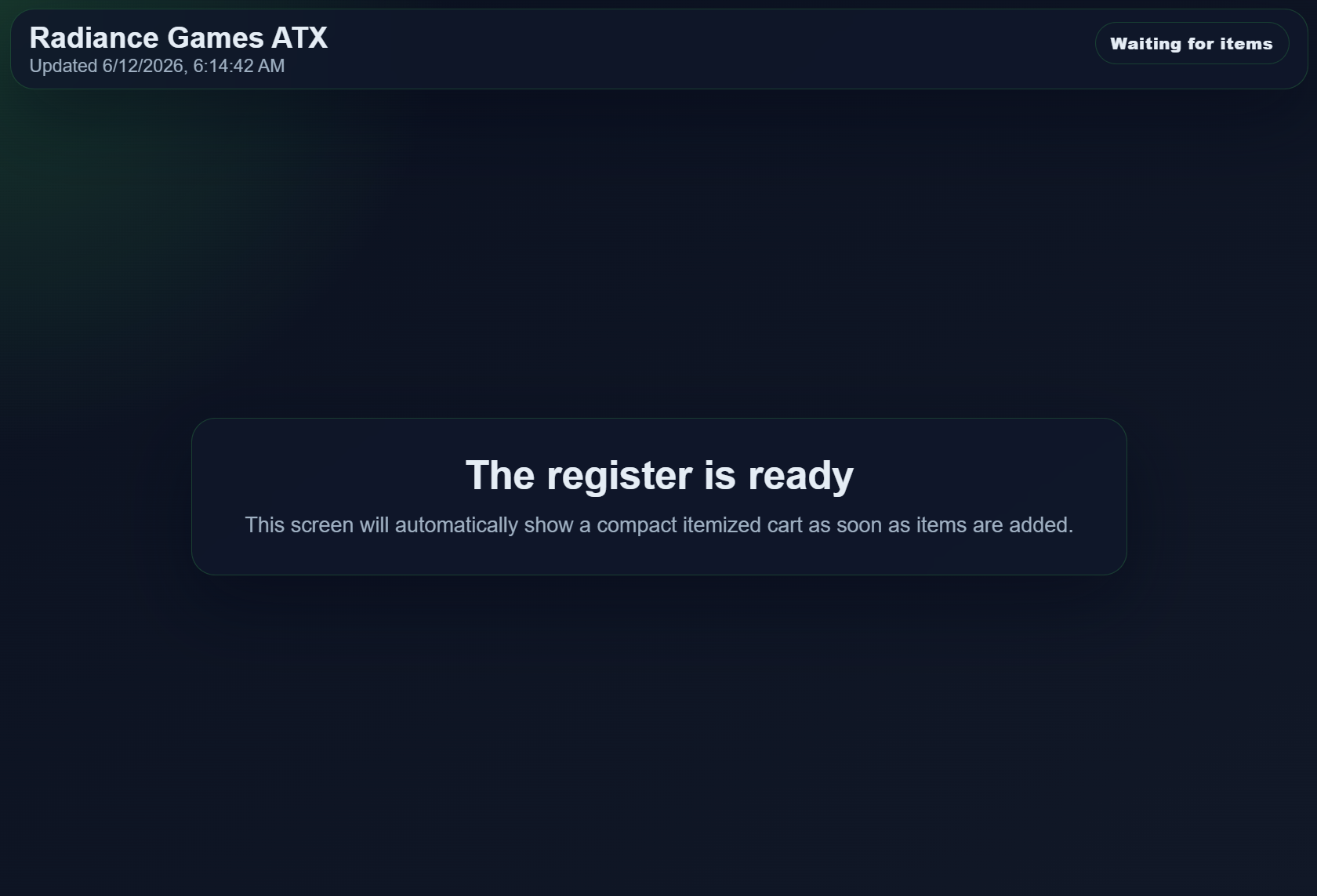
Pairing by link / QR code:
- Click the 'Open Pairing' button
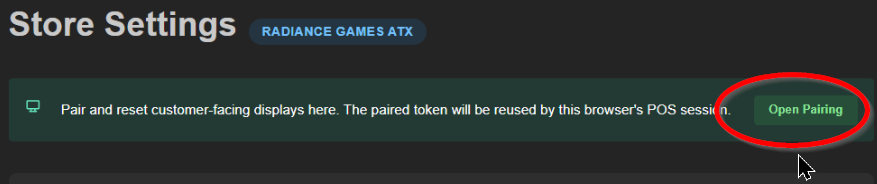
- Click the 'Create Pair Link' button
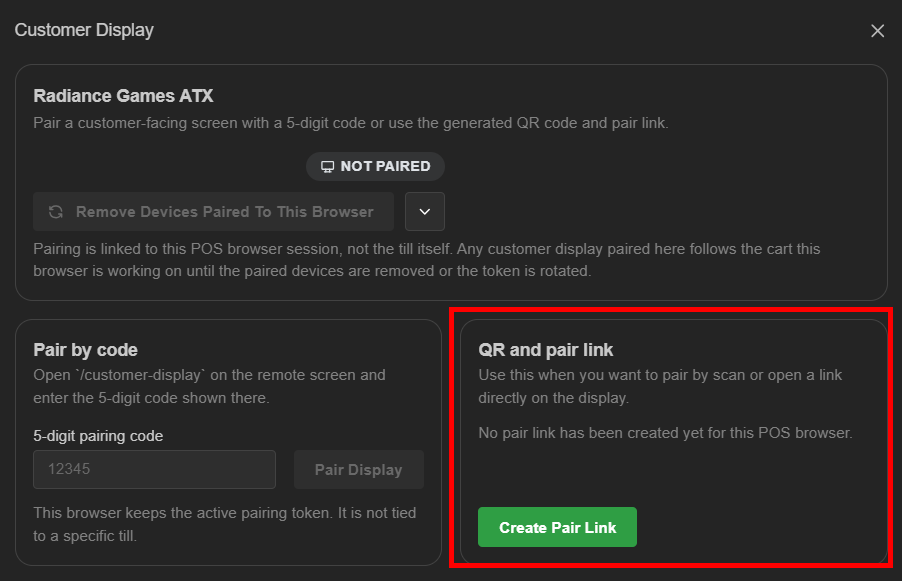
- Choose which pairing method you'll use to link the device. Simply copy/paste the URL to use on preferred customer display device, or scan the QR code with the preferred display device's camera to immediately set the pairing code.
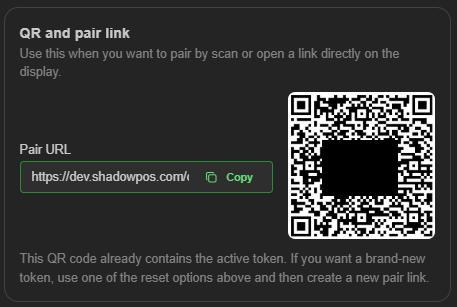 You should see a confirmation pop-up in the bottom corner of the screenThe configured display should update in just a few seconds to reflect the 'ready' default idle screen, or you can use a custom image
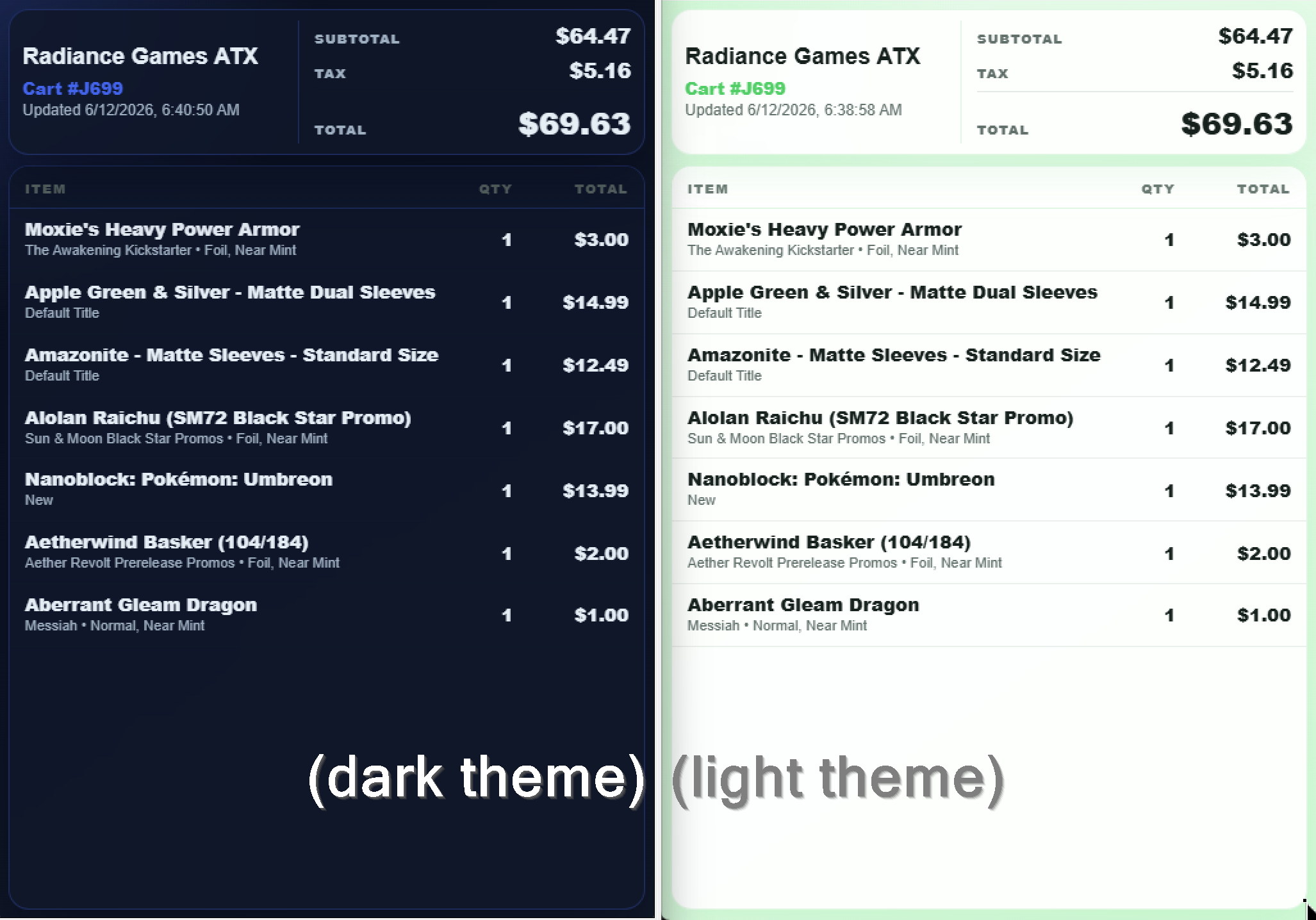
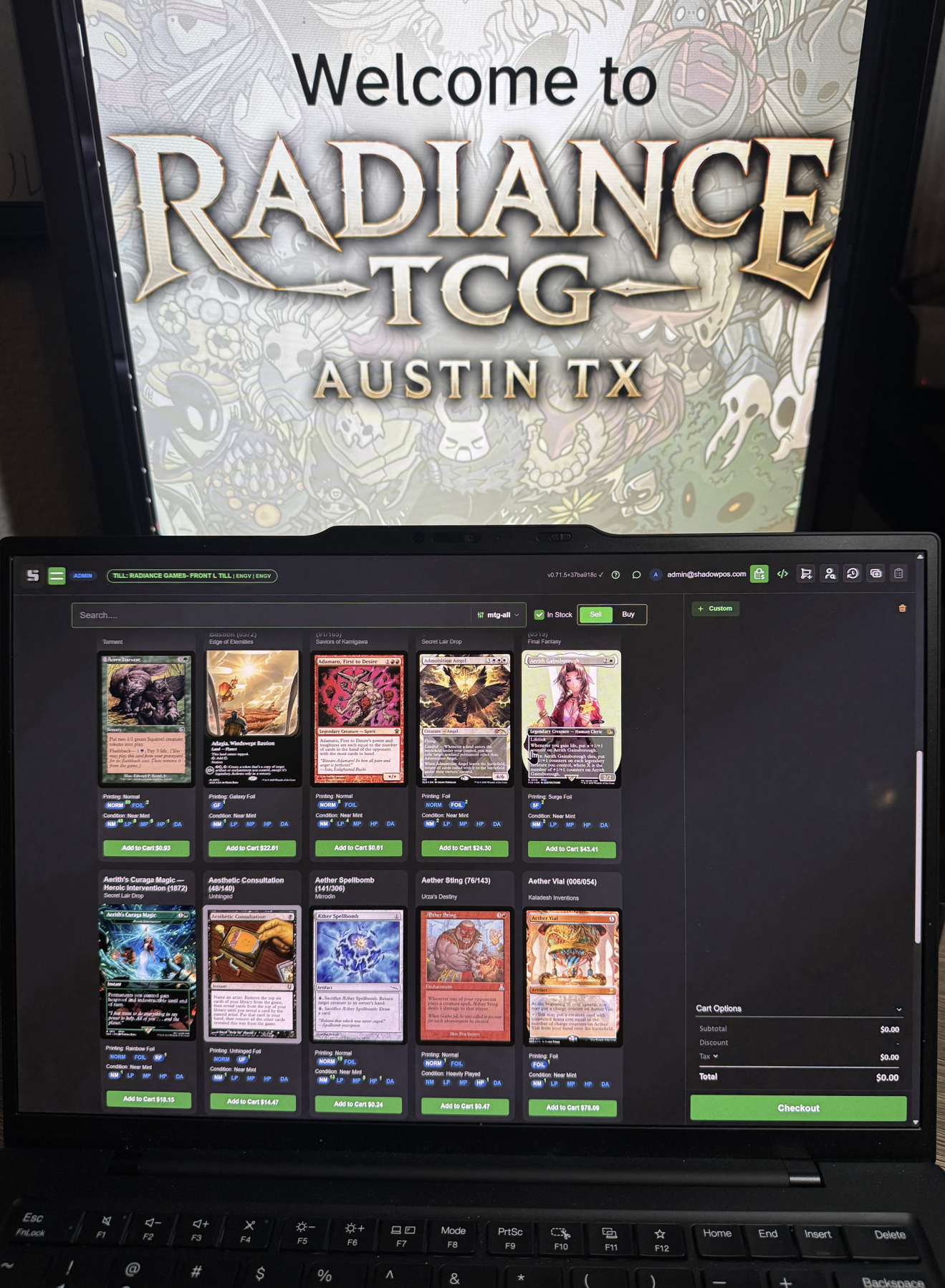
Sample displays:
default dark/light themes (vertically mounted monitors)
custom idle screen image
(tablet sized)
(16:9 monitor sized)
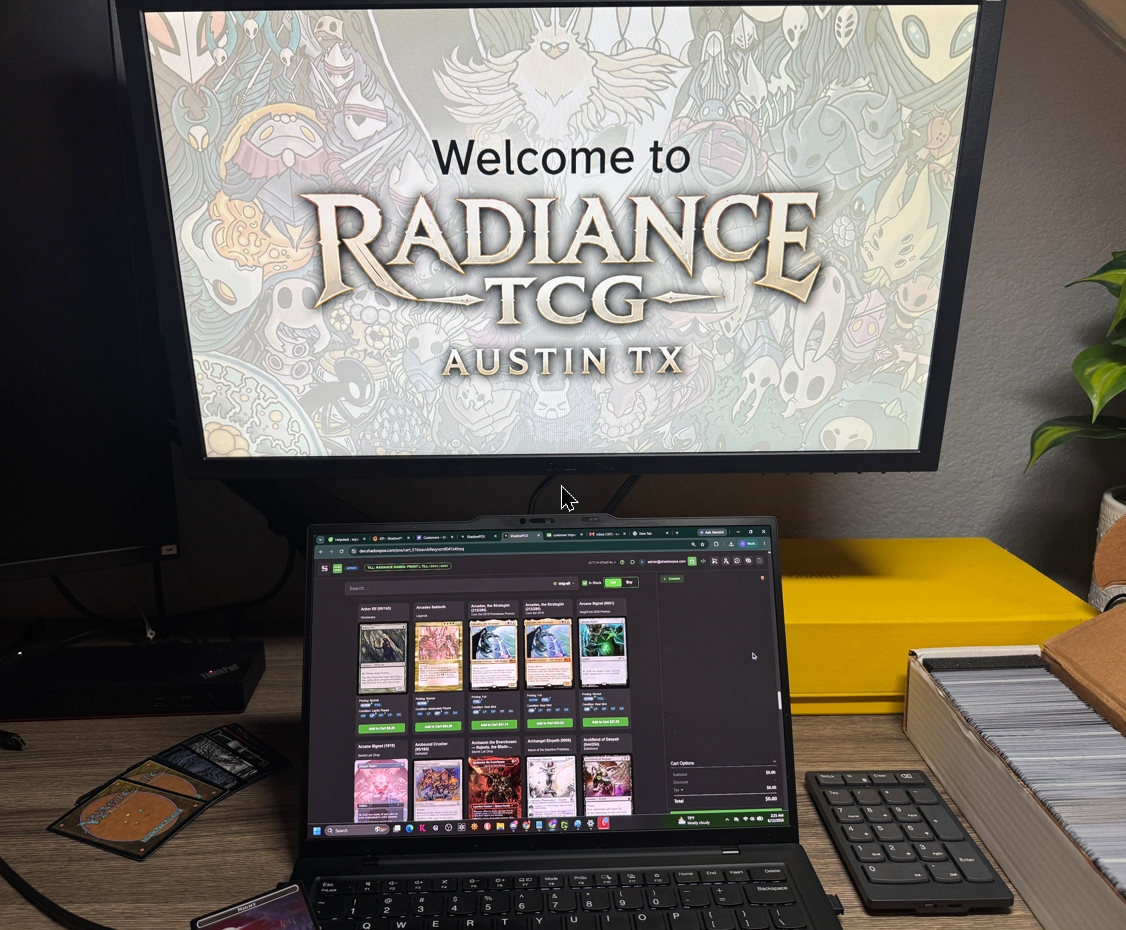
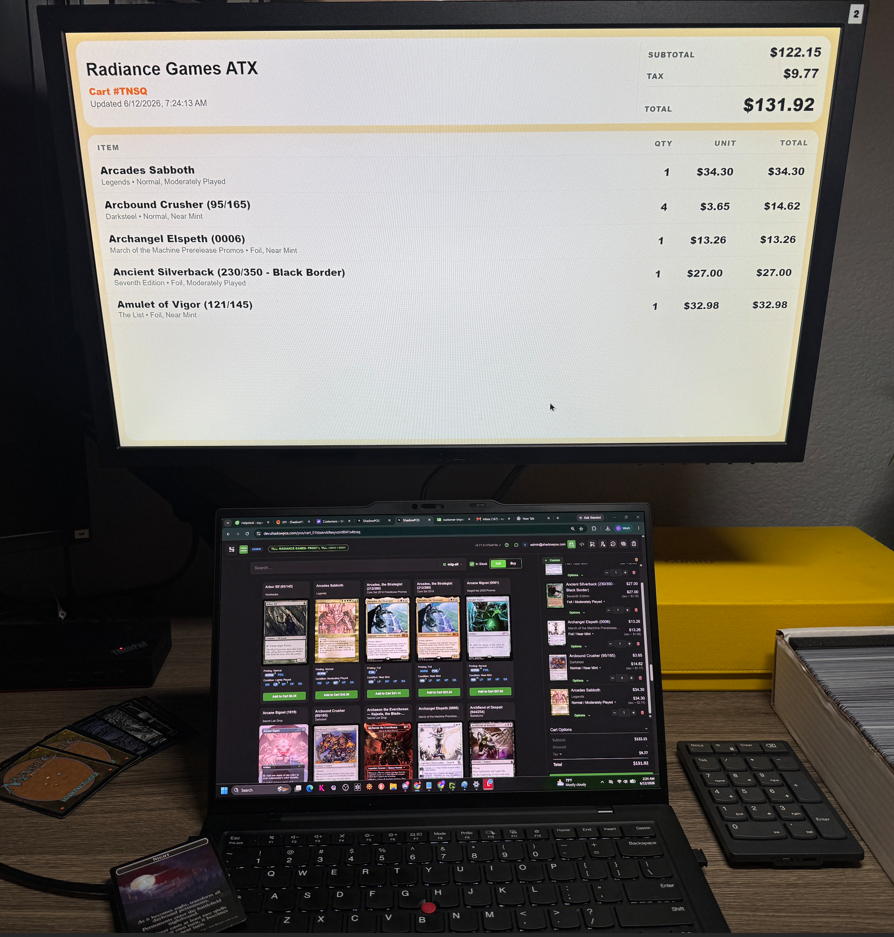
when cart items are added
Removing paired devices:
Pairing is tied to this POS browser, not the till itself. The paired display will keep following the cart until this browser's pairing token is removed or changed. If you switch browsers, clear browser storage, or reset pairings, you'll need to pair again.
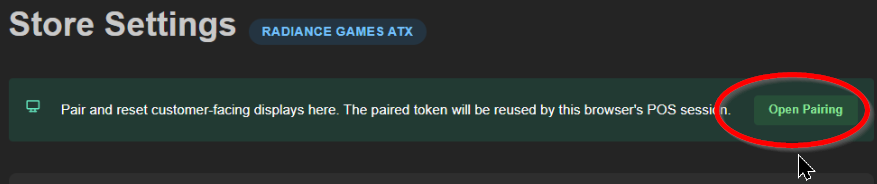
- Click the 'Open Pairing' button
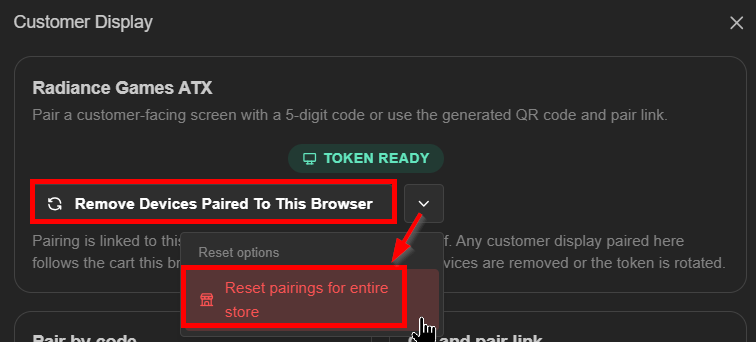
- Choose whether to remove devices paired to this browser, or to reset all pairings for the entire store
 Note: Unpairing is verified by a confirmation message in the bottom corner of the screen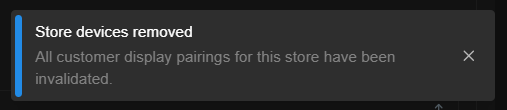
Appearance & display template overview
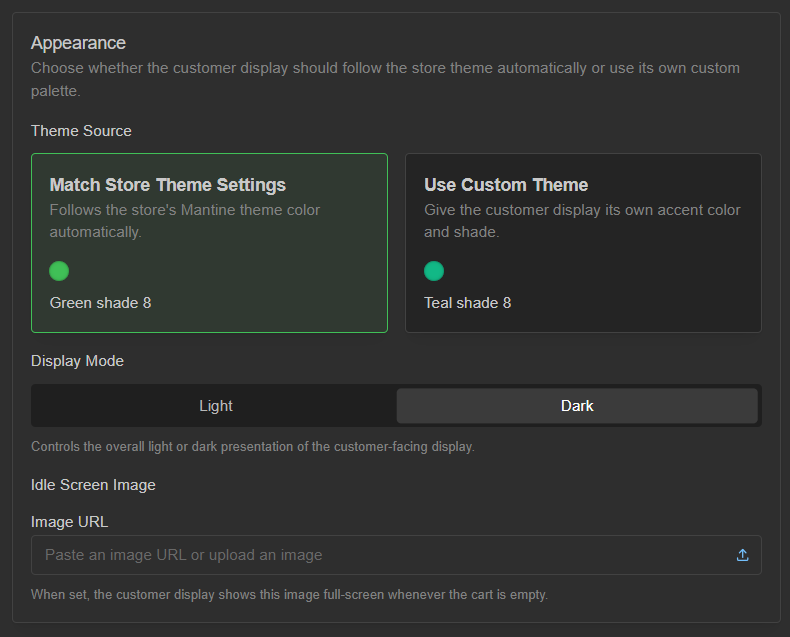
A few basic appearance tweaks are available for the customer display, including theme color, light/dark mode, and the ability to link or directly upload an idle screen image that displays when the POS cart is empty. For advanced users, you can also modify the liquid template code
basic appearance options
Liquid template
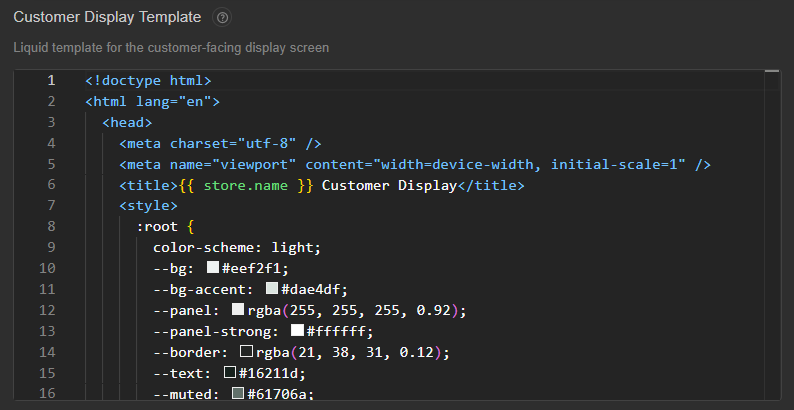
Overview of the liquid template:
The full help guide for modifying the customer display can be found near the top of the screen by clicking the question-mark icon. The following section is a brief overview of how it works

The Customer Display Template code field controls the HTML, CSS, and Liquid used to render the customer-facing screen.
The default template already supports:
- cart totals and line items
- buy, sell, and return styling
- idle state rendering
- theme colors from the display configuration
For shared Liquid syntax and the common store, cart, and display variables, see Liquid Template Variables.
If you only want to change colors or the idle image, you usually do not need to edit the template code.
Available Liquid Variables
The template editor supports Liquid templating.
Common top-level variables:
- {{ display }}
- {{ display.idleImageUrl }}
- {{ display.theme }}
- {{ store }}
- {{ cart }}
These let you render store details, cart contents, and the appearance settings saved on this page.
For a broader reference, of course, visit Liquid Template Variables.
Troubleshooting:
The customer display is blank or not updating
Check these first:
- Make sure the display device is still open to the pairing link.
- Confirm the POS browser that created the pairing still has access to its saved pairing token.
- Refresh the customer display browser tab.
- Re-open pairing from the settings page if needed.
The idle image does not appear
Make sure:
- the cart is empty
- the Idle Screen Image field contains a valid image URL
- the image is accessible from the browser on the customer-facing device
The custom template broke the layout
If the display stops rendering as expected after template edits, restore the default template and then re-apply smaller changes one step at a time.
Was this article helpful?
That’s Great!
Thank you for your feedback
Sorry! We couldn't be helpful
Thank you for your feedback
Feedback sent
We appreciate your effort and will try to fix the article