Utilize a visual rule builder to offer numerous webstore shipping options based on customer cart content at checkout. Want to set a threshold for free shipping, or provide upgraded options for high value carts? How about special options for specific product types or quantity limits for economy choices like PWE? ShadowPOS web store shipping's got you covered!
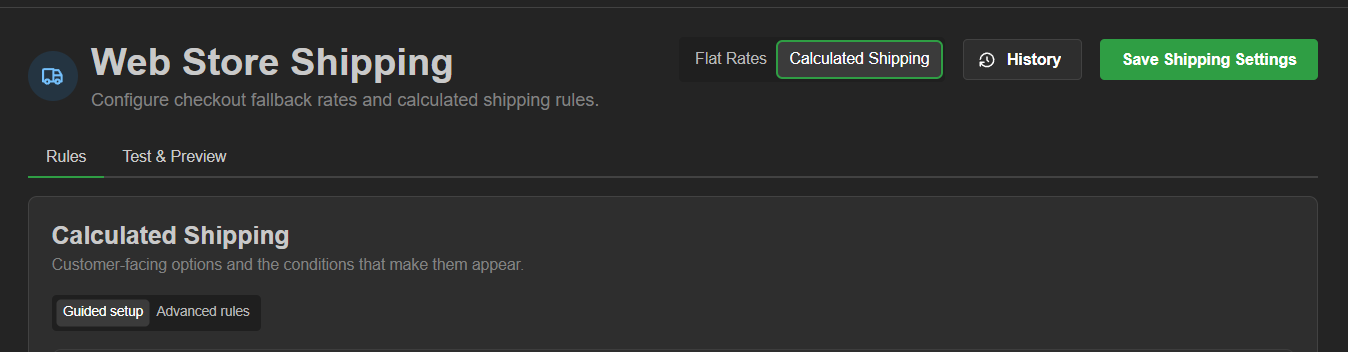
Visit Web Store > Shipping Settings
All calculated shipping options are built from this shipping rules engine. They won't appear associated with any products in the webstore until a customer reaches the 'Delivery Method' page at checkout. All primary options are displayed in the default 'Guided setup' tab, and should cover your basic shipping needs.
We'll cover:
- Standard 'guided' setup
- Rule test & preview
- Advanced rules
- Building a custom shipping option (example)
Standard 'Guided setup'
Let's go over the 5 default options:
- Free Shipping
- Plain White Envelope
- Tracked Shipping
- Carrier Calculated
- Fallback Shipping (the 'safety net')
Free Shipping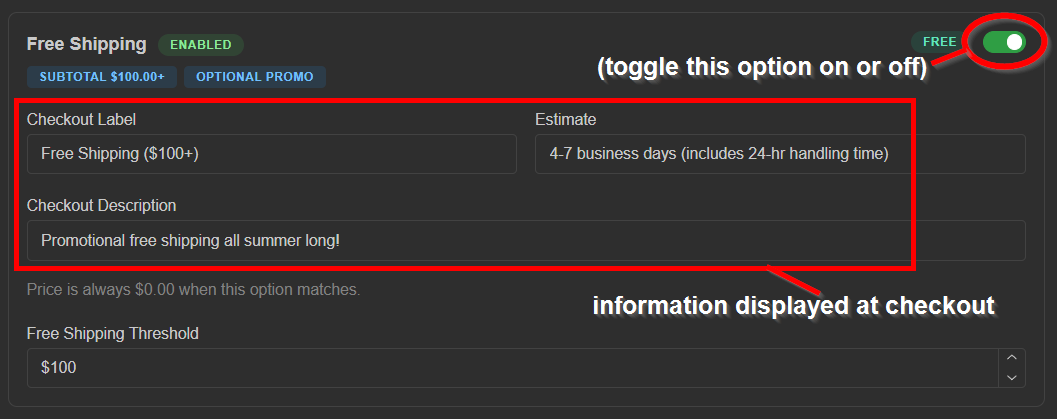 Free shipping is as simple as it gets. Once you set your cart value threshold amount, this option will be available to customers at checkout
webstore view: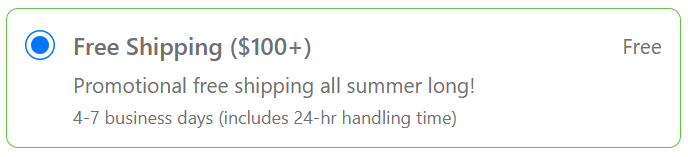
Plain White Envelope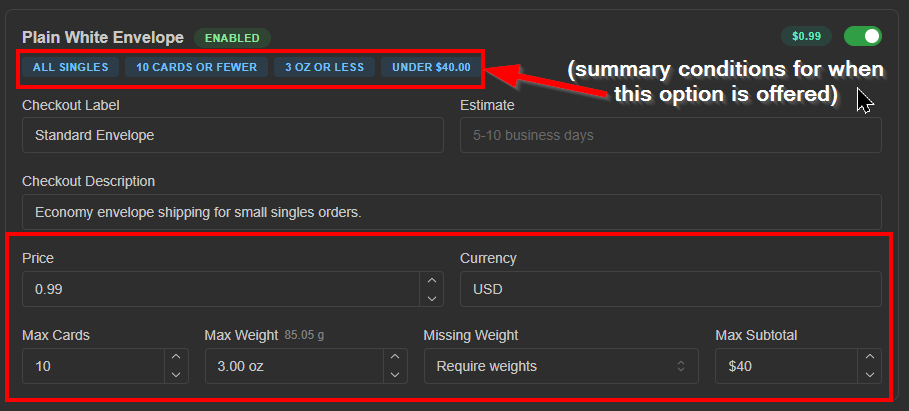 Conditions for PWE:
Price: Specify in USD
Max Cards: Defaults to 10 singles
Max weight: Specify in ounces. A calculation in grams is conveniently displayed in the field header.
Missing Weight: Weight is always required for PWE products
Max Subtotal: this option is only available for carts under this amount
Every store treats PWE differently. Just make sure your conditions at the bottom match your policies and this options good to go.
webstore view: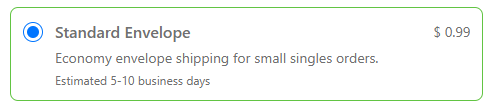
Tracked Shipping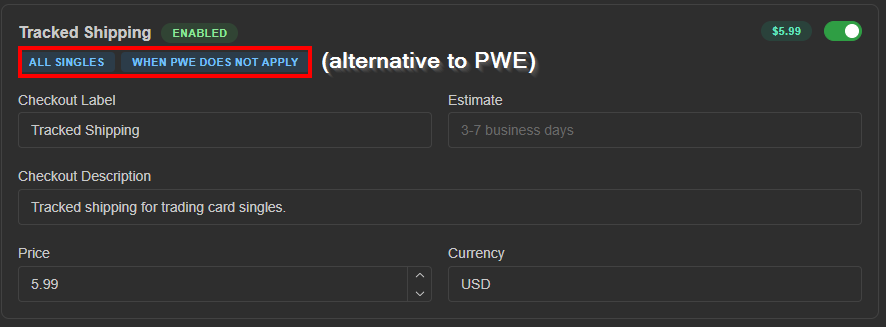 When the threshold is exceeded for mailing via plain white envelope, tracked shipping takes care of most other singles' orders. The conditions are baked into this option, so just choose your price for this option and you're set
webstore view: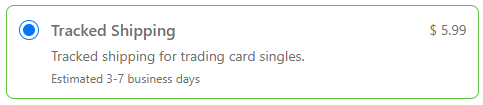
Carrier Calculated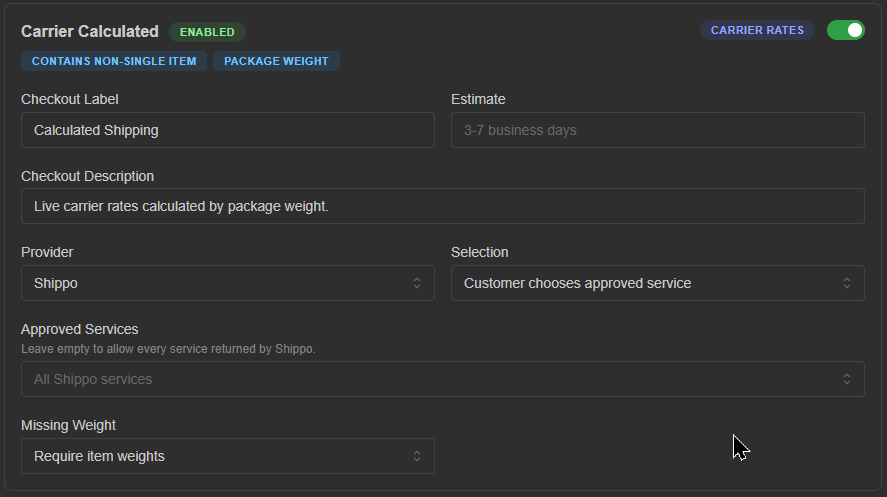 Conditions for Carrier Calculated:
Provider: Choose the integrated shipping service (currently Shippo only)
Selection: 2 options
-Customer chooses approved service (default)
-Auto-select cheapest approved service
Approved Services: All Shippo services are offered by default. If needed, select only the ones you approve
Missing Weight: 2 options
-Require item weights
-Count missing as 0 oz
webstore view: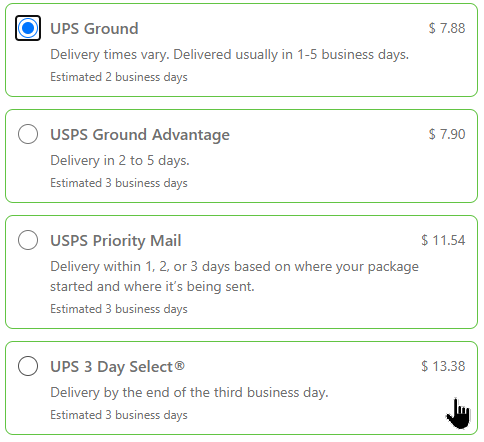
Fallback Shipping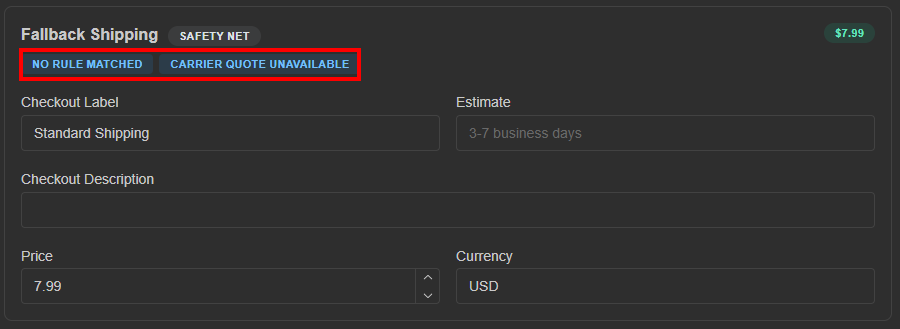 Just as the name implies, this choice is only offered in circumstances where a customer's cart doesn't meet the criteria of any condition from other shipping option rules.
webstore view:
That's the gist of your five default options should cover your shipping needs.
Next, let's test and preview a couple of these options!
Rules test & preview
Conveniently test your shipping options' rules with actual product:
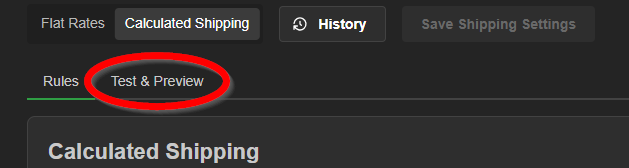
- Click the 'Test & Preview' toggle at the top of the page
- Observe the default example. Based on these two products, we're pulling the fallback shipping option
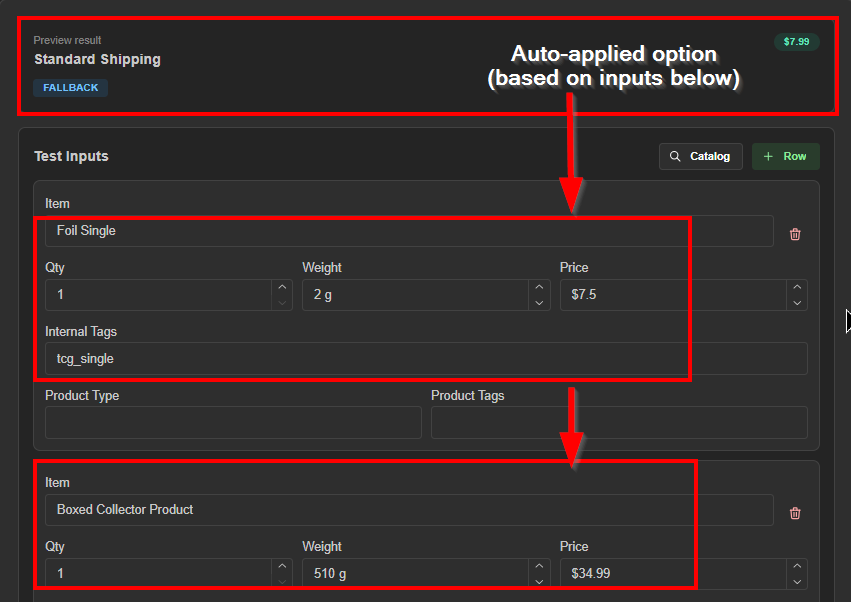
- Make a few tweaks; add or remove an item to see an updated preview result
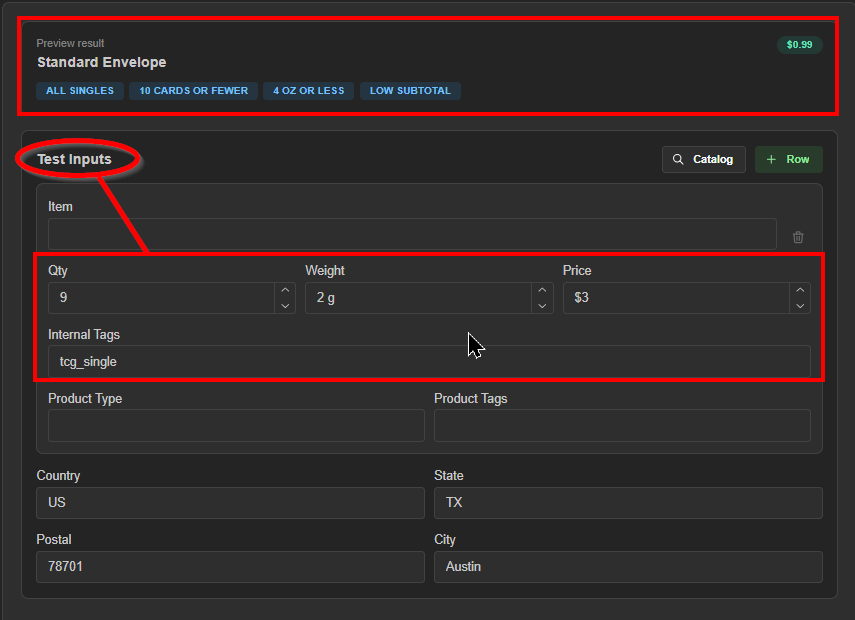 Based on this simulated cart, 9 singles at 18 total grams and $3/piece falls right within the requirements for our PWE rule
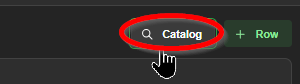
 - Let's search for a product in inventory by clicking the 'Catalog' search button
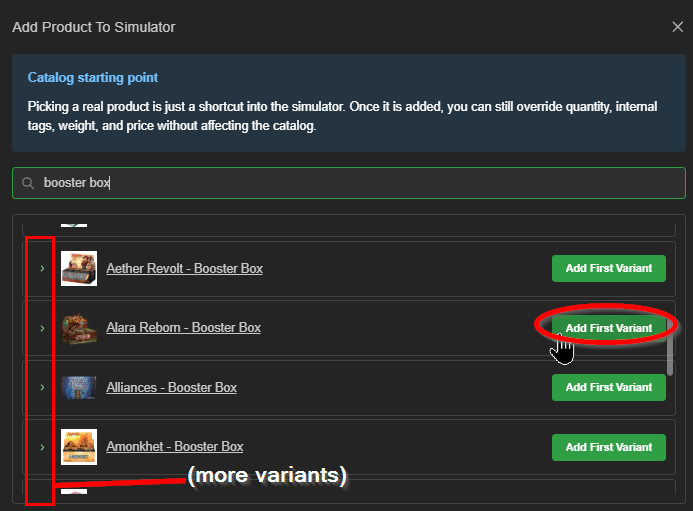
- Choose a product and add it to the preview list
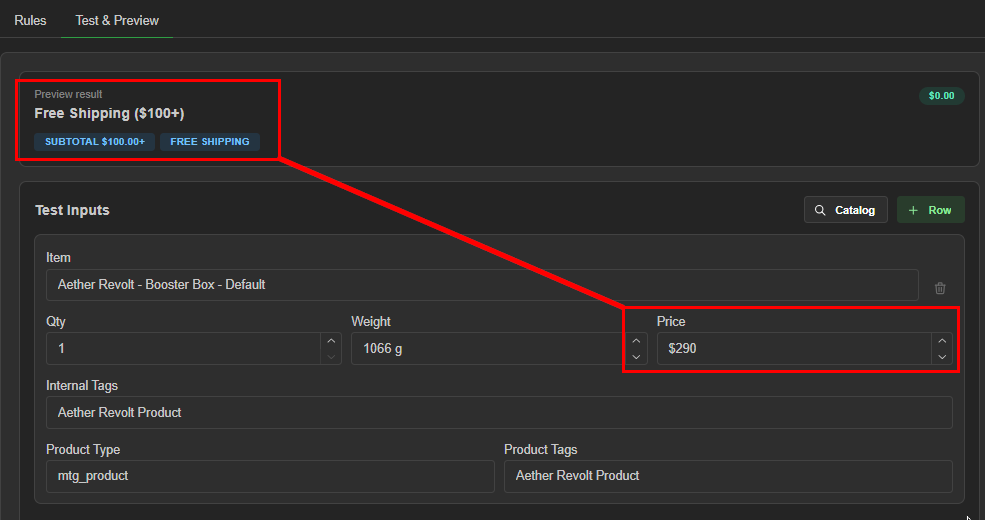 Add more products to the preview build anytime by clicking the '+ Row' button,
 or toggle back to the main page by toggling the 'Rules' tab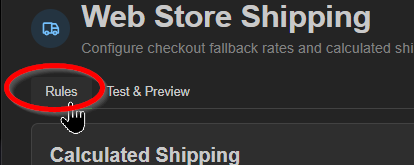
Advanced rules
The visual shipping rule builder allows you pinpoint and expand conditions that drive your shipping options. This works as an override to the guided setup tab, and enables you to take advantage of multiple condition criteria in a similar fashion as using the advanced product rules manager
Let's look at the bare elements of a shipping option. Toggle from 'Guided setup' to 'Advanced rules'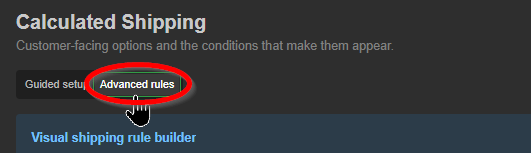
Before we create a custom shipping option, let's take a look at how the default Plain White Envelope shipping template was made.
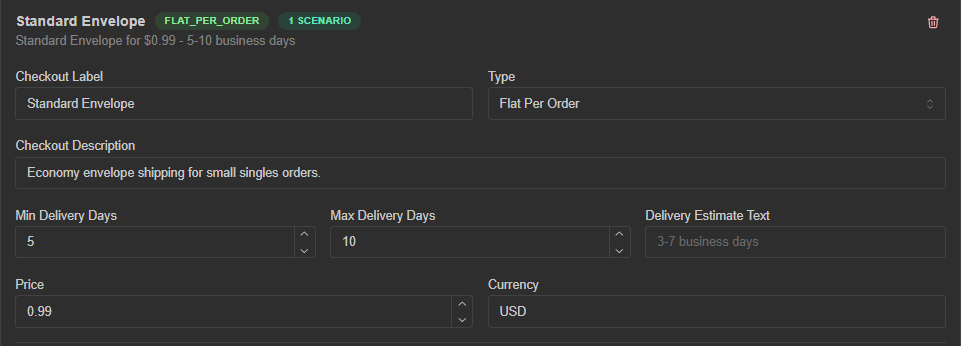 the top portion appears the same as in the guided setup, but below we can see the condition elements that drive the option:
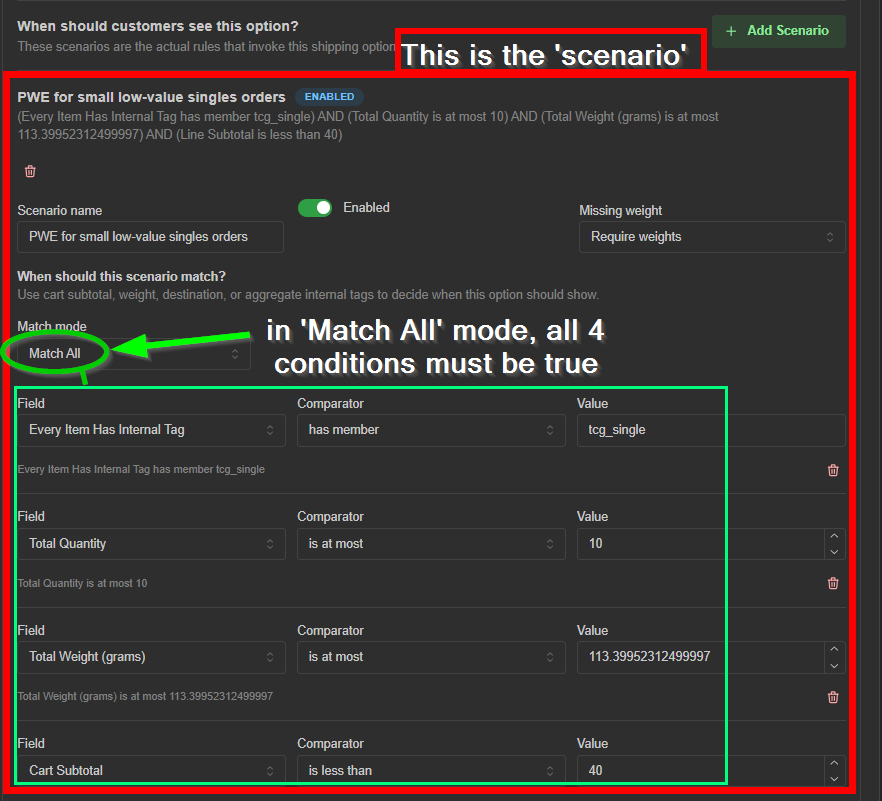 This shipping option is driven by a single 'Match All' scenario that includes four main conditions.
These, along with the above 'Missing weight' factor, define this 'Standard envlope' shipping option.
Building a custom shipping option (example):
- Toggle over to 'Advance rules' and choose a starting template type
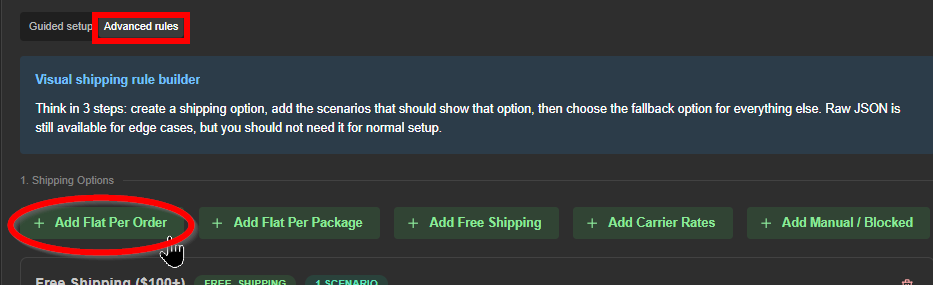 New rules will populate toward the bottom of the page.
Don't worry if you chose the wrong type initially; it can be changed anytime.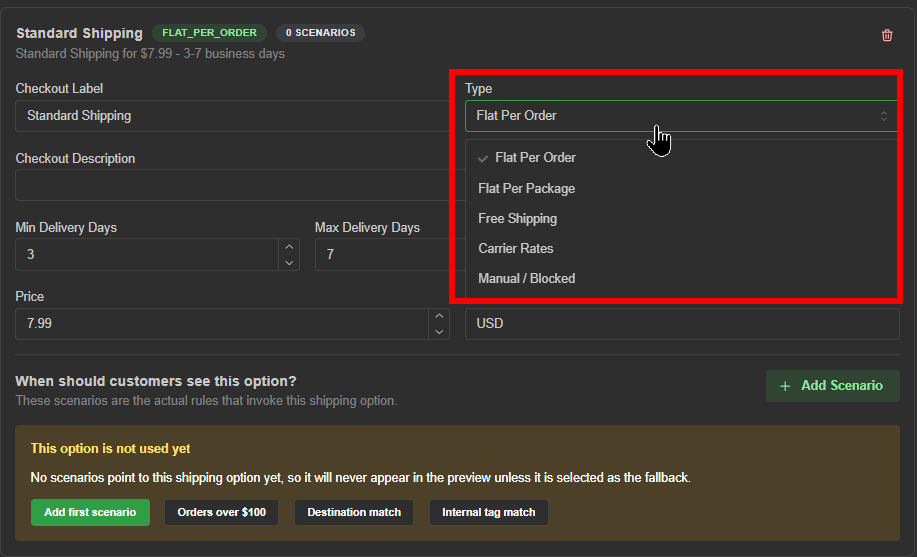
- Fill out the basic customer facing information, then click the 'Add first scenario' button
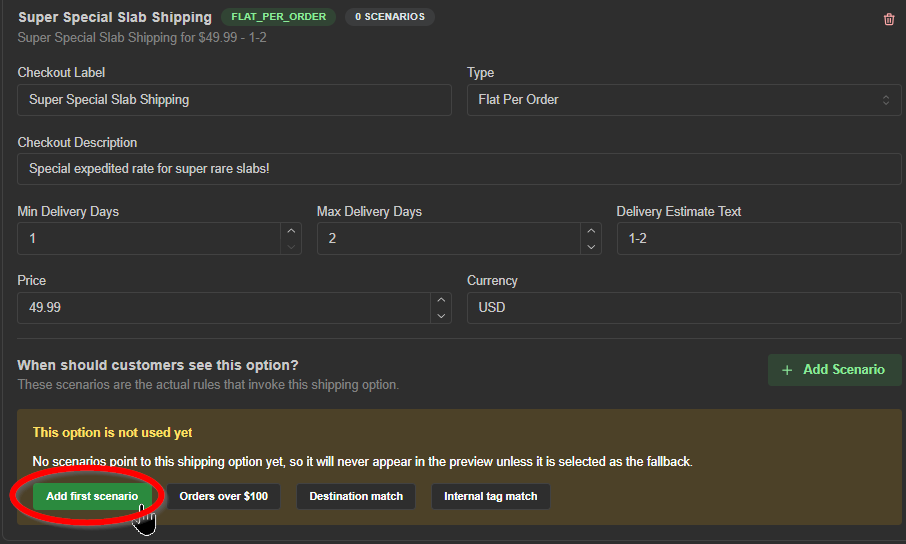
- Choose a match mode
When matched, this shipping options will be offered in checkout. Options include:
-'Always Match' - This option is always offered (no conditions)
-'Single Condition' - One field/comparator/value condition must be set
-'Match All' - Multiple field/comparator/value conditions may be set; all must agree
-'Match Any' - Multiple field/comparator/value conditions may be set; any may agree
-'Exclude If' - This shipping option won't be offered if this condition is met
For this example, we'll offer a special shipping option for specific high value items only - Add applicable fields utilizing the 'Match All' mode.
We want to avoid doing too much in one scenario, so our first scenario will be completely price dependent.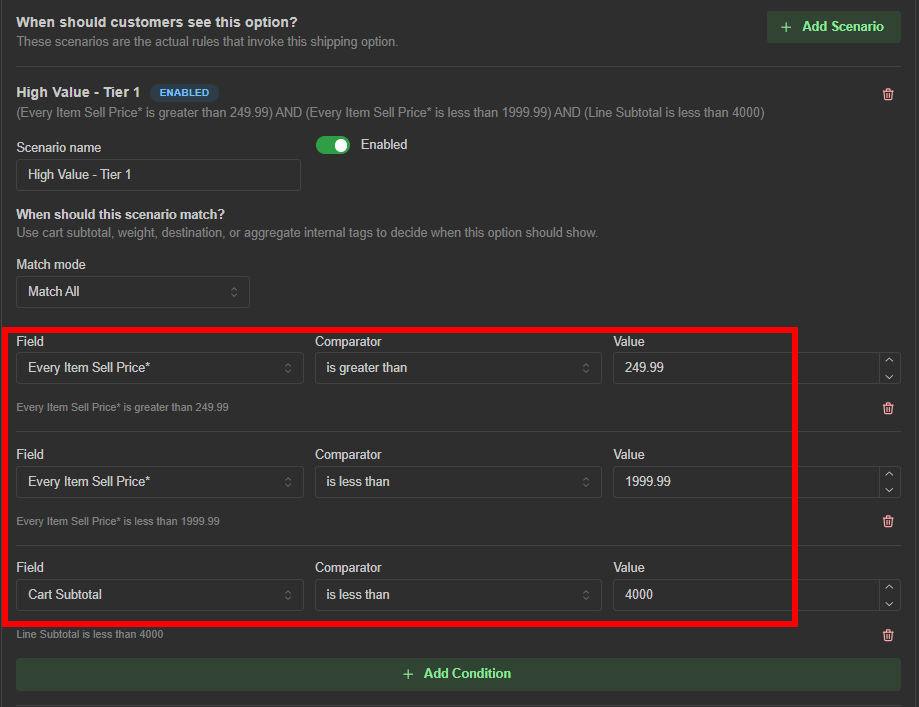 We've added three conditions that read like:
"As long as every item in the cart is priced between $250-2000, and the cart's subtotal stays under $4000, This is considered a 'high value - tier 1' scenario"
a closer look:
Each field offers many factors to choose from.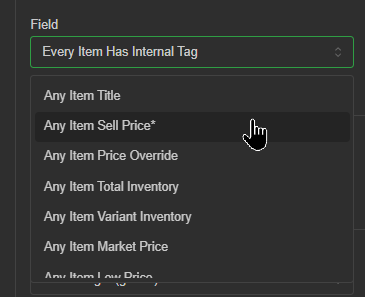 Depending on the chosen field, your 'Comparator' choices may differ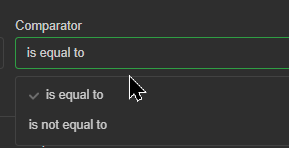
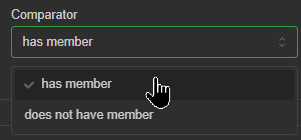
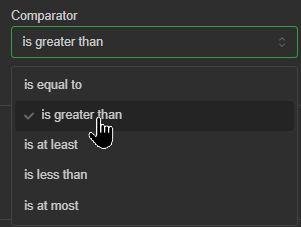
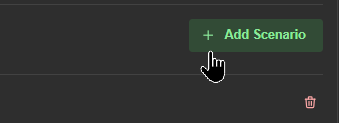
- Add another scenario for a single match condition
 This scenario will simply be product type dependent, so we'll restrict this by a single condition for 'Graded Slabs',
 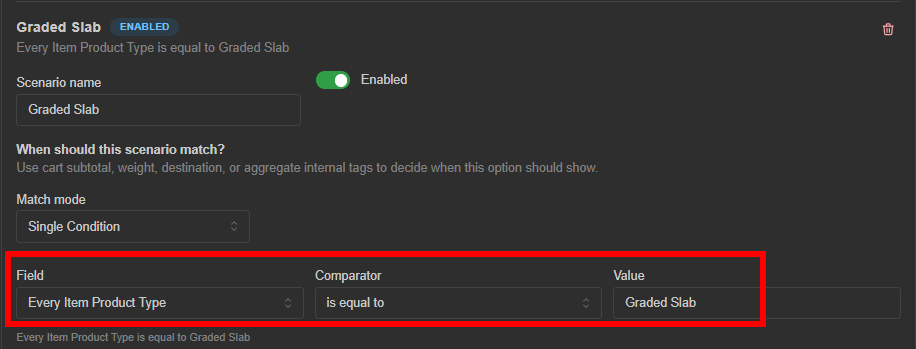 A simple field that reads as: "If every item's product type is 'Graded Slab', this is considered a 'Graded Slab' scenario"
That's it! These are the only two product scenarios we need for this option.
Tip:
Be sure to test and preview your shipping options to ensure they work properly!
at a glance: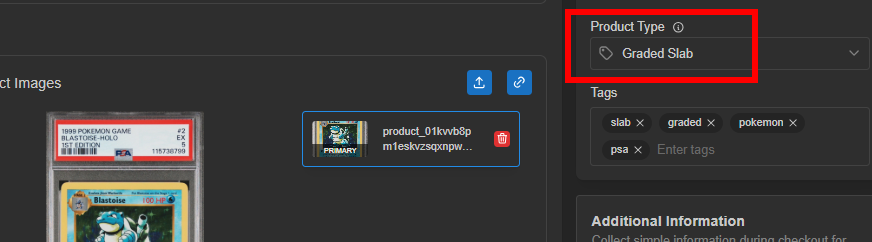 product reference in HQ
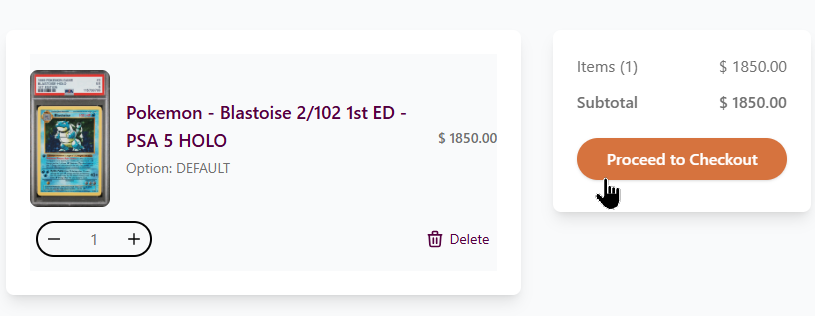 checkout page in webstore
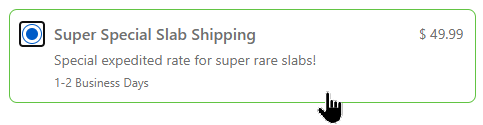 shipping option criteria met!
Was this article helpful?
That’s Great!
Thank you for your feedback
Sorry! We couldn't be helpful
Thank you for your feedback
Feedback sent
We appreciate your effort and will try to fix the article