Configure how sales tax is applied across your store here.
at a glance
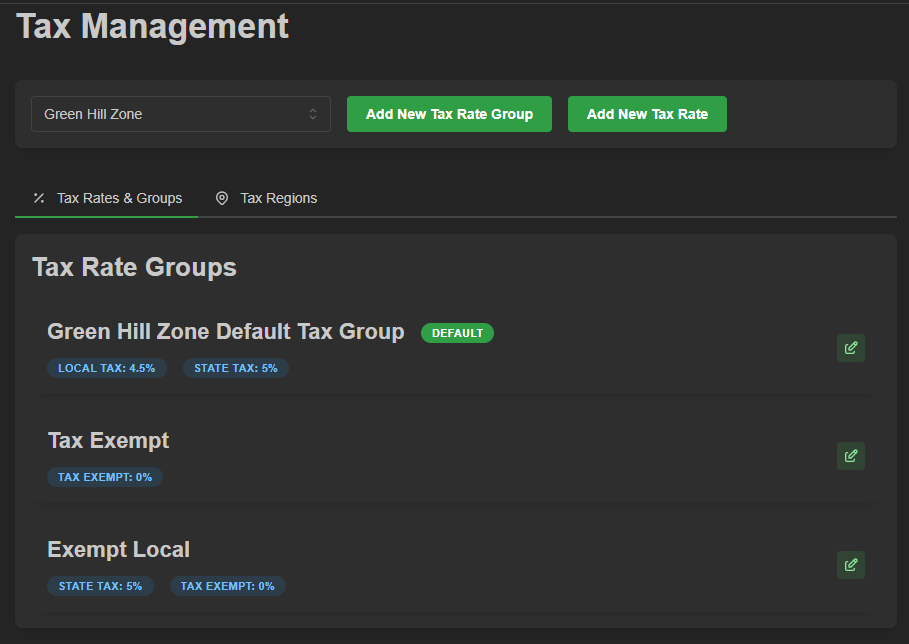
Visit Settings > Taxes
We'll review the following:
- Adding a tax rate
- Adding a tax rate group
- Enabling tax regions
- Tax region lookup tool
Adding a tax rate:
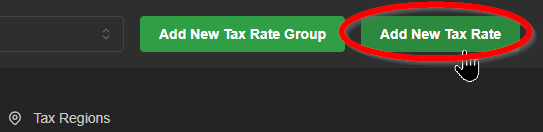
- Click the 'Add New Tax Rate' button
- Give the tax rate an intuitive name
- Define the tax rate percentage with whole numbers and decimal only
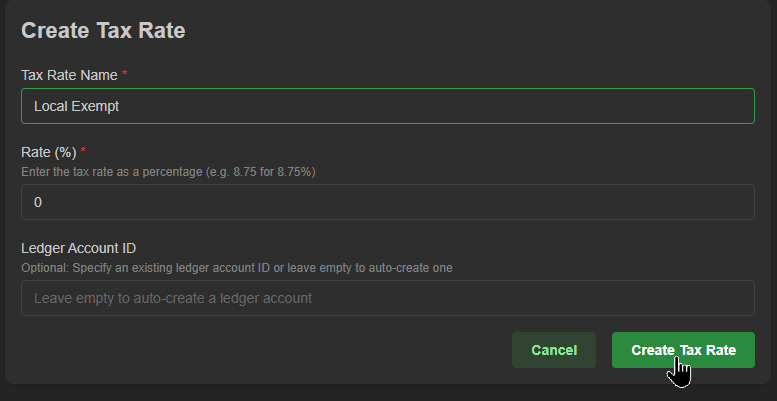
- Click 'Create Tax Rate' to save
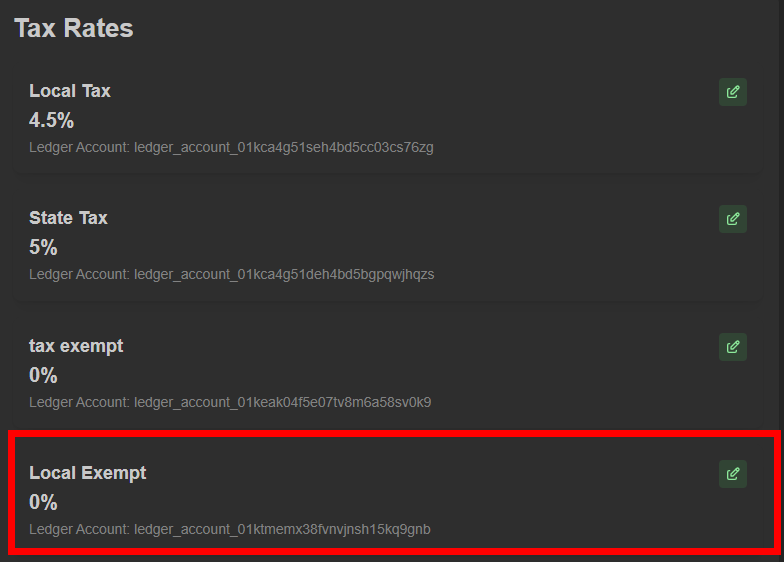 The tax rate is now available for assignment
Adding a tax rate group:
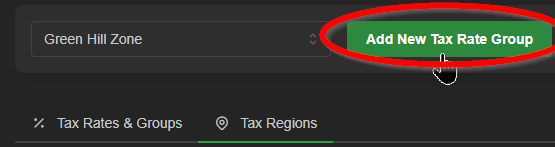
- Click the 'Add New Tax Rate Group' button
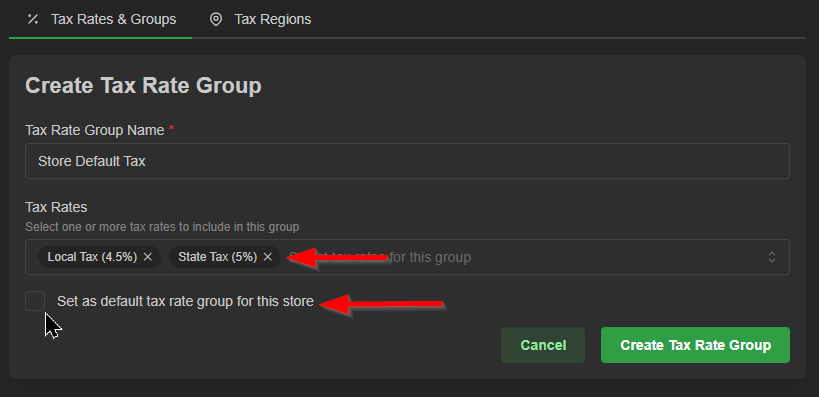
- Give the group an intuitive name, and choose which tax rates define the group
- If this is your store's default tax rate group, be sure to check the box below
- Click 'Create Tax Group' to save this group
 Note the 'DEFAULT' label.
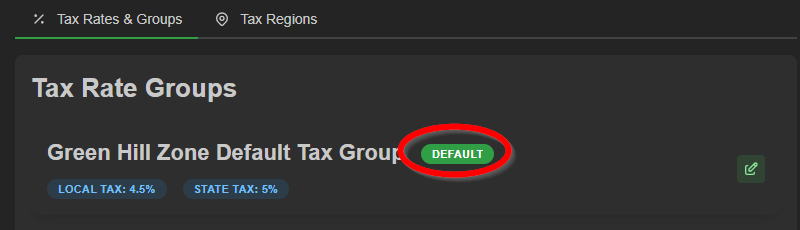 Important: Newly added product will be assigned the default tax group.
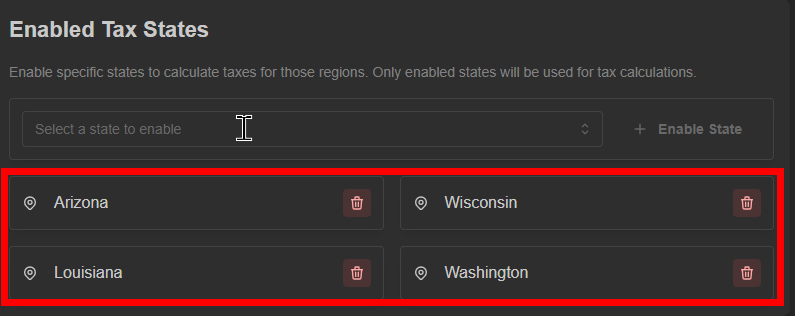
Enabling tax regions:
- Click the 'Tax Regions' tab
- Search or choose a state from the dropdown menu
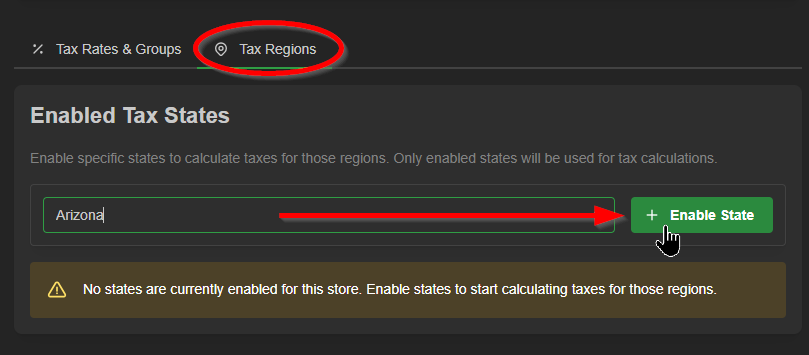
Click the '+ Enable State' button to enable sales tax will collection from this region
Confirm or delete regions anytime from this page
Tax region lookup tool:
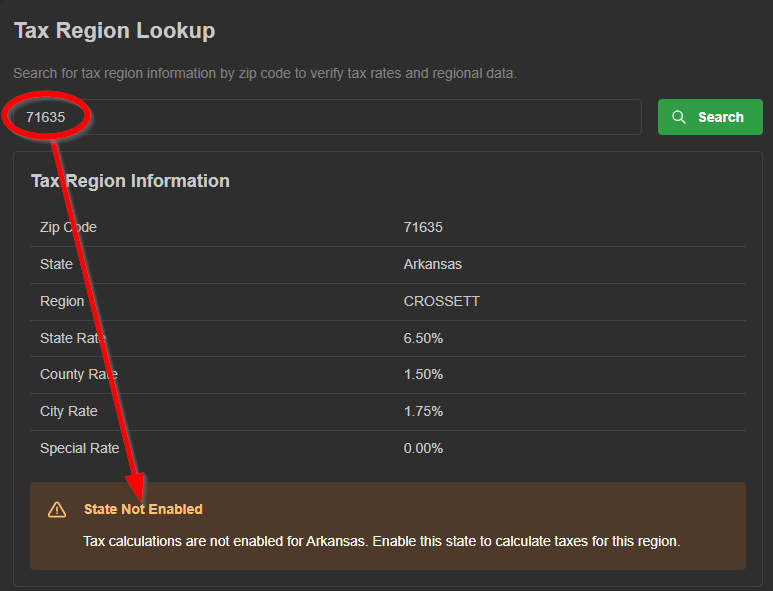
Simply search a region by zip code to verify rates and regional data
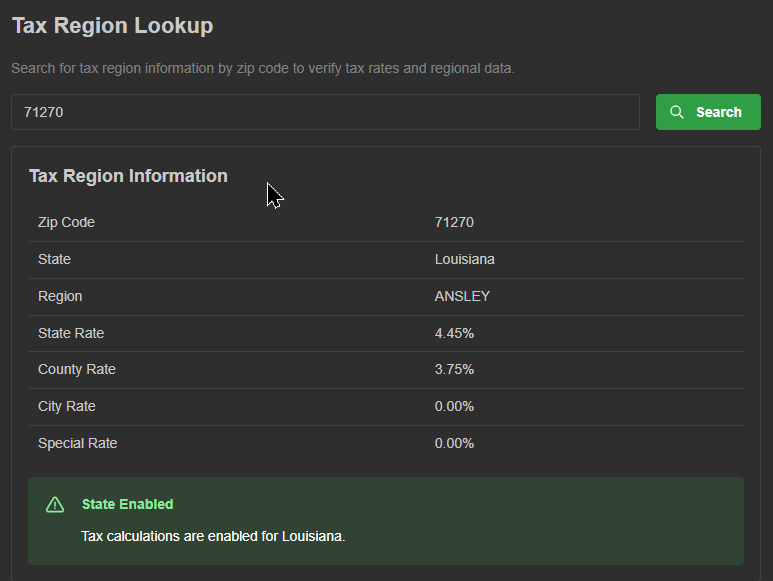 A convenient reminder displays if state is enabled for sales tax collection
Was this article helpful?
That’s Great!
Thank you for your feedback
Sorry! We couldn't be helpful
Thank you for your feedback
Feedback sent
We appreciate your effort and will try to fix the article