Enabling kiosk mode
Kiosk mode transforms configured devices into customer-friendly order submission terminals. It can enhance the customer experience by empowering shoppers to browse inventory, check prices, and submit orders on their own. ShadowPOS offers the ability to activate kiosk mode on one or multiple devices by using special keys to alter the webstore checkout process for specified machines.
Visit Web Store > Website Editor > Settings > Kiosk Settings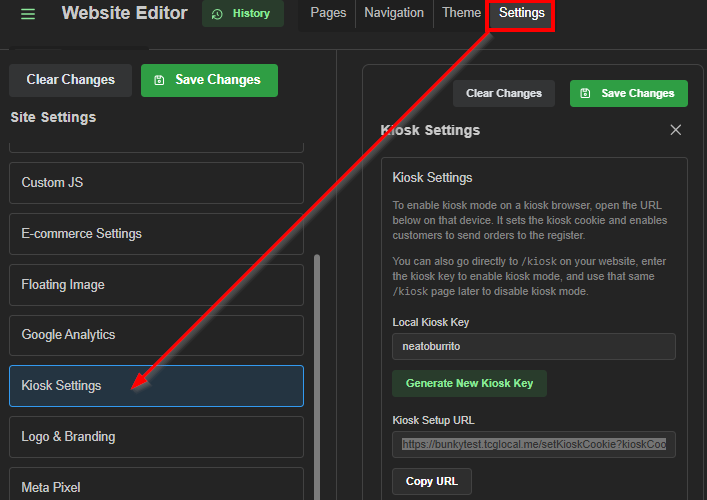
Kiosk options:
- Disable tenders (toggle) - When enabled, the payment section will be hidden on the checkout page for kiosk users
- Require name at checkout (toggle) - When enabled, customers must enter their name before submitting a kiosk order
- Confirmation Redirect - After a kiosk pickup order is submitted, redirect the confirmation page to a specific URL
- Confirmation Message - Customizable info or instructions shown in the 'Submit for pickup' modal during checkout
Two methods of activating a kiosk:
A) Kiosk key (manual)
B) URL (auto-set)
A) Setting up manually via kiosk key:
1) Enter a unique string of characters into the Local Kiosk Key field, or click 'Generate New Kiosk Key'
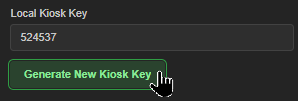
2) Visit yourwebstore.address/kiosk on the designated kiosk device(s) 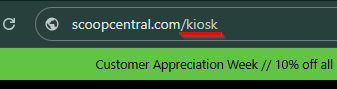 3) Enter the kiosk key, and click 'Enable Kiosk Mode'.
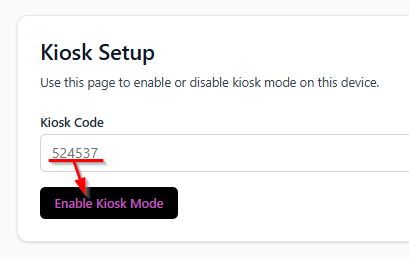 4) Return to your webstore; kiosk mode is active
5) Visit the */kiosk page anytime to confirm kiosk status or deactivate kiosk mode
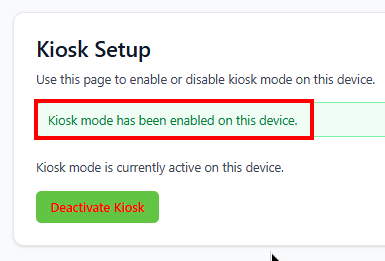
Attention: If you generate a new kiosk key, you'll need to reset any active kiosks
B) Setting up automatically via URL:
1) Copy the provided Kiosk Setup URL
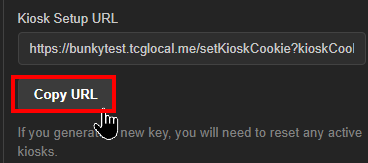 2) Paste (Ctrl+v or Cmd+v) the copied address into the address bar on the desired system's web browser)
 3) Return to your webstore; kiosk mode is active
4) Visit the */kiosk page anytime to confirm kiosk status or deactivate kiosk mode
Helpful info regarding kiosk setup:
- The same store kiosk key can activate multiple devices and browsers simultaneously. Activating another browser doesn’t kick existing ones out.
- Each browser needs its own activation at /kiosk on the storefront’s domain.
- Browser kiosk cookies lasts 30 day
- Clearing a kiosk browser's cookies requires kiosk reactivation
- Changing the store’s key invalidates every browser using the old one.
- When kiosk settings are modified, once saved, they will apply to every activated kiosk; no need to re-enter the key. But they aren’t pushed live into an already-open checkout; in this case, it's advised to refresh or reopen checkout on each device.
Was this article helpful?
That’s Great!
Thank you for your feedback
Sorry! We couldn't be helpful
Thank you for your feedback
Feedback sent
We appreciate your effort and will try to fix the article