As part of your store's management team, you can assign employees PINs for frequently shared devices. The ShadowPOS PIN system minimizes the guesswork by ensuring each team member's actions are appropriately logged at various stages of the checkout process. Each predesignated PIN device will prompt users in-line with security policies set on this page
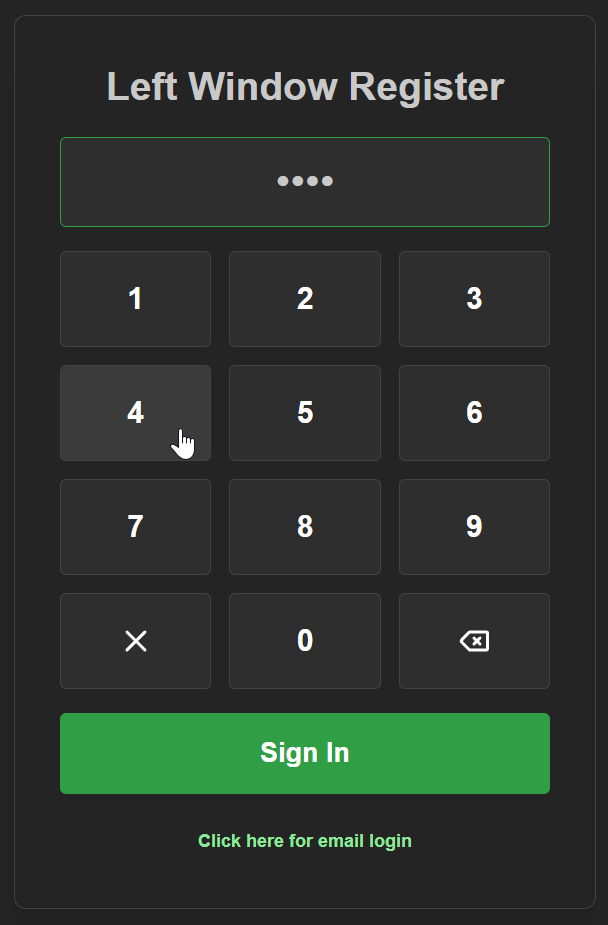
Visit Settings > Employee PINS
When the Employee PIN system is activated on a device, all store members will be required to authenticate their identity to proceed with certain actions until the system is deactivated or the device being used is revoked.
Permissions required: USER_EDIT
at a glance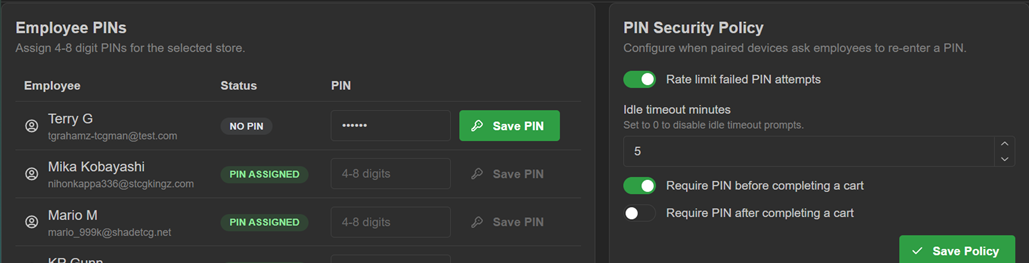
Configuring a device to use Employee PINS:
- Toggle the desired PIN Security Policy options and click 'Save Policy' to update the system immediately
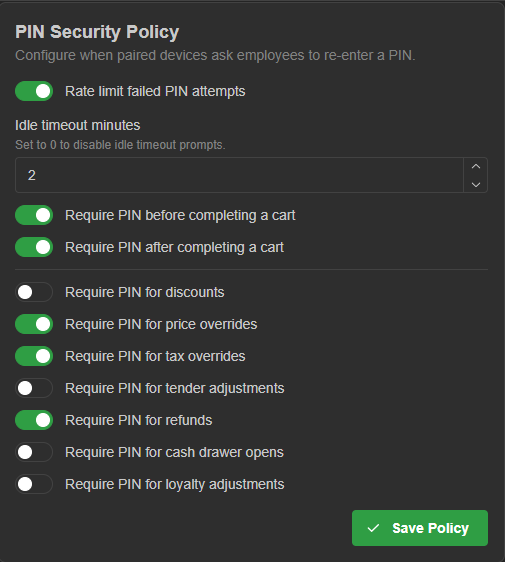 Note; on rate limiting: when toggled on, a cumulative 5-second cooldown timer will be applied to each failed login past the third attempt
Note; on idle timeout: a value of 0 disables the timeout PIN prompt. Values translate to minutes - In the 'Trusted Devices' section, name the current device this session is logged in on, and click '+ Pair This Device' button. Employee pins and security policy are storewide settings, but the devices aren't; they must be paired via that device
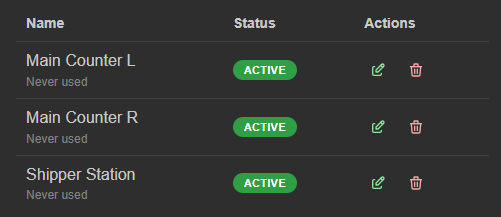
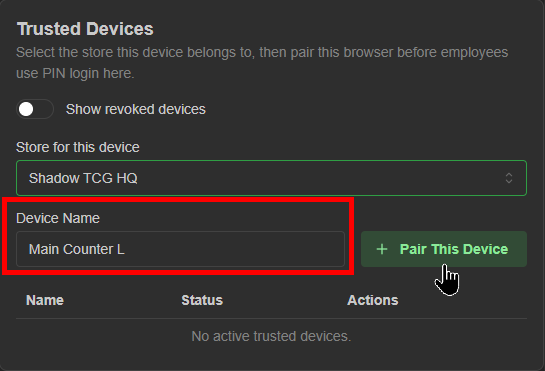 all active authorized PIN devices can be seen by default directly below.
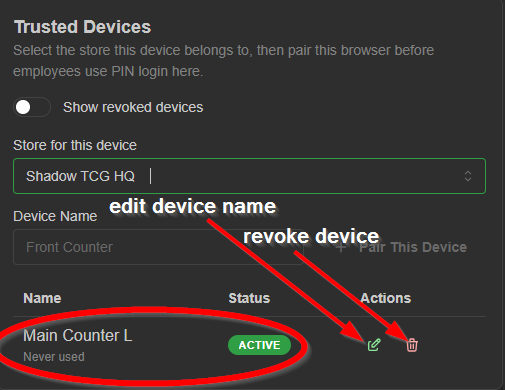
 Hint: To edit or revoke a device from utilizing the PIN system, click one of the corresponding action icons
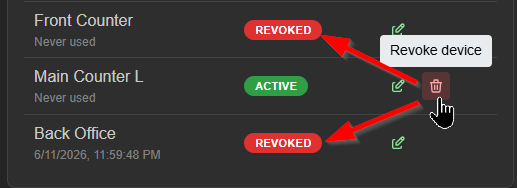
 Hint: Revoked devices can also be seen by toggling 'Show revoked devices'
 Hint: Revoked PIN devices will display the appropriate status on the next login attempt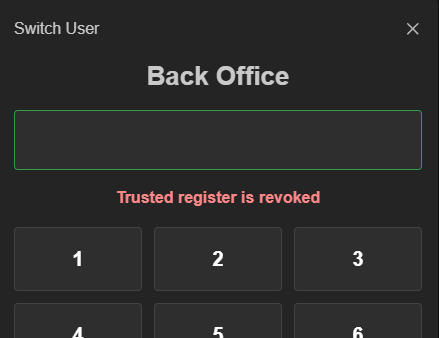
- Set a numerical PIN code and click 'Save PIN' for each employee you want to grant PIN access to.
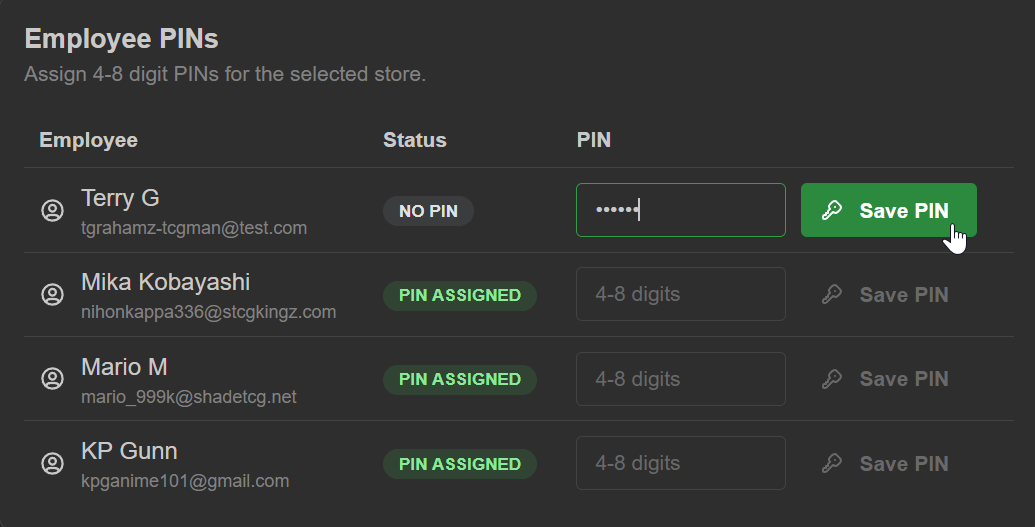 Note: Team members not using the PIN system will be required to log in via their ShadowPOS email/password alternative when a PIN device prompts them.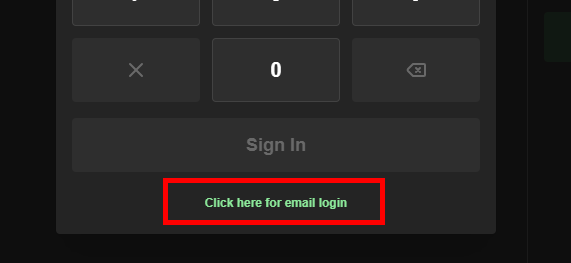
Your device is configured for use!
Visit Settings > Employee PINS anytime to update your polices, change PINs, or modify the device.
Was this article helpful?
That’s Great!
Thank you for your feedback
Sorry! We couldn't be helpful
Thank you for your feedback
Feedback sent
We appreciate your effort and will try to fix the article